.png)
1. Main Centers Creation Overview
1.1 Dashboard
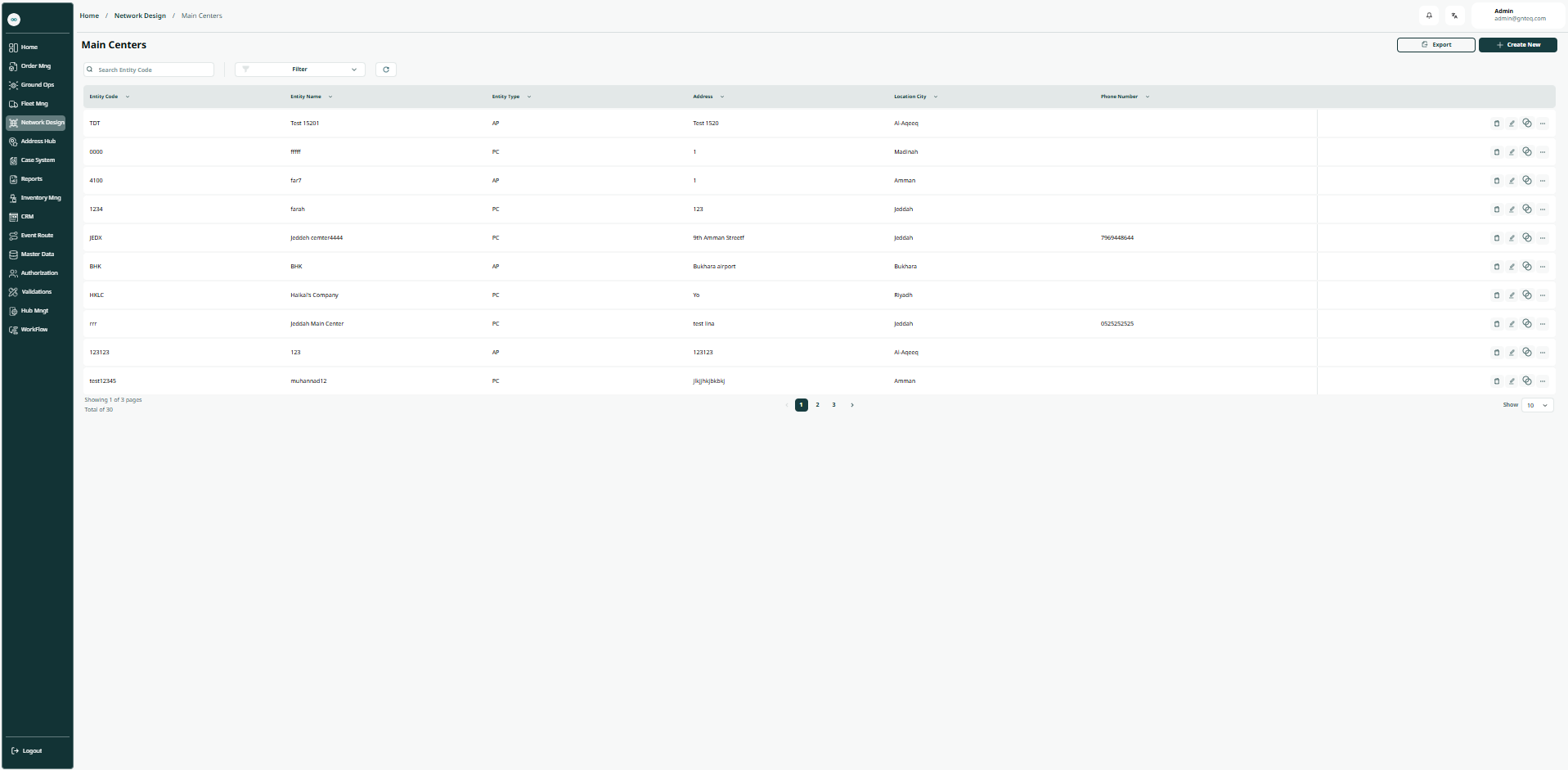
The user can view the defined main center in the system by navigating to the ‘Main Centers’ screen in the Network Design Module from the left navigation panel as follows:
-
New main Center: the user can add a new main center by clicking on Create New.
-
Export: the user can export list of regions an Excel file by selecting export button.
-
Filters: the user can search for the main center by the address, location city, phone number….etc.
-
Search: the user can search for main center by entering the entity code.
-
Rows Per Page: the user can select the number of items to show on each page.
-
Actions: by clicking on Actions, the user can edit the main center by going to the edit main center section, or delete the main center, or add covered cities, view summary of the main center.
1.1.1 Covered Cities
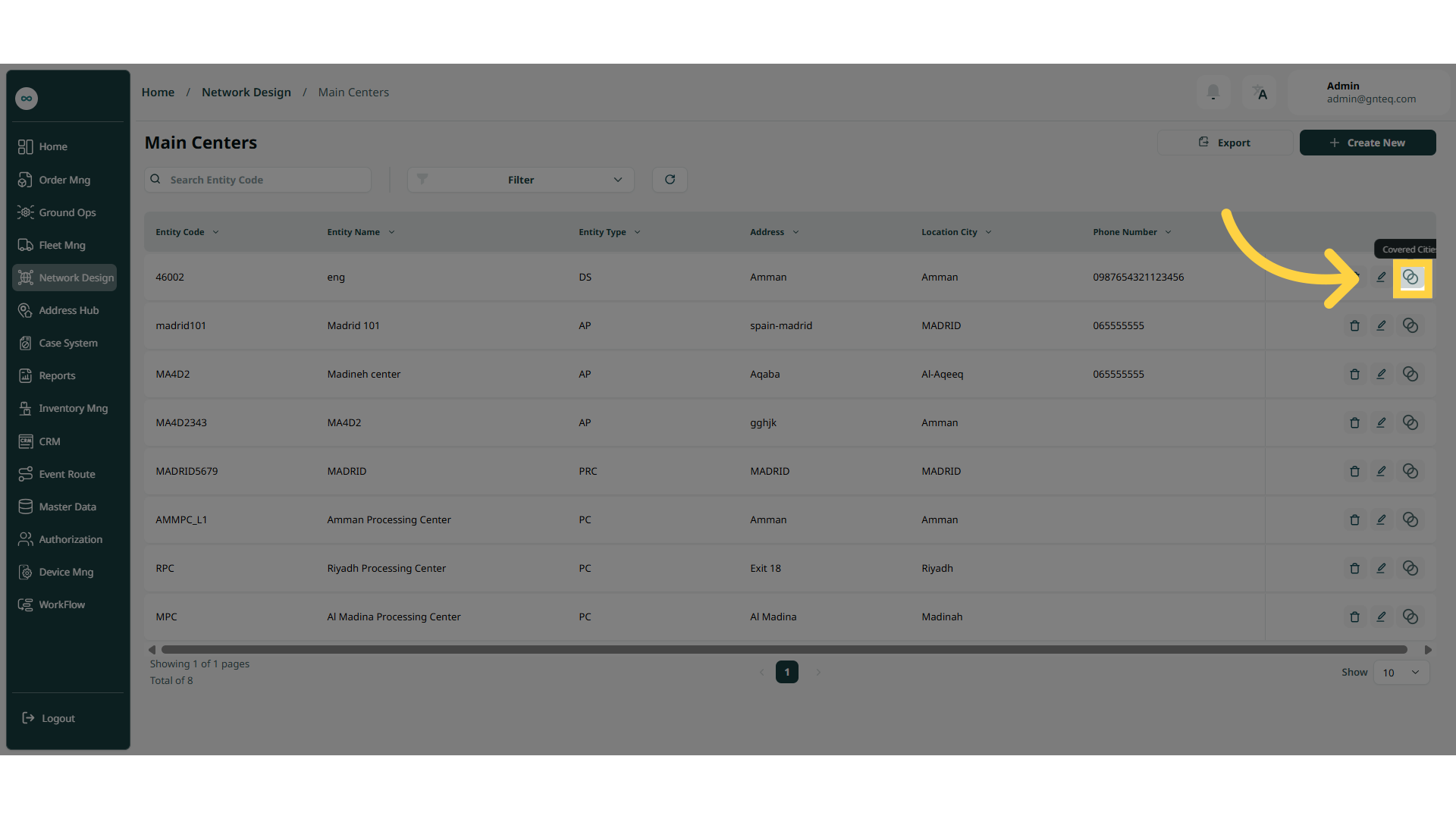
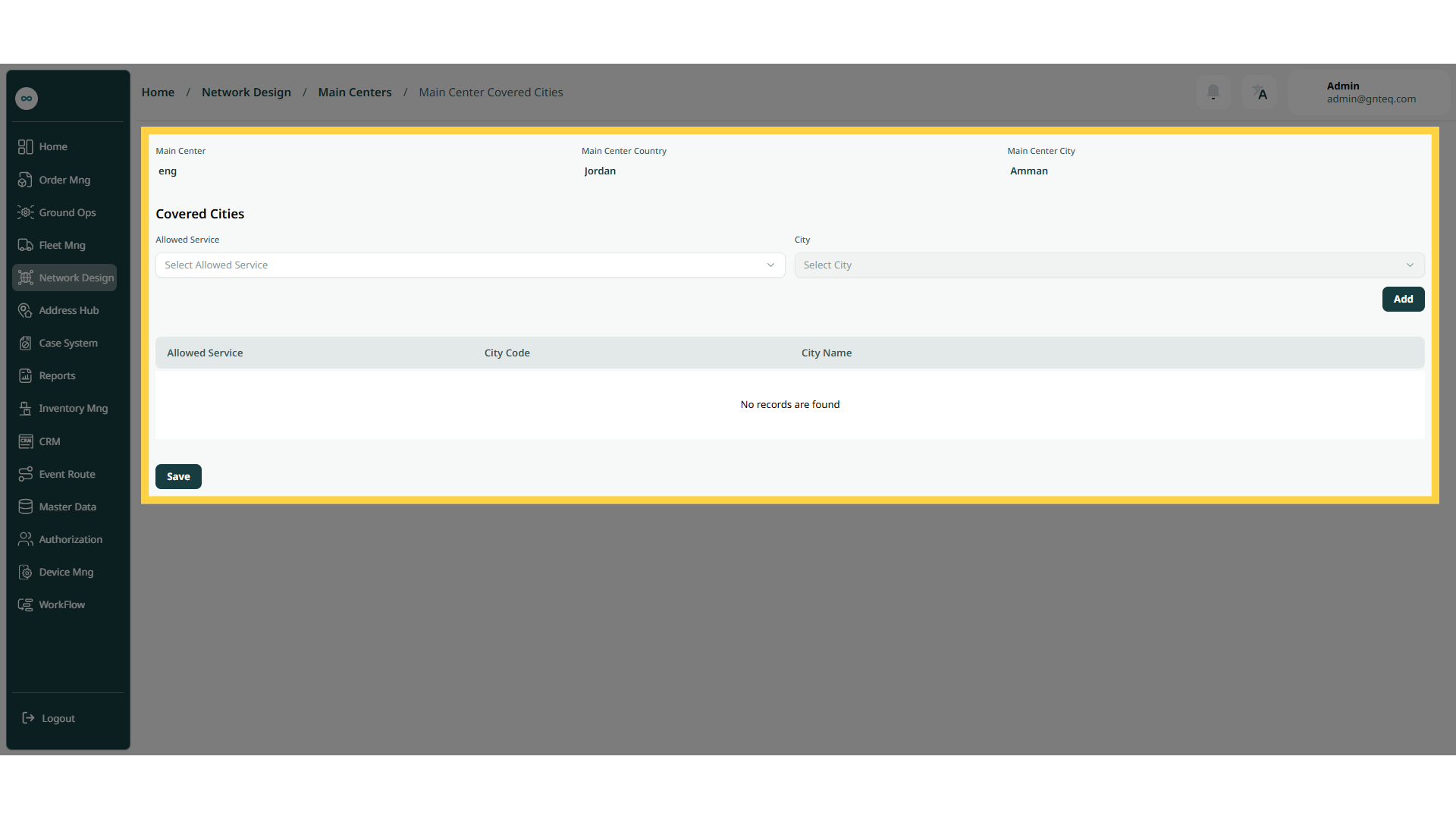
The user can add covered cities to an existing main center by navigating to the ‘Main Centre’ screen via the Network Design Module and clicking on Covered Cites button:
-
Allowed Services: this field represent the services that allowed in the city.
-
City: this field represent the name of the city.
By clicking on Save the covered city will be added successfully.
1.1.2 Edit Main Center
The user can edit an existing main center by navigating to the ‘Main Center’ screen via the Network Design Module and clicking on Edit Main Center button:
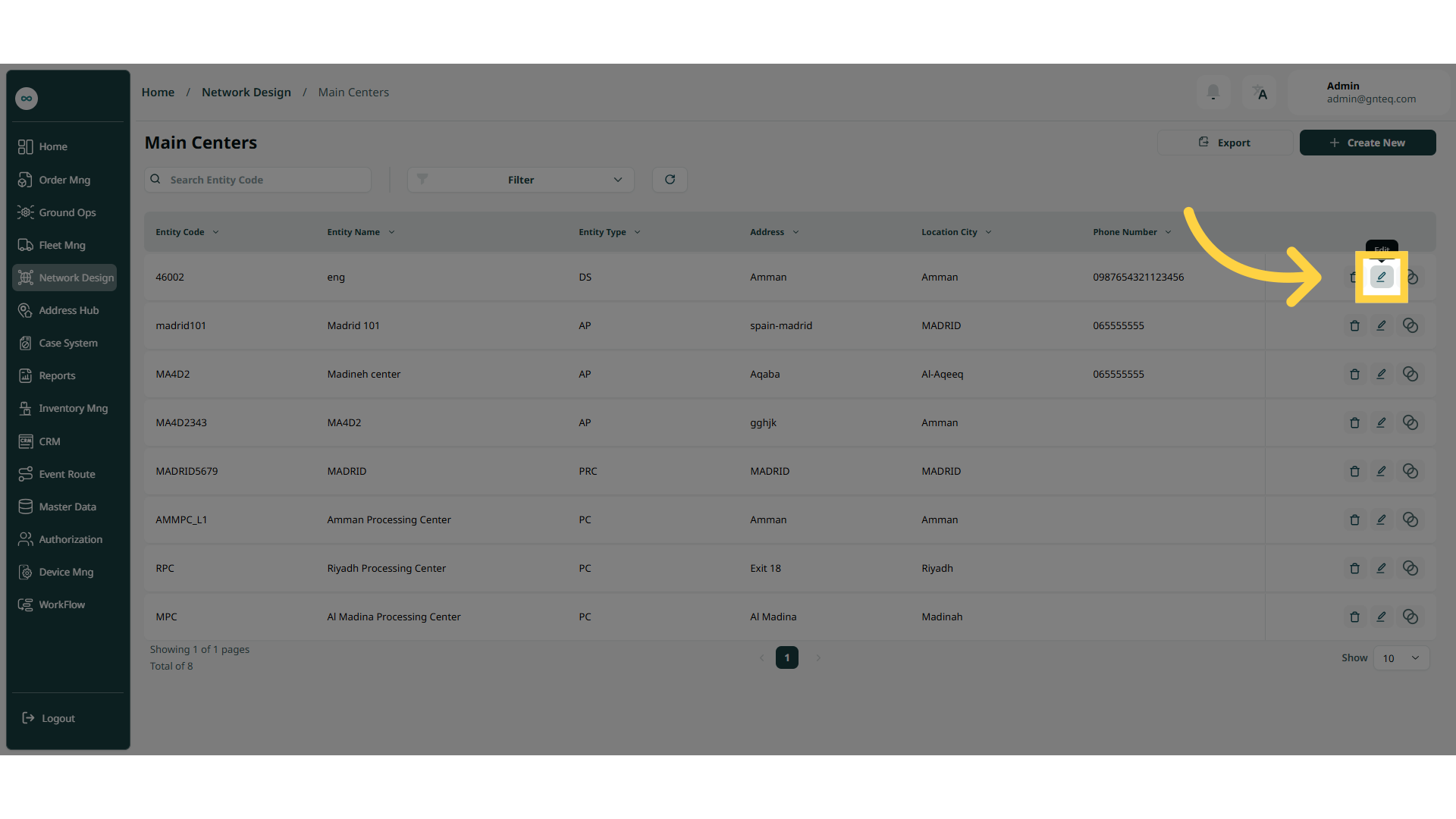
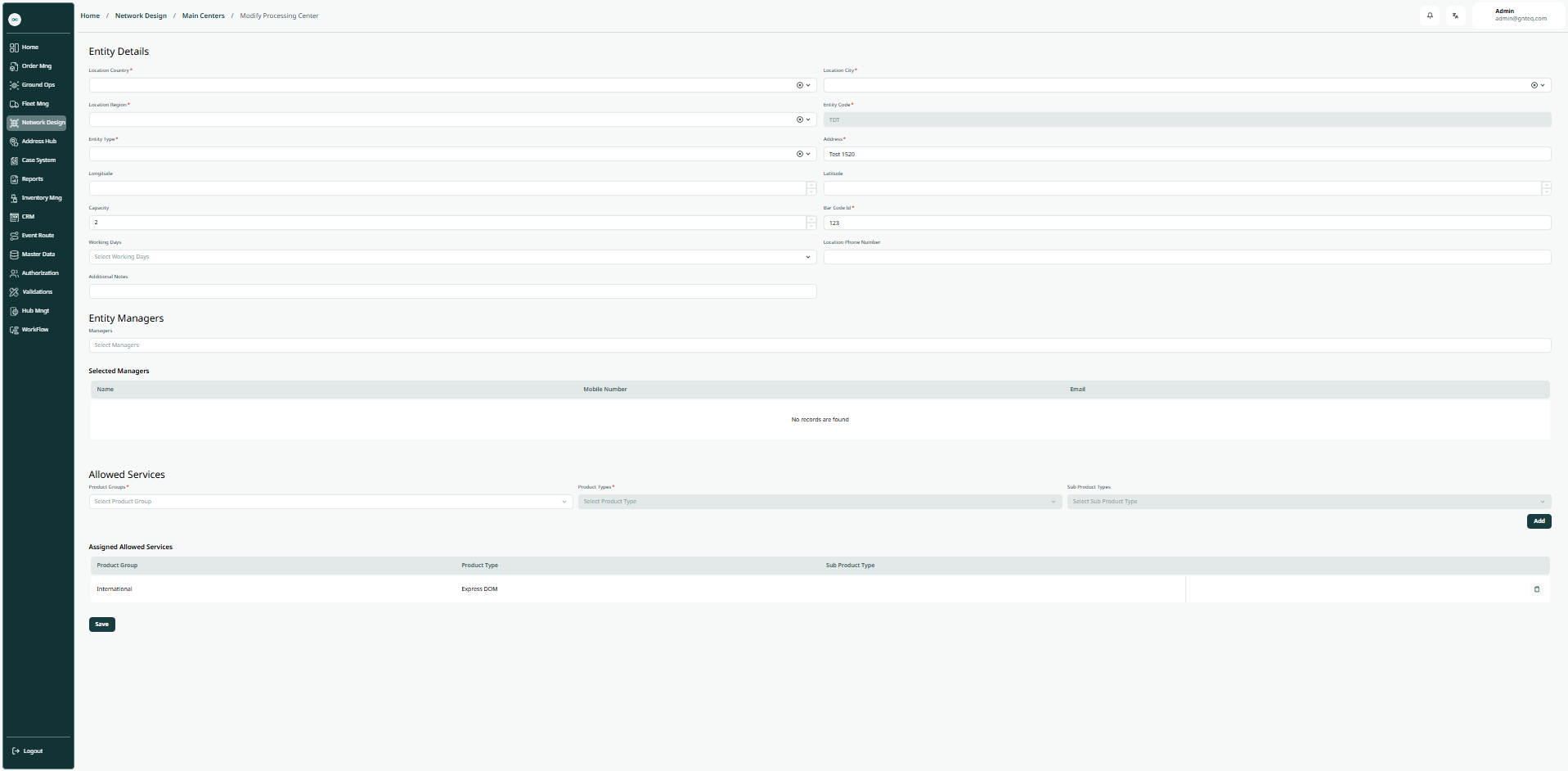
By clicking Save, the information will be successfully edited in the system.
1.1.3 Delete Main Center
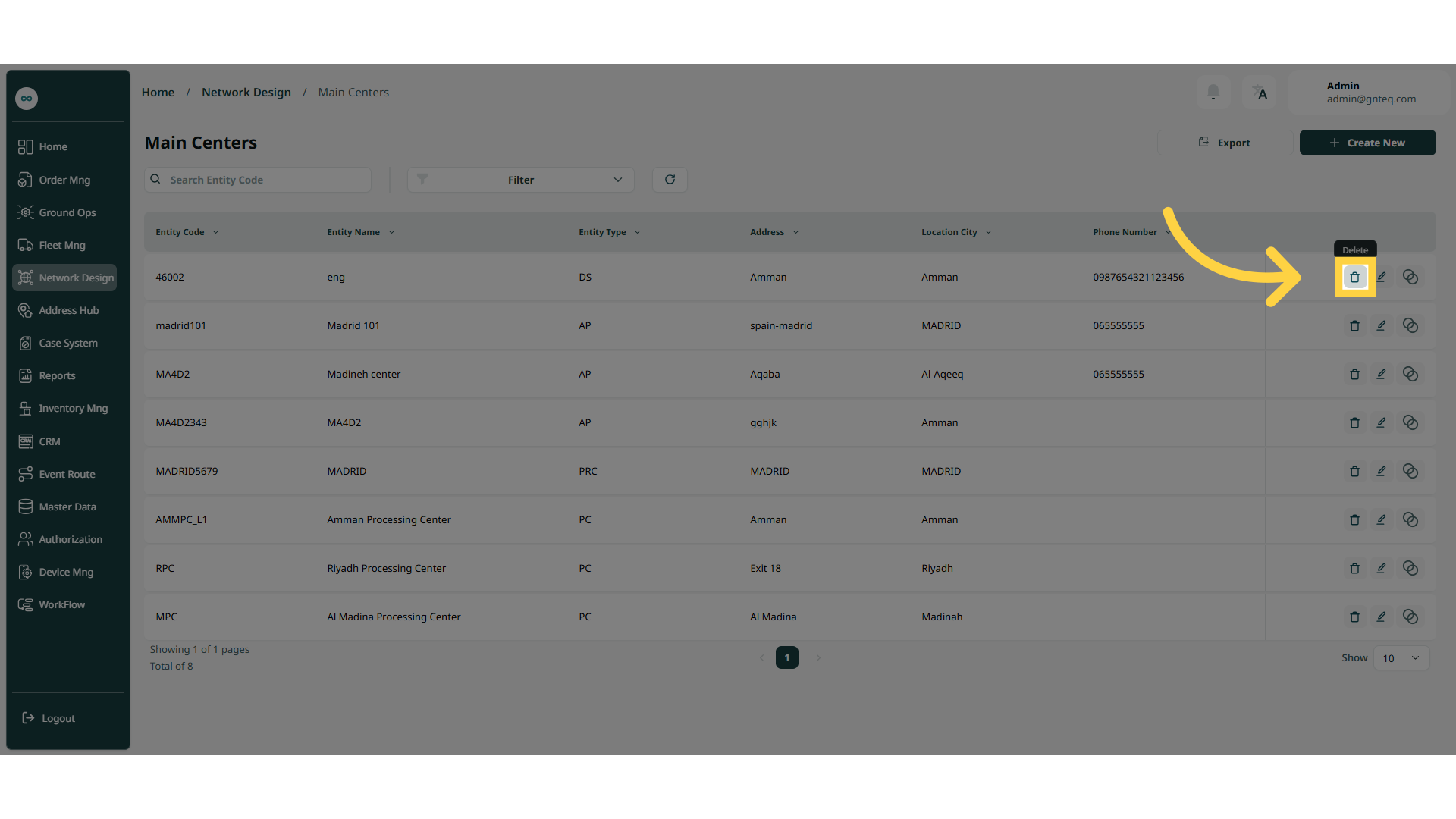
The user can delete an existing main center by navigating to the ‘Main Center’ screen via the Network Design Module and clicking on Delete Main Center button:
1.1.4 Summary
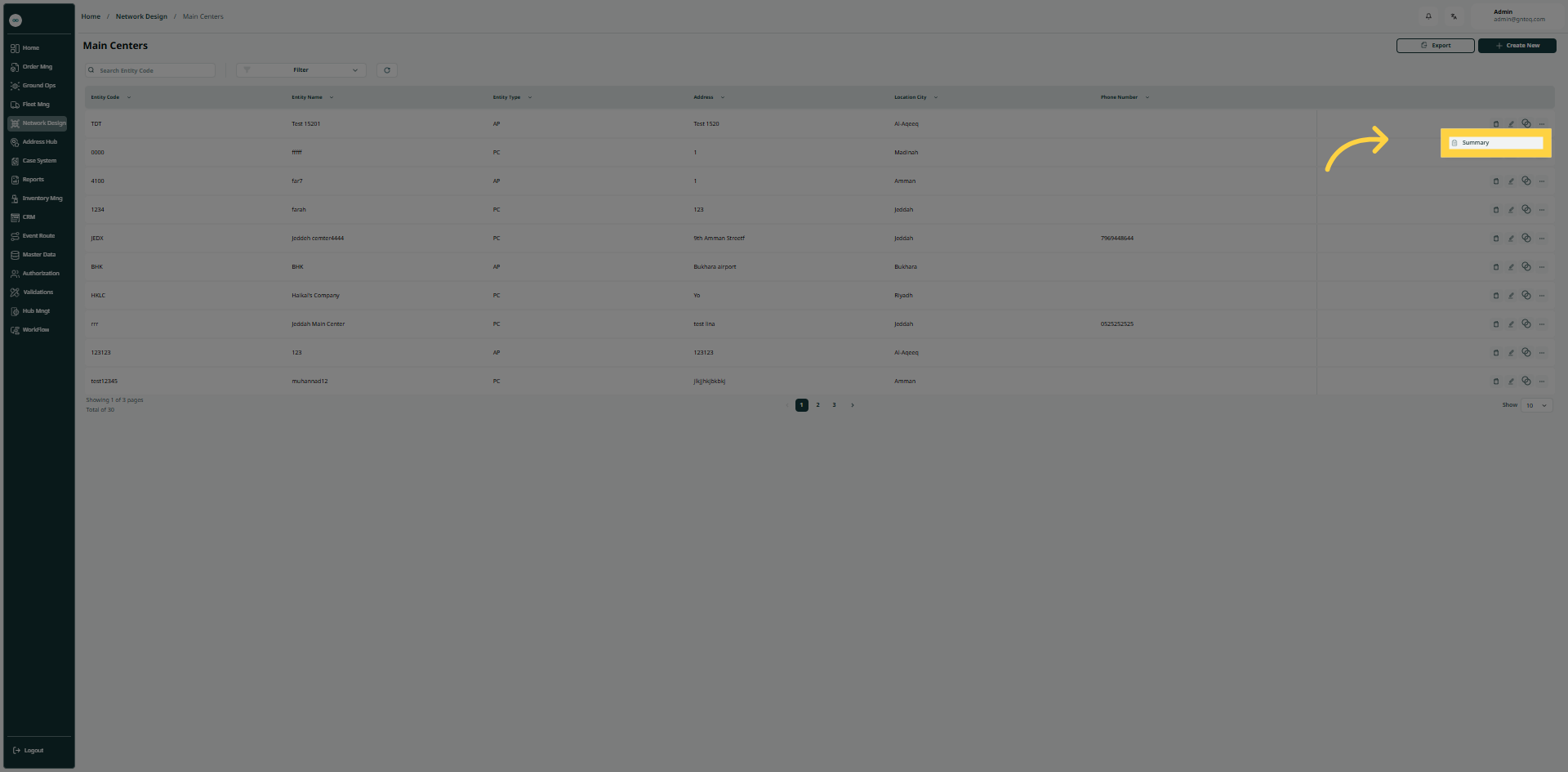
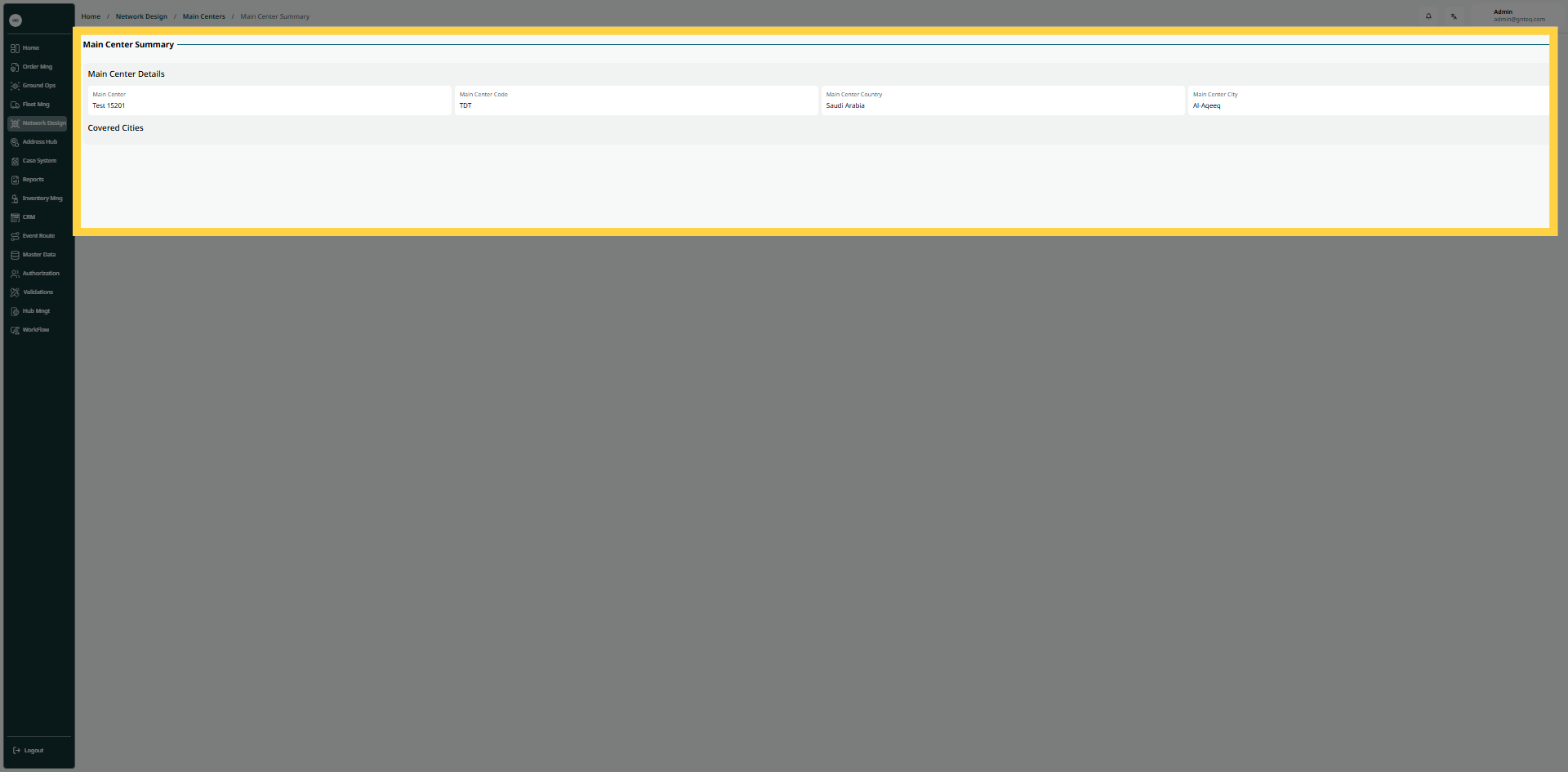
The user can view summary of an existing main center by navigating to the ‘Main Center’ screen via the Network Design Module and clicking on Summary button:
1.2 Add New Main Center
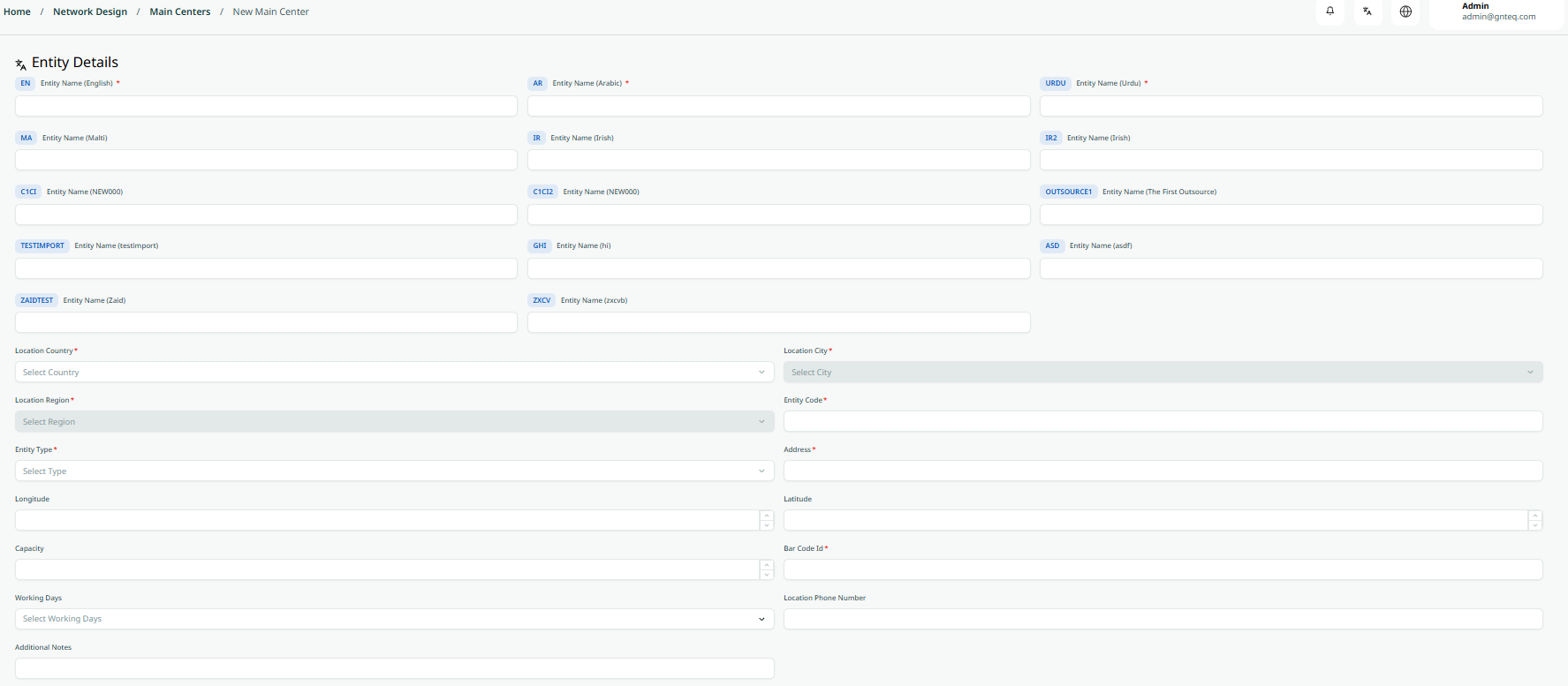
The user can create a new main center by navigating to the ‘Main Center’ screen via the Network Design module and clicking on Create New button:
-
Entity Name(Arabic): this field represents the entity name in arabic.
-
Entity Name(English): this filed represents the entity name in english.
-
Entity Name(Urdu): this field represents the entity name in urdu.
-
Location Country: this field represents the country of the location to be added.
-
Location City: this field represents the city of the location to be added.
-
Location Region: this field represents the region of the location to be added.
-
Entity Code: this field represents the code of the location to be added.
-
Entity Type: this field represents the type of services the location provides.
-
Addresses: this field represents the addresses saved in the system.
-
Longitude: this field represents the longitude of the address to be used for locating a location.
-
Latitude: this field represents the latitude of the address to be used for locating a location.
-
Bar Code Id: this filed represent the main center bar code id.
-
Capacity: this field represents the amount that can be received.
-
Working Days: this field represents the number of working days.
-
Location Phone Number: this field represents the phone number associated with the location.
-
Additional Notes: this field represents additional notes about the location..\
-
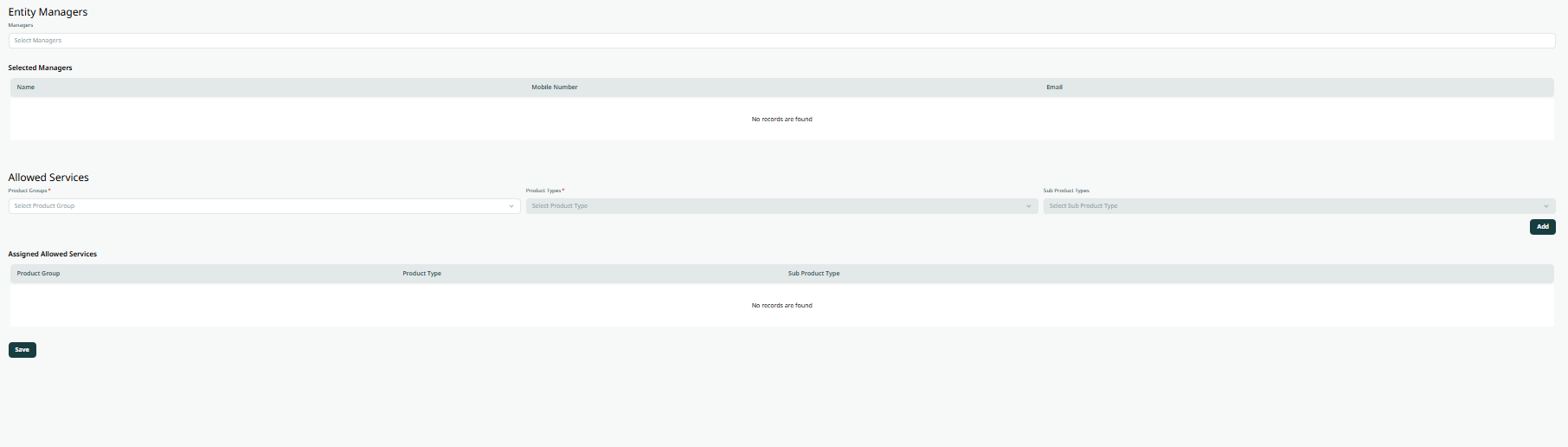
Managers: this field represents the names of the people responsible for the site.
-
Product Group: this field represents the type of delivery service (local, international).
-
Product Types: this field represents the type of delivery service, such as home delivery, office delivery, direct delivery, etc.
-
Sub Product Types: This field represents the sub-delivery service type (banks, government documents, etc.).
By clicking Add, the system successfully adds additional services.
By clicking Save, the system successfully adds a new main center.