.png)
1. District Variations Creation Overview
1.1 Dashboard
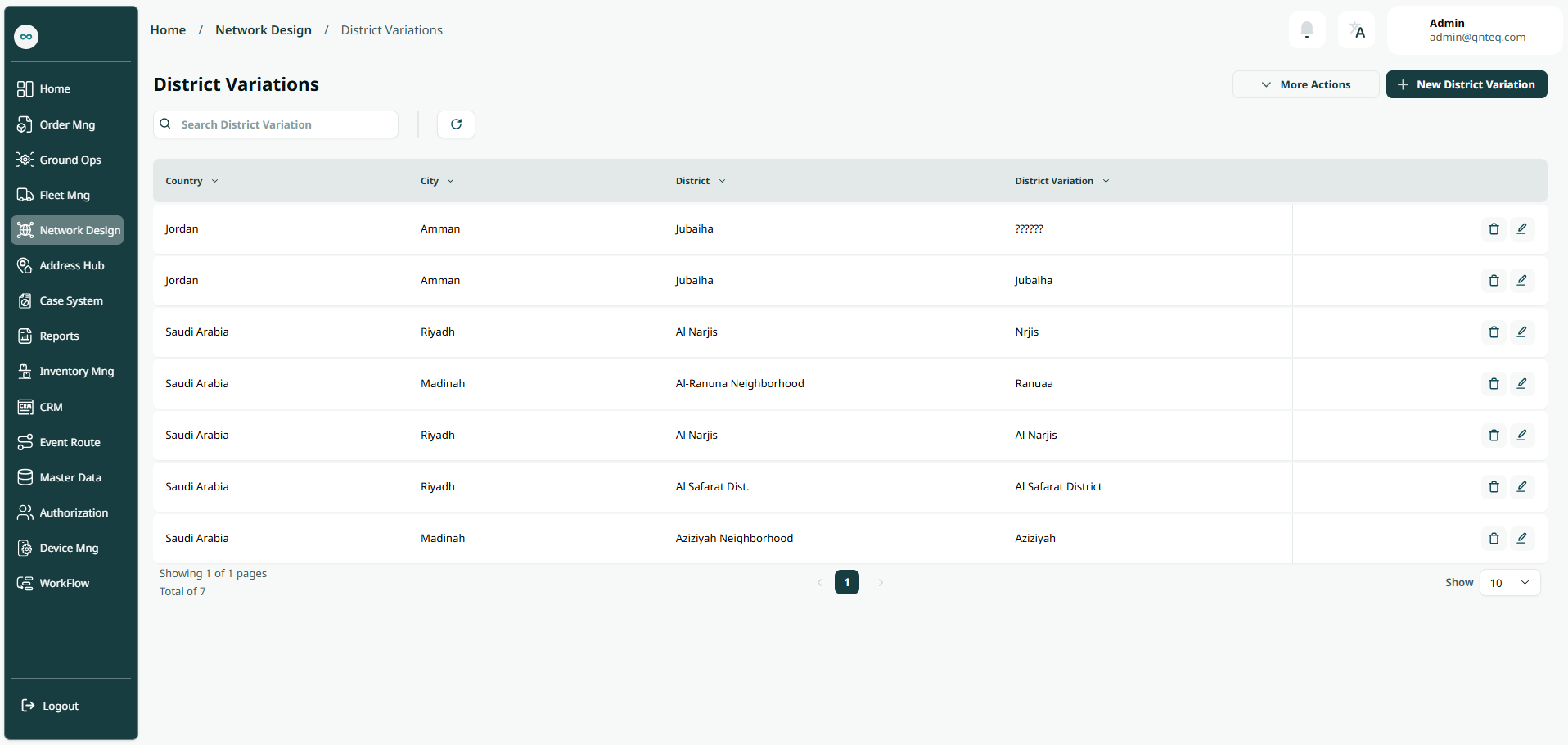
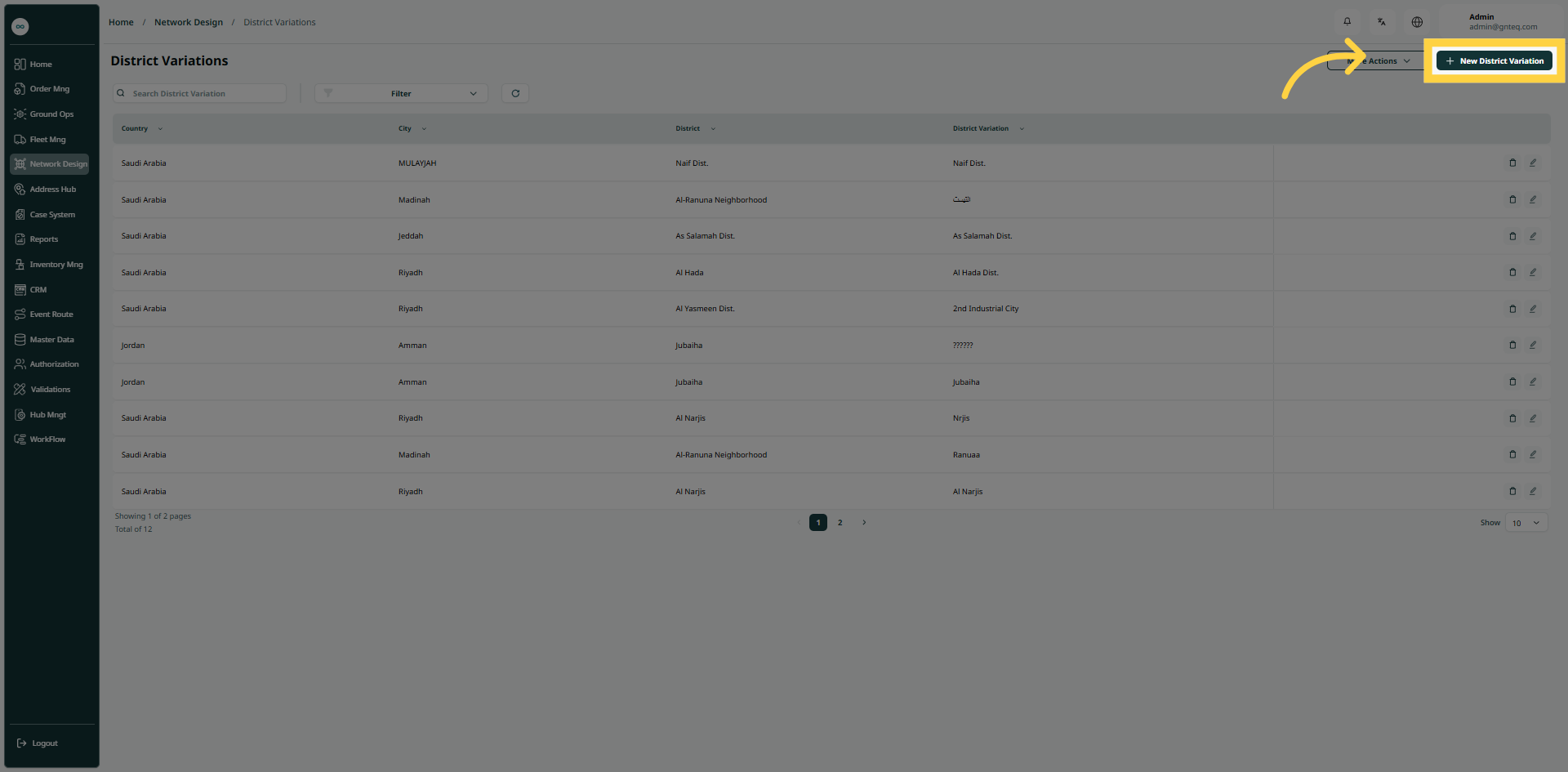
The user can view the district variations list, which is a list of variant district names unified into clear district names, by navigating to the ‘District Variations’ screen by choosing the Network Design Module from the left navigation panel as follows:
-
New District Variations: the user can add a new district variations by clicking on New District.
-
Export: The user can export the list as an Excel file by clicking the "More Actions" button.
-
Import: The user can download the list as an Excel file by clicking the "More Actions" button.
-
Download Template: The user can download a blank Excel template by clicking the "More Actions" button.
-
Filters: the user can search for the district variation by the district
-
Search: The user can search for shipments by entering the district variation.
-
Rows Per Page: the user can select the number of items to show on each page.
-
Actions: by clicking on Actions, the user can edit the district variation by going to the edit district variation section, or delete the district variation.
1.1.1 Edit District Variation
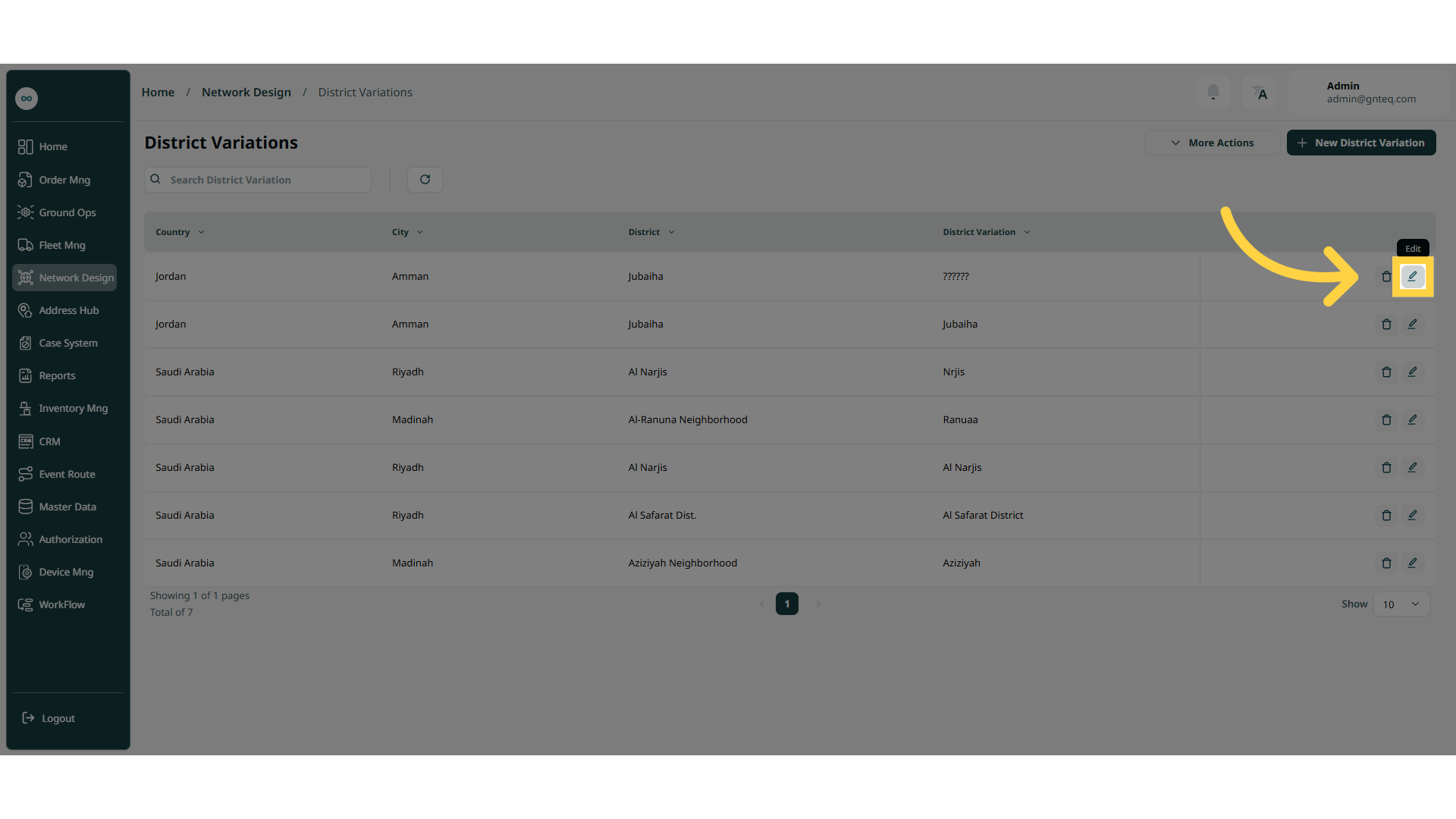
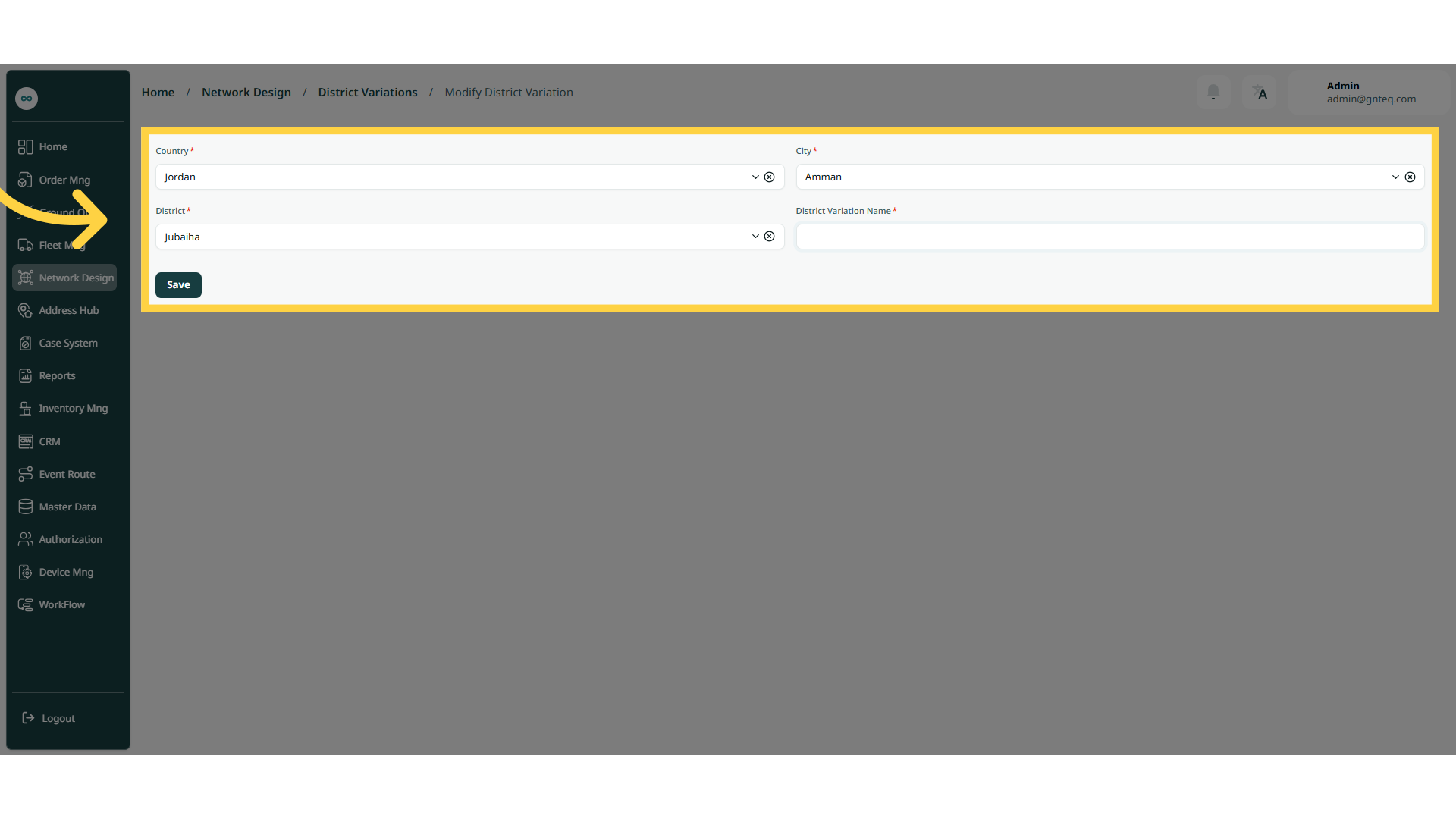
The user can edit an existing district variation by navigating to the ‘District Variations’ screen via the Network Design Module and clicking on Edit District Variations button:
1.1.2 Delete District Variation
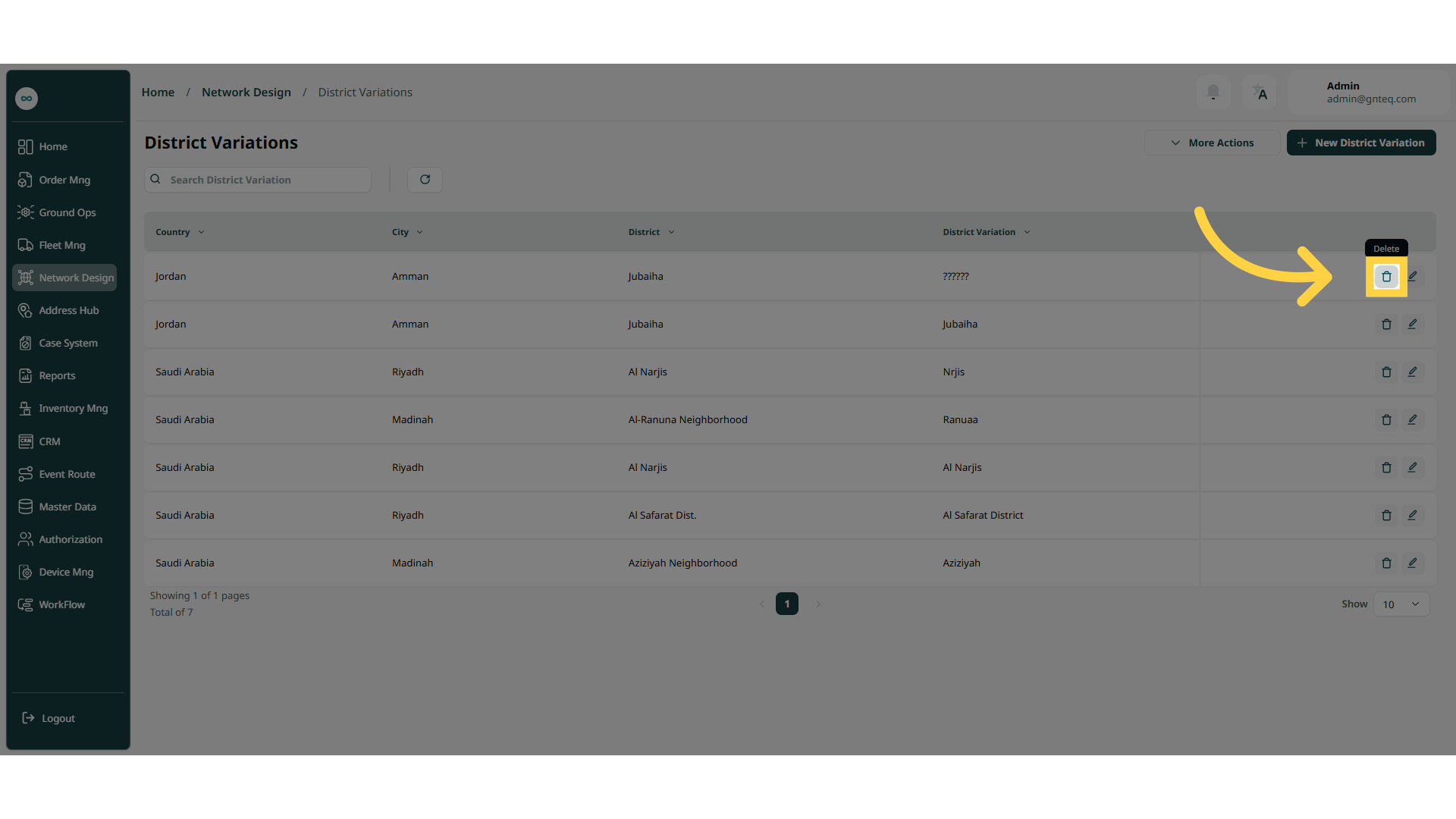
The user can delete an existing district variation by navigating to the ‘District Variations’ screen via the Network Design Module and clicking on Delete District Variations button:
1.2 Add New District Variation
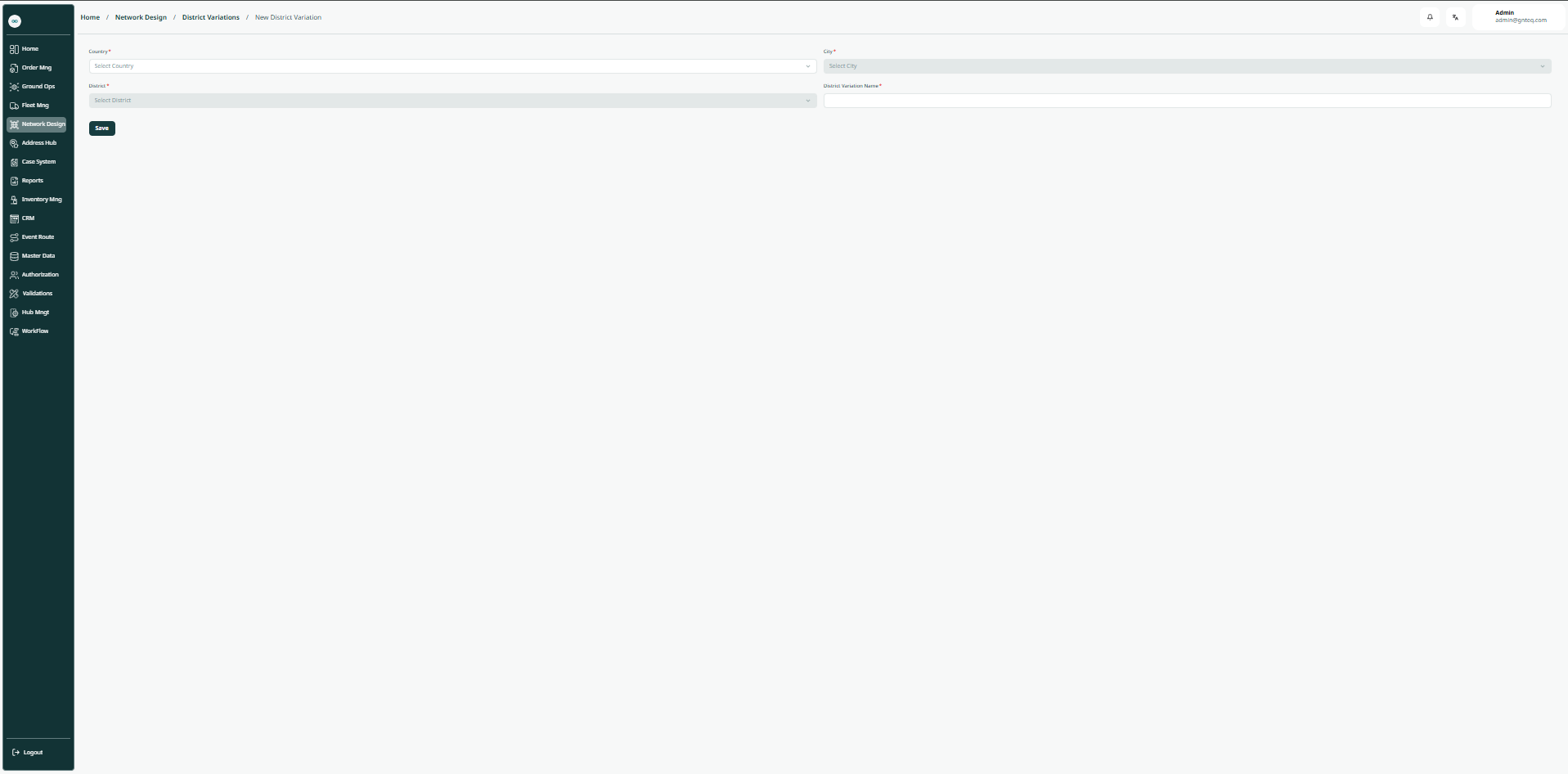
The user can create a new district variation by going to the “District Variations” screen via the Network Design module and clicking on New District Variation button:
-
Country: this field represents the country to which the district variation will be added.
-
City: this field represents the city to which the district variation will be added.
-
District: this field represents the name of the district to be added.
-
District Variation Name: this field represents the name of the district variation to be added.
By clicking on Save, the district variation will be added successfully.