.png)
1. Countries Creation Overview
1.1 Dashboard
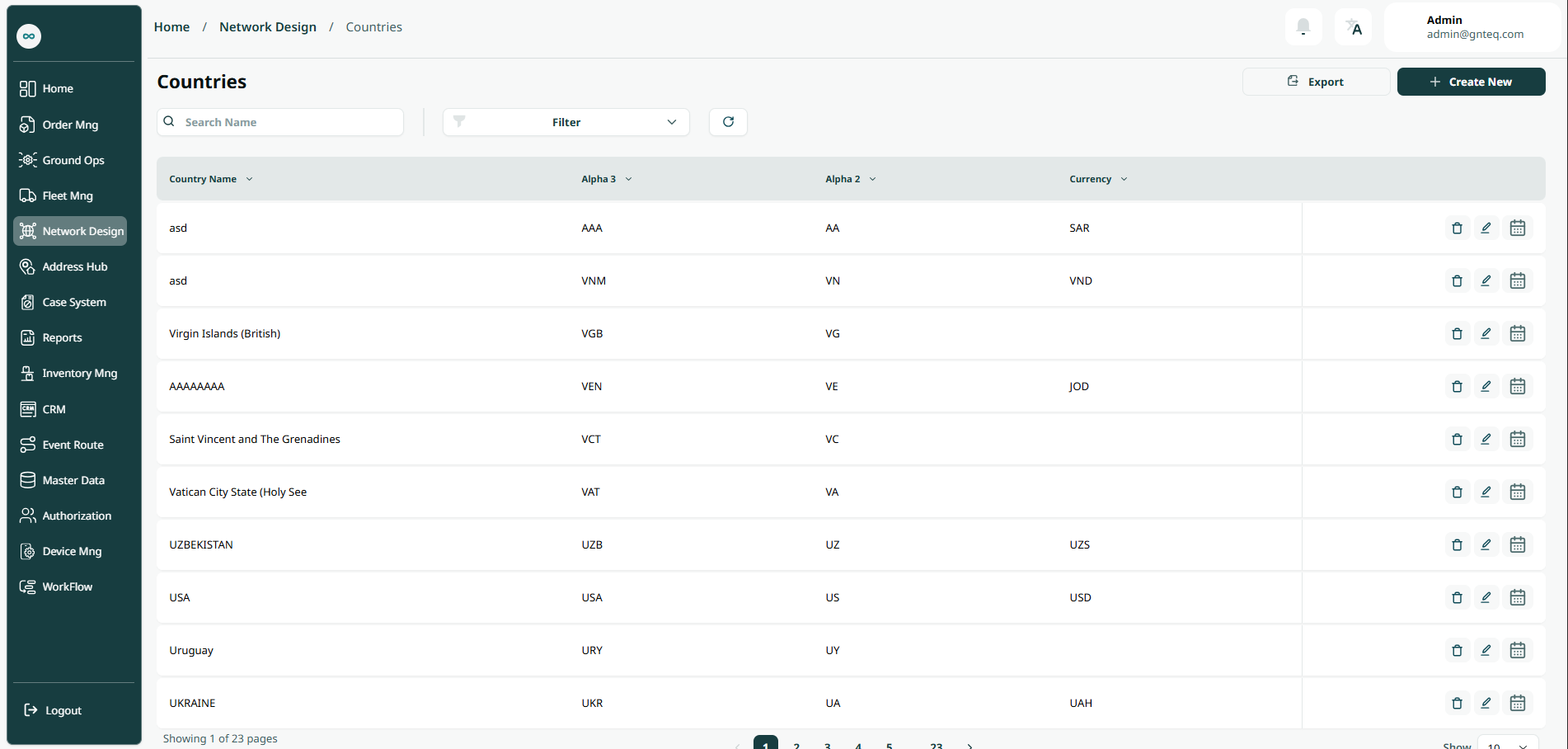
The user can view the defined countries in the system by navigating to the ‘Countries’ screen in the Network Design Module from the left navigation panel as follows:
-
New Country: the user can add new country by clicking on Create New.
-
Export: the user can export the country list an Excel file by selecting export button.
-
Search: The user can search for country by entering the name.
-
Filters: the user can search for the container’s by the country, currency…..etc.
-
Rows Per Page: the user can select the number of items to show on each page.
-
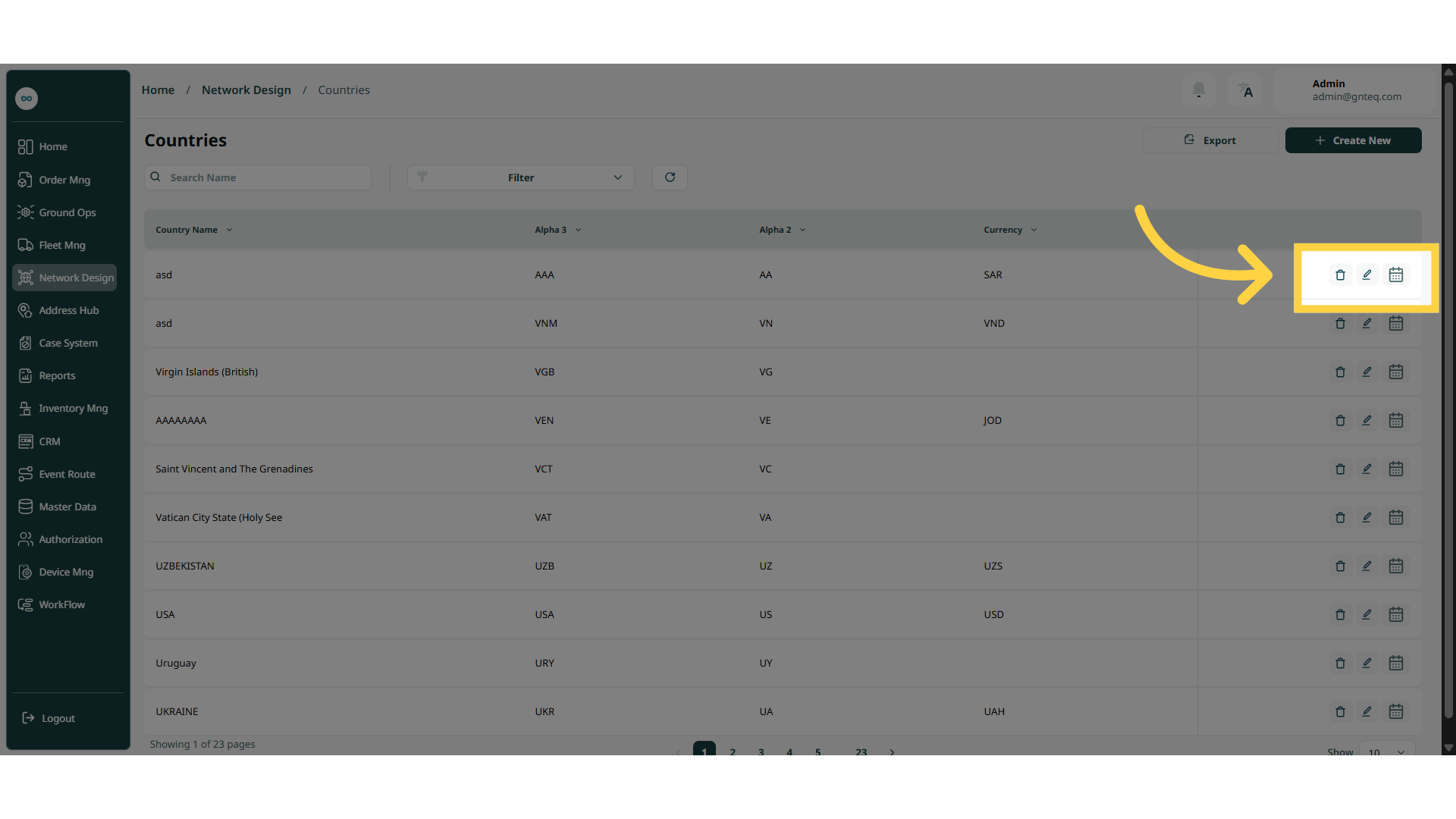
Actions: by clicking on Actions, the user can edit the country by going to the edit country section, or delete the country, or add country holiday.
1.1.1 Edit Information
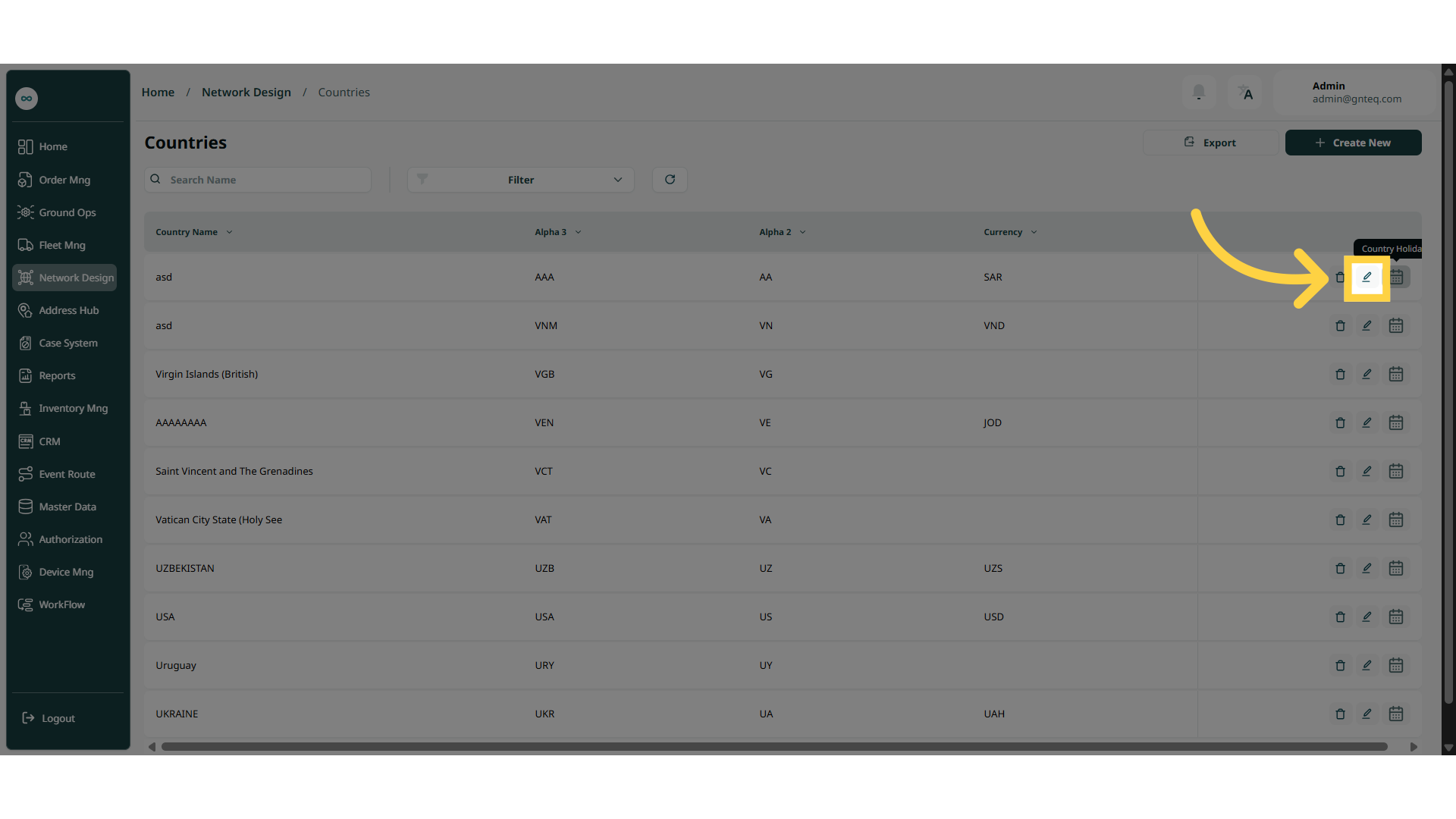
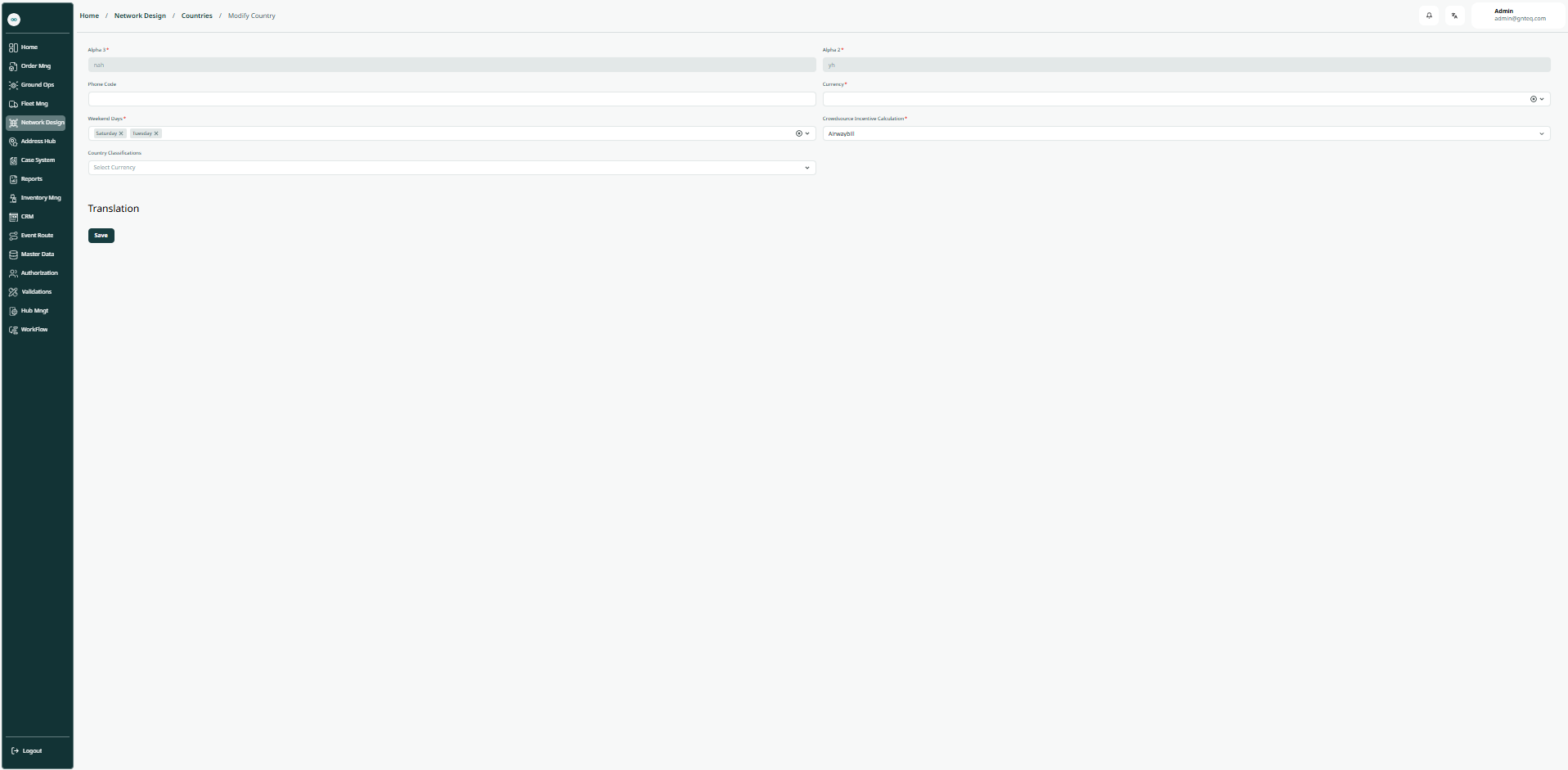
The user can edit an existing country by navigating to the ‘Countries’ screen via the Network Design Module and clicking on Edit Country button:
1.1.2 Country Holiday
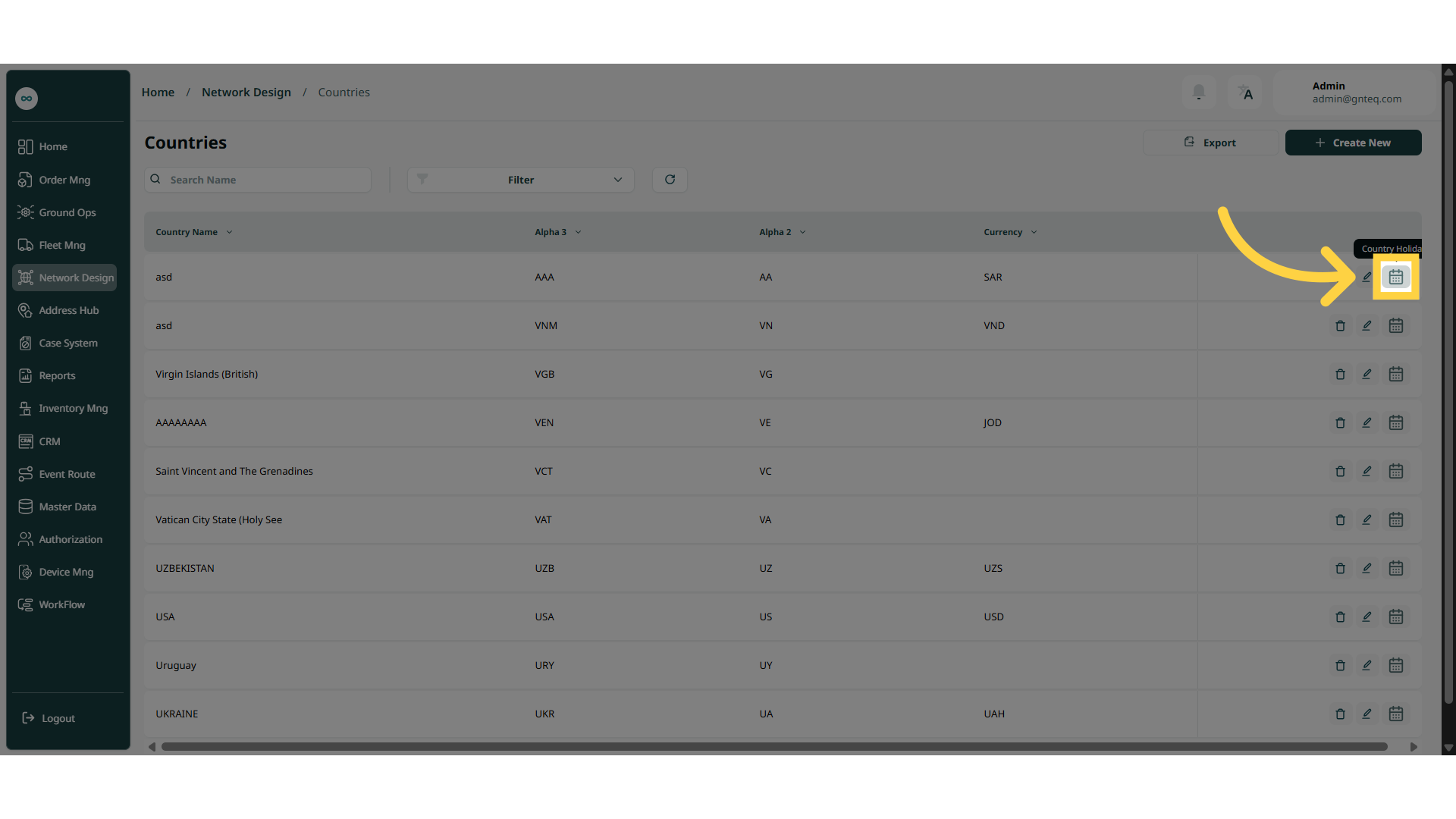
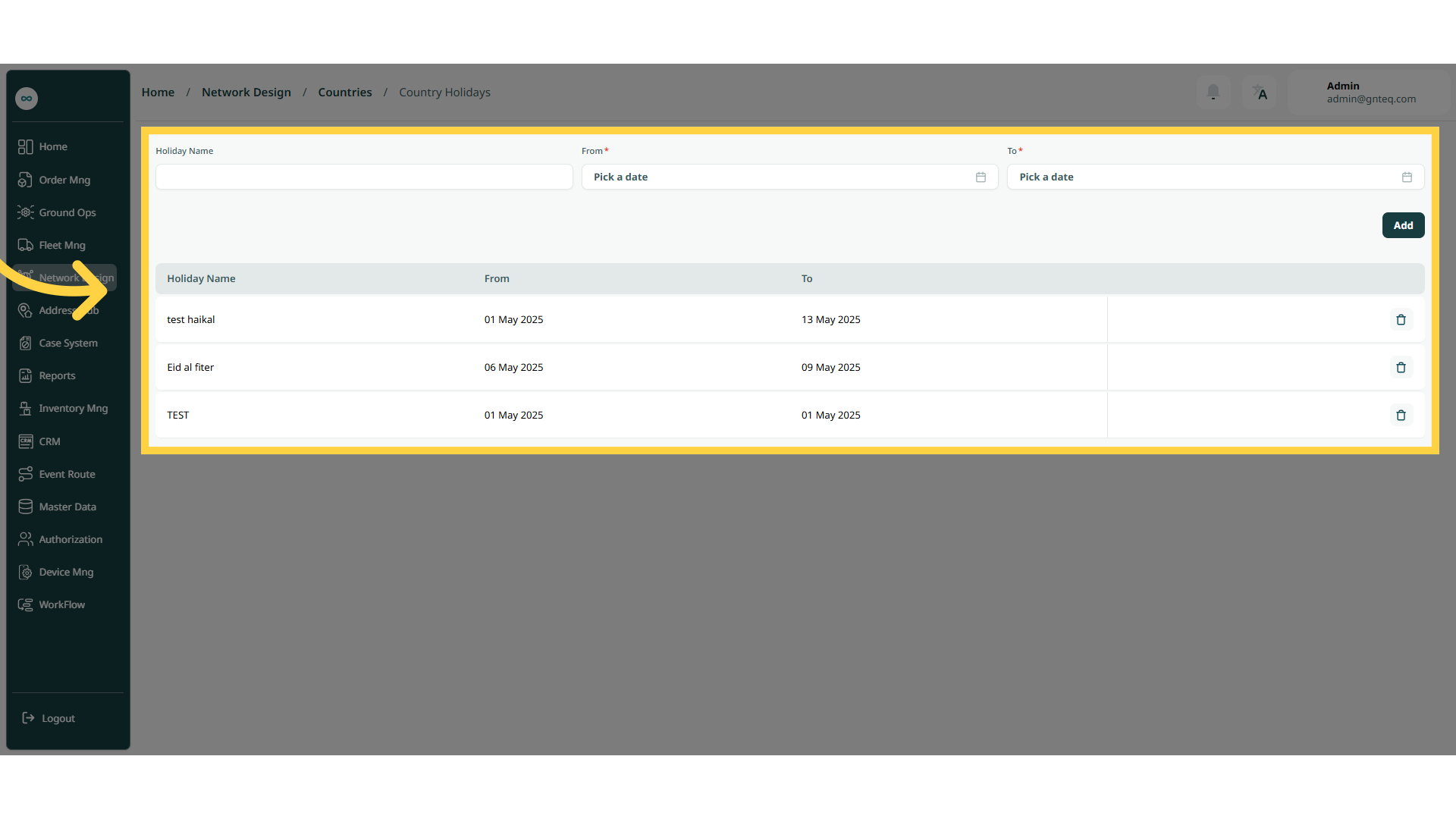
The user can control the country holiday of an existing country by navigating to the ‘Countries’ screen via the Network Design Module and clicking on Country Holiday button:
-
Holiday Name: this field represents the name of the holiday.
-
From: this field represents the start date of the holiday.
-
To: this field represents the end date of the holiday.
By clicking on Add the holiday will be add successfully.
1.1.3 Delete Country
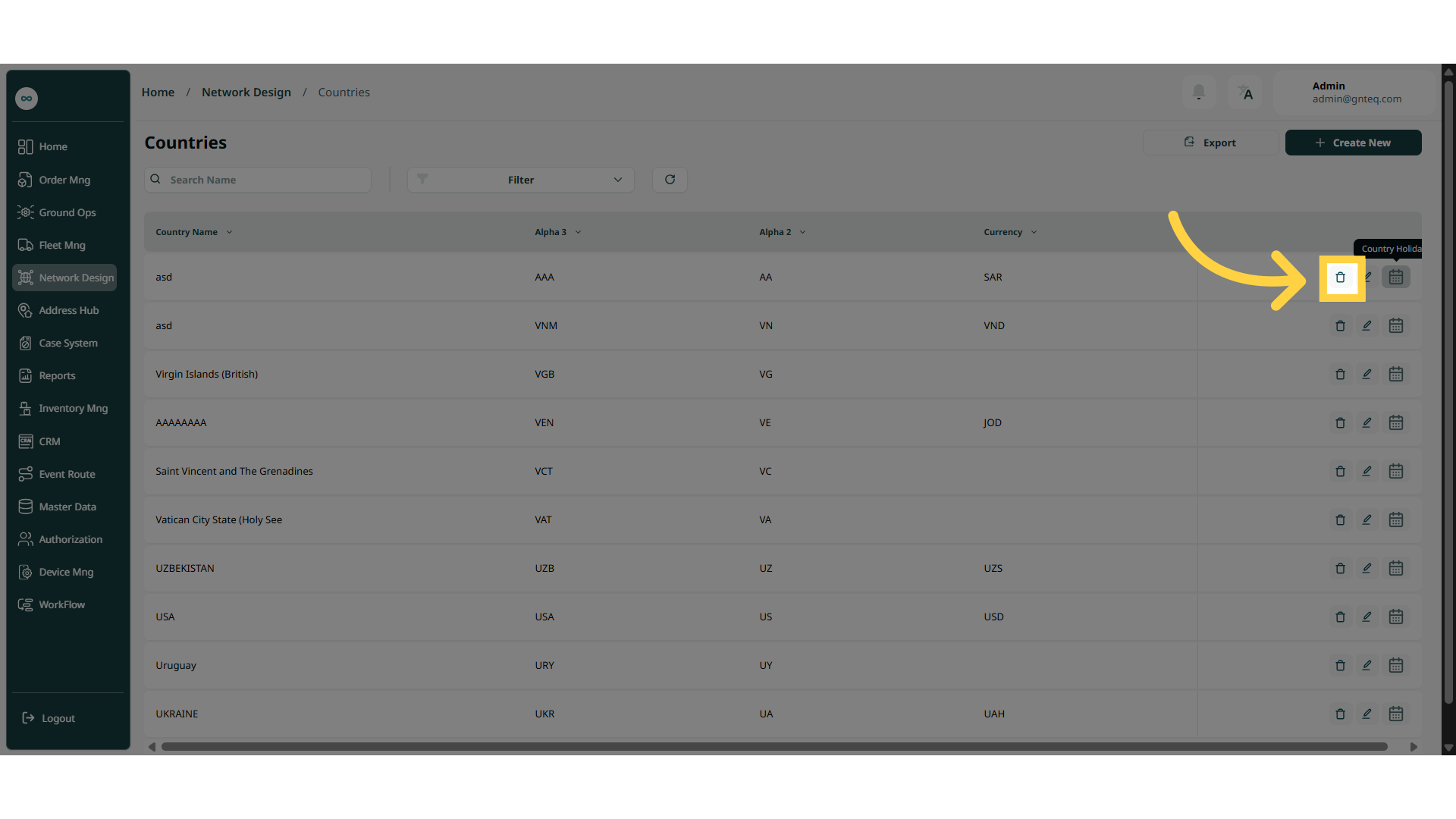
The user can delete an existing country by navigating to the ‘Countries’ screen via the Network Design Module and clicking on Country Holiday button:
1.2 Add New Country
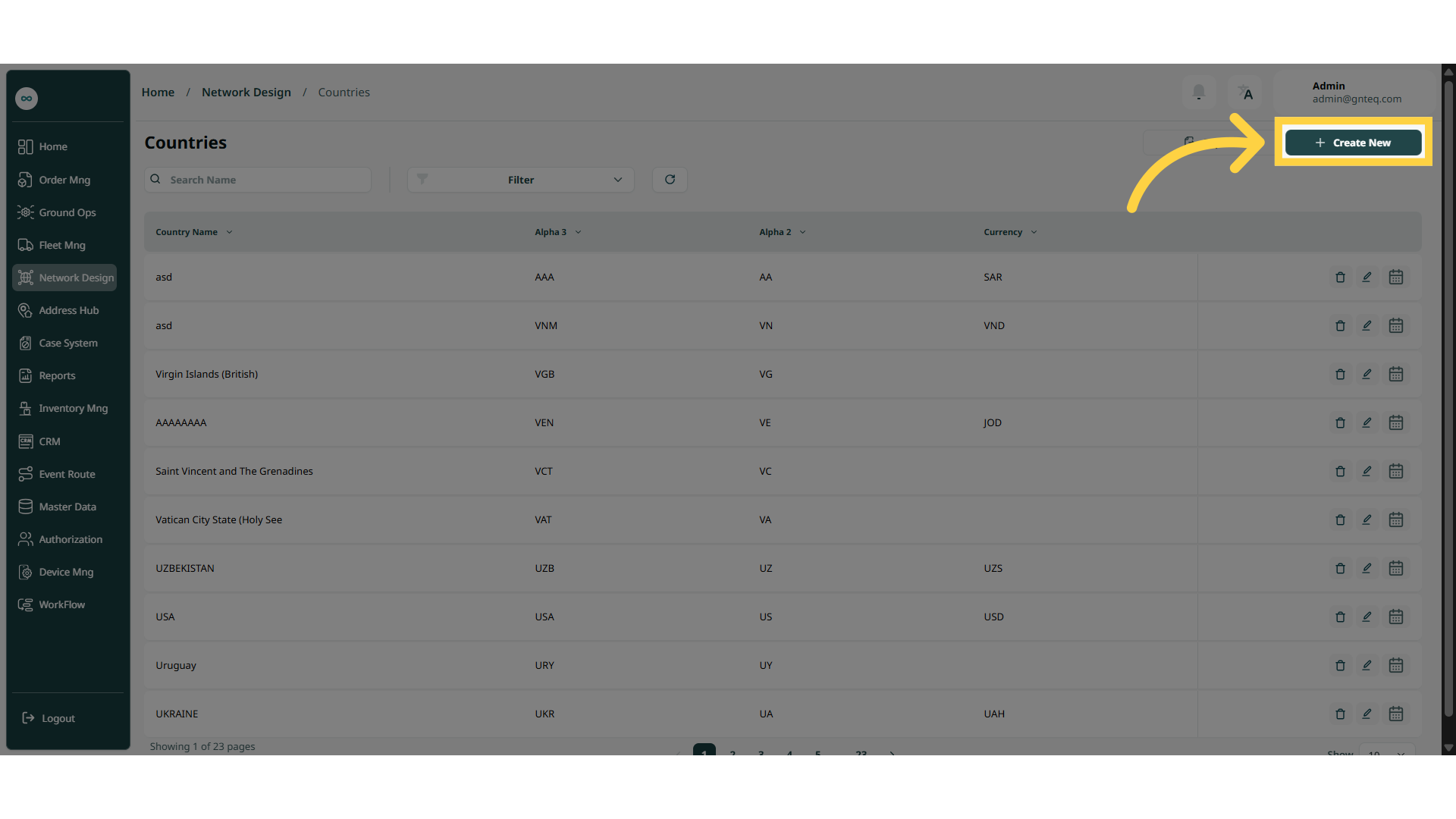
The user can create a new country by navigating to the ‘Network Design’ screen via the Network Design Module and clicking on Create New button:
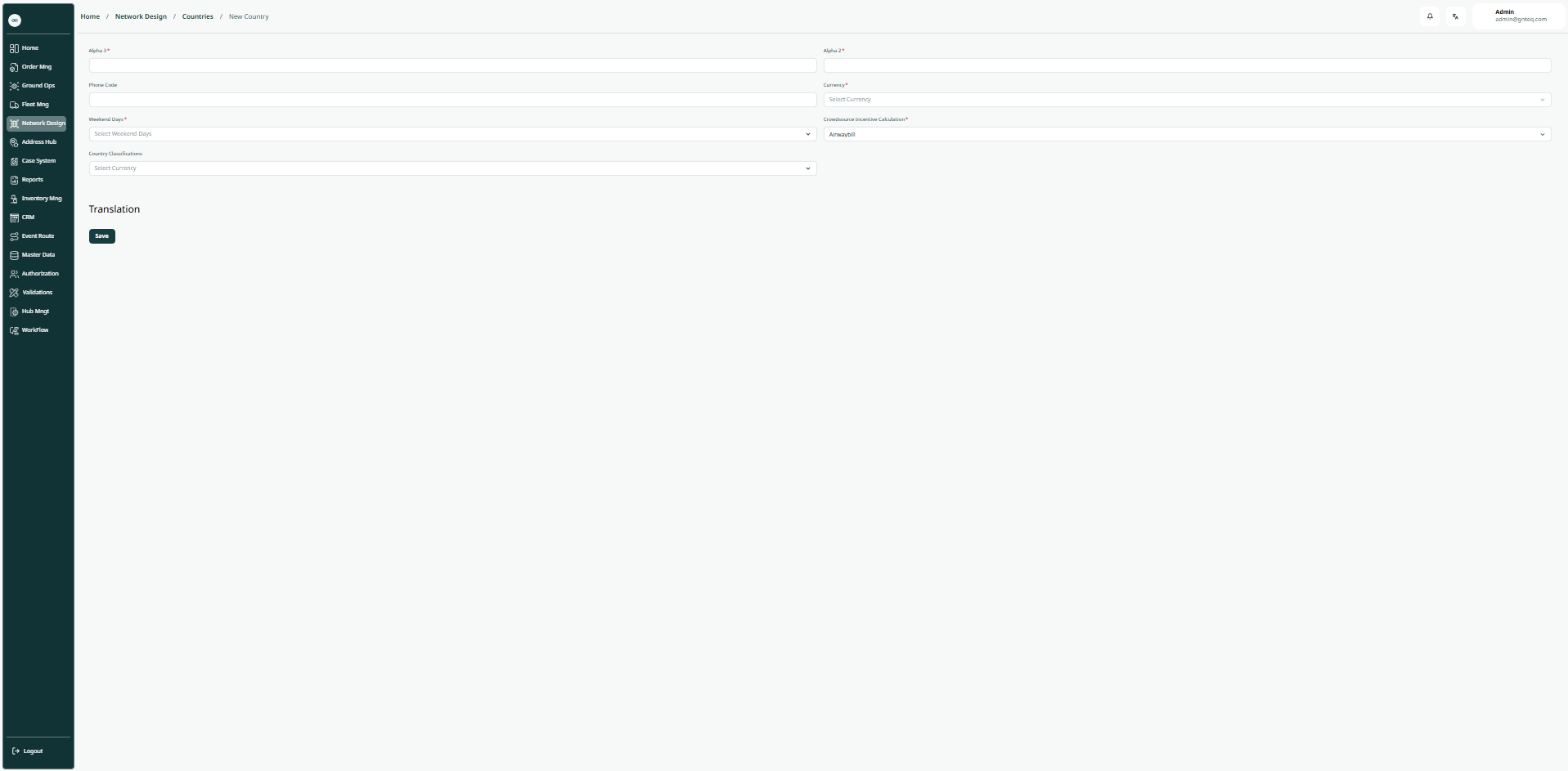
-
Alpha 3 : this field represents the codes are three-letters country codes defined in the ISO standard to represent countries, dependent territories, and special areas of geographical interest.
-
Alpha 2: this field represents the codes are two-letters country defined in the ISO.
-
Phone Code: this field represent the telephone country codes, are numerical prefixes used when dialing telephone numbers internationally to reach subscribers in foreign countries or areas (+966,+962).
-
Currency: this field represents the country currency
-
Weekend Days: this field represent the off days of the country.
-
Crowdsource Incentive Calculation: This field represents the method or factors on which the incentive calculation is based.
-
Country Classifications: this field represents the country classification based on various criteria.
By clicking on Save the country will be added successfully.