.png)
1. City Variation Creation Overview
1.1 Dashboard
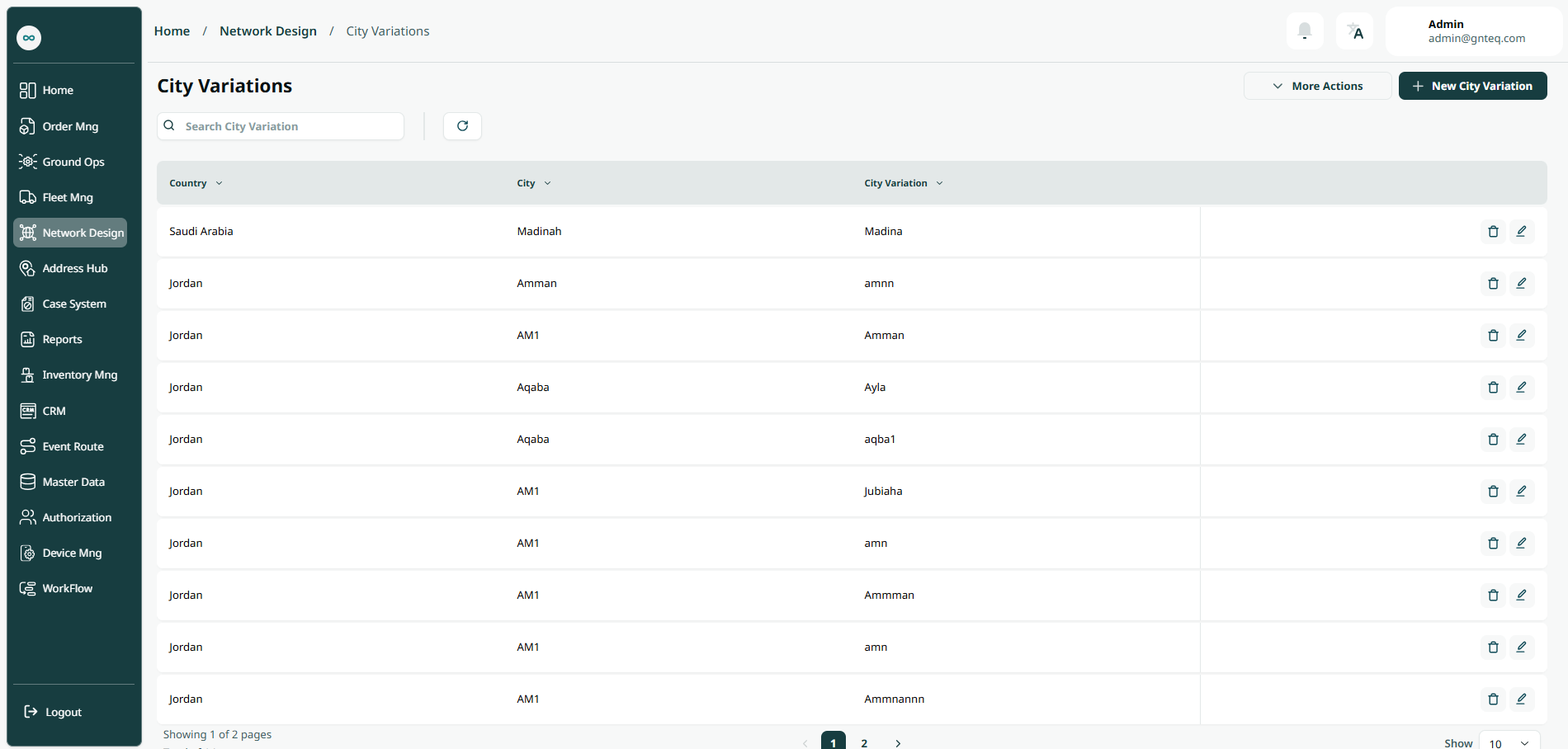
The user can view the city variations list, which is a list of variant city names unified into clear city names, by navigating to the ‘City Variations’ screen and choosing the Network Design Module from the left navigation panel as follows:
-
New City Variations: the user can add a new city variations by clicking on New City Variations.
-
Export: the user can export list of regions an Excel file by selecting export button.
-
Filters: the user can search for the city variations by the city.
-
Search: The user can search for shipments by entering the city variation.
-
Rows Per Page: the user can select the number of items to show on each page.
-
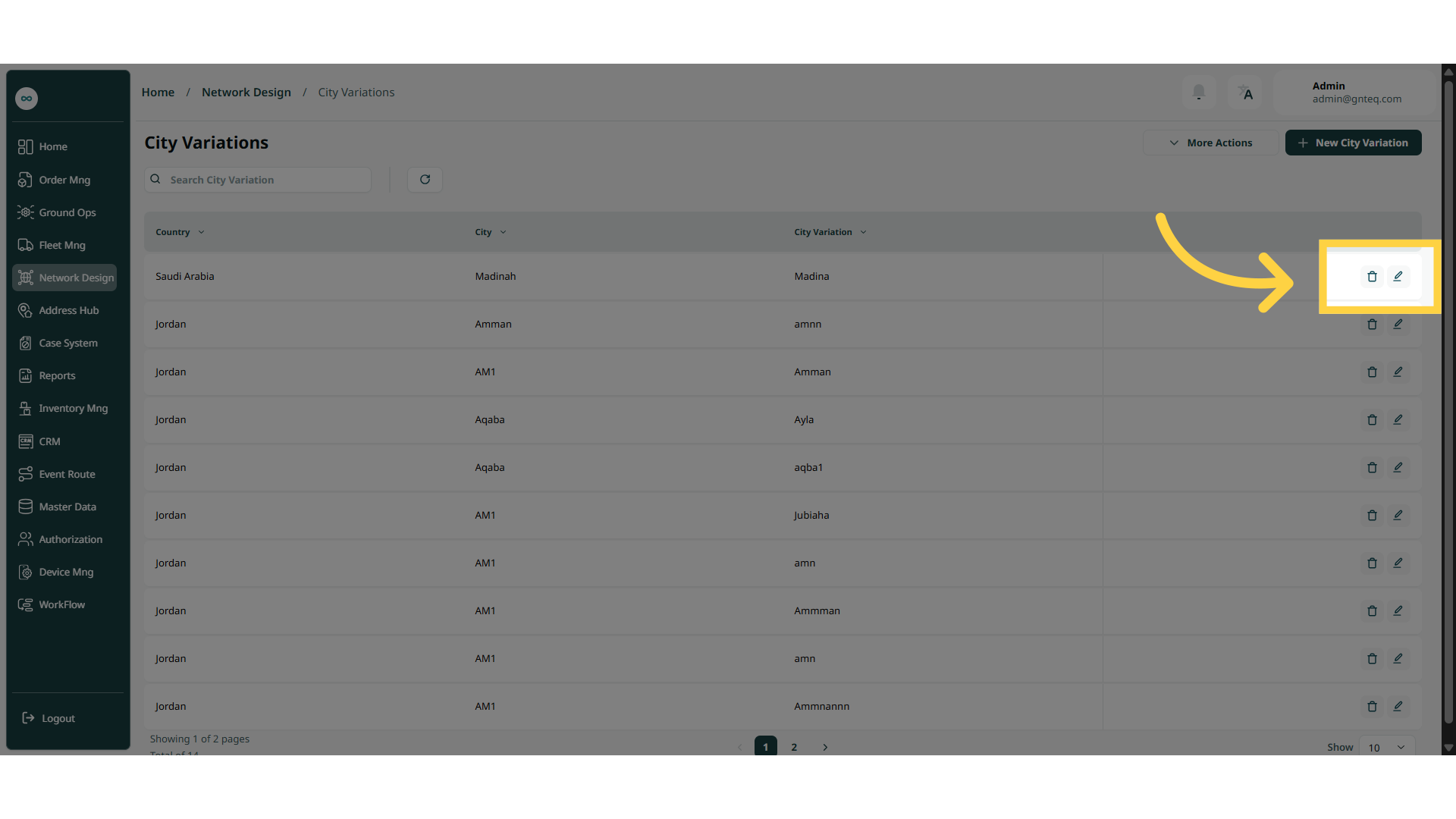
Actions: by clicking on Actions, the user can edit the city variation by going to the edit city variation section, or delete the city variation as shown below:
1.1.1 Edit Information
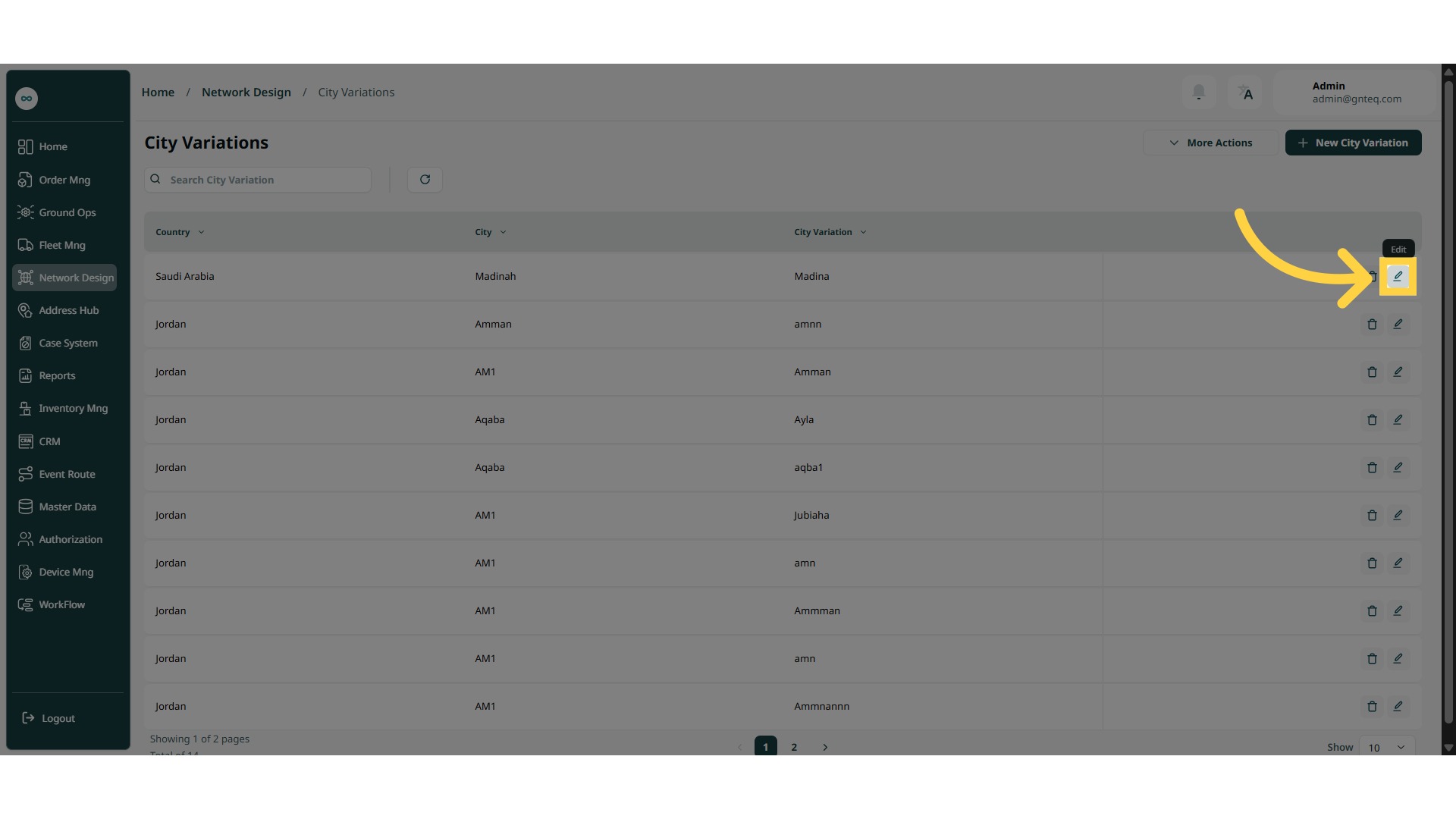
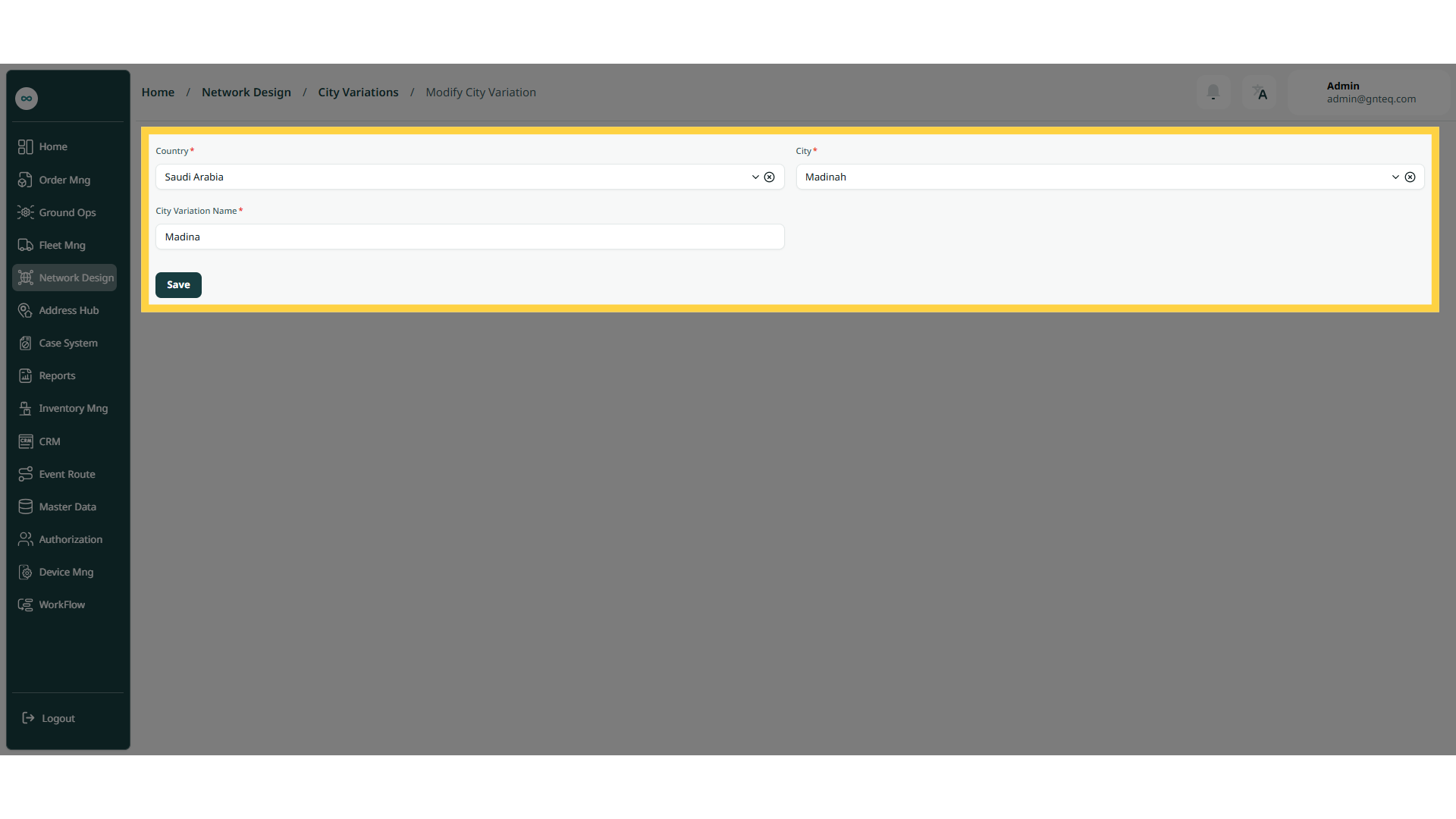
The user can edit an existing city by navigating to the ‘City Variations’ screen via the Network Design Module and clicking on Edit City Variations button:
1.1.2 Delete City Variation
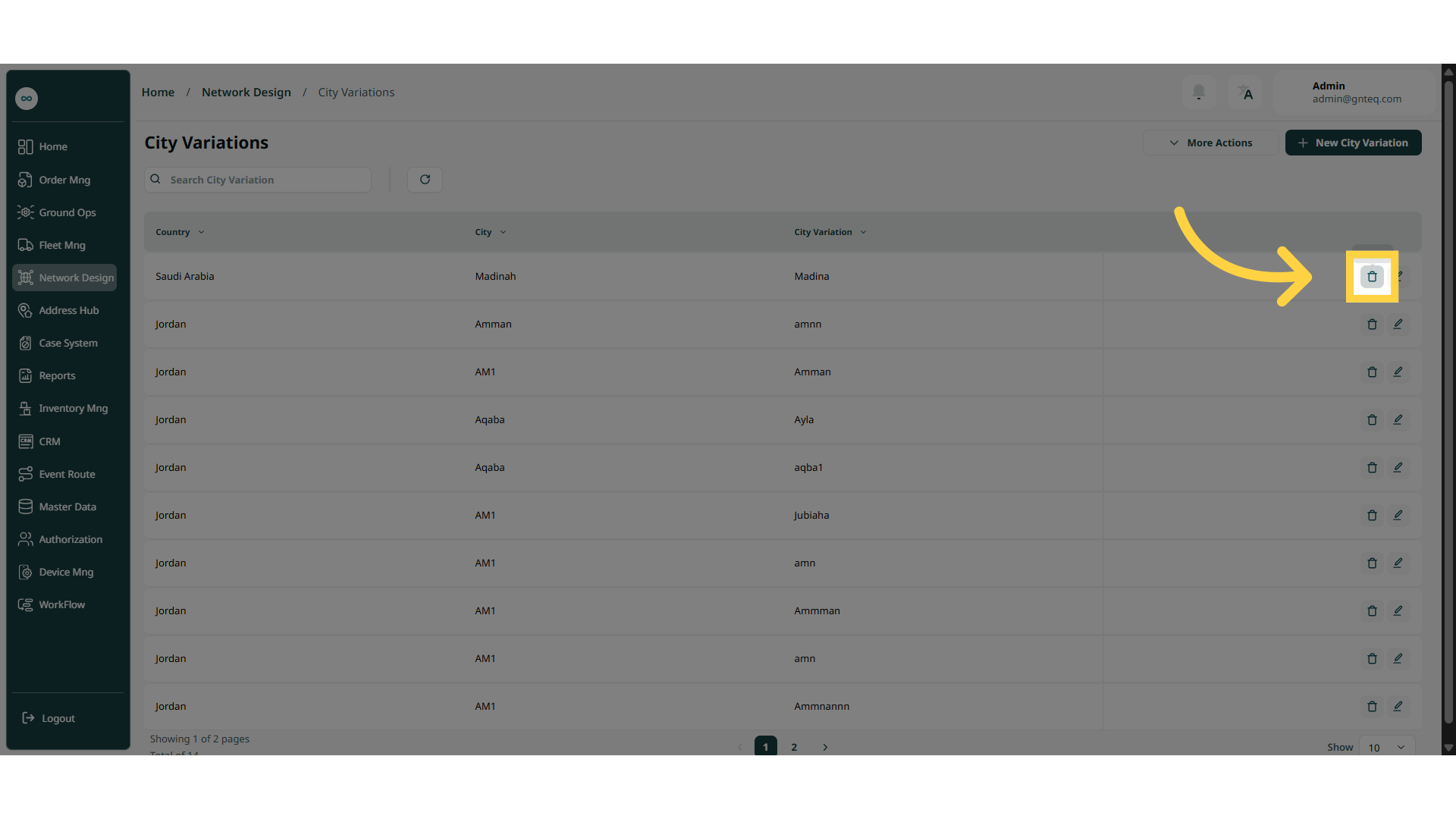
The user can delete an existing city by navigating to the ‘City Variations’ screen via the Network Design Module and clicking on Delete City Variations button:
1.2 Add New City Variation
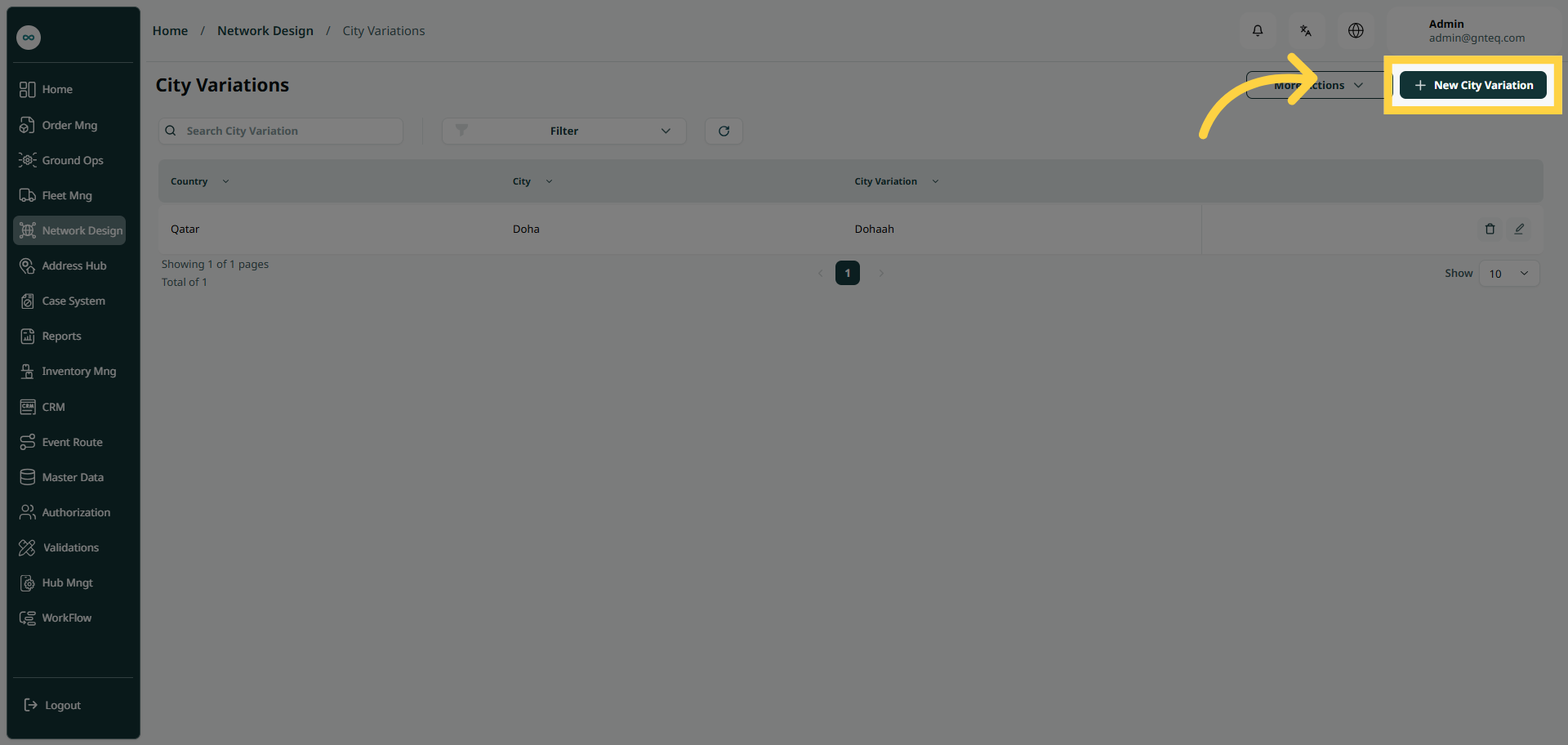
The user can create a new city variation by going to the ‘City Variations’ screen via the Network Design module and clicking on New City Variation button:
-
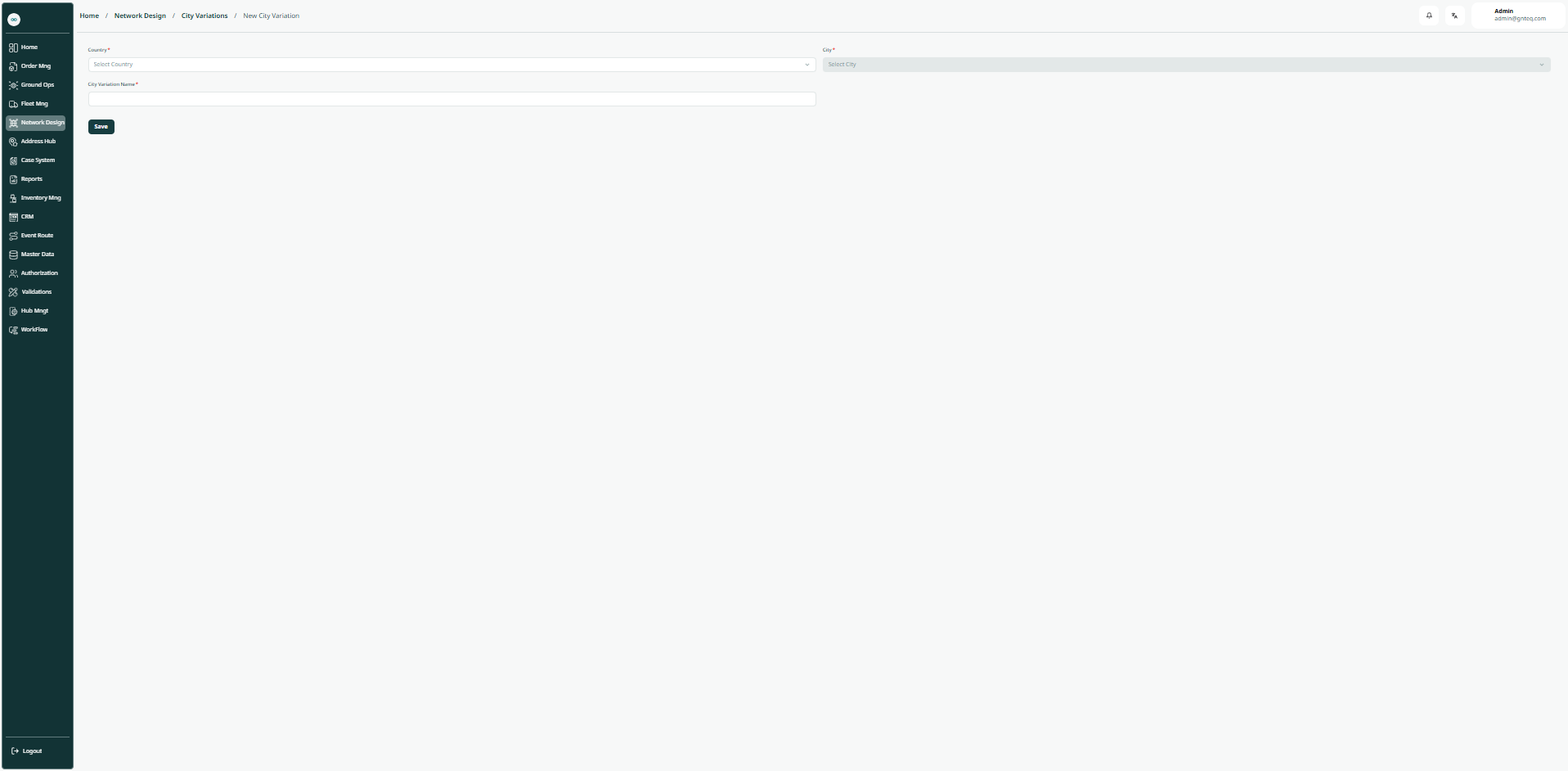
Country: this field represents the location to which the city name variations will be added.
-
City: this field represents the city to which the city name variations will be added.
-
City Variation Name: this field represents the name of the city variation to be added.
By clicking on Save, the city variation will be added successfully.