.png)
1. Virtual Shipments
1.1 Dashboard
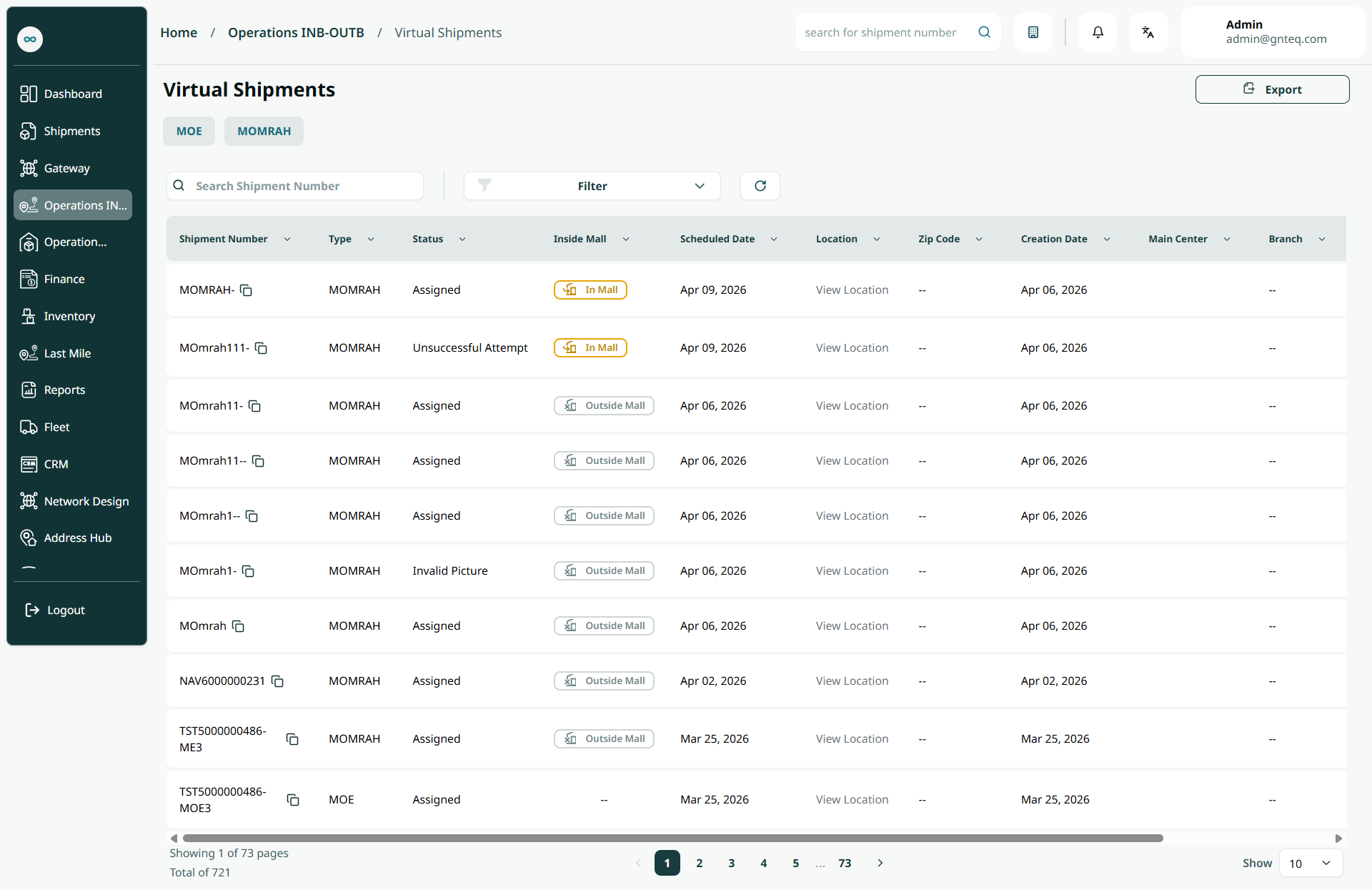
The user can manage the shipments assigned by the government by the government by navigating to the ‘Virtual Shipments’ screen via the Operations Module as follows:
-
Export: the user can export the list as an Excel file by selecting export button.
-
Filter: the user can search for the shipment by typing the zip code, national address,…….etc.
-
Search: the user can search for virtual shipments by entering the shipment number.
-
Actions: by clicking on Actions, the user can view details of the virtual shipment by going to the view virtual shipments section, or assign to route.
1.1.1 View Details
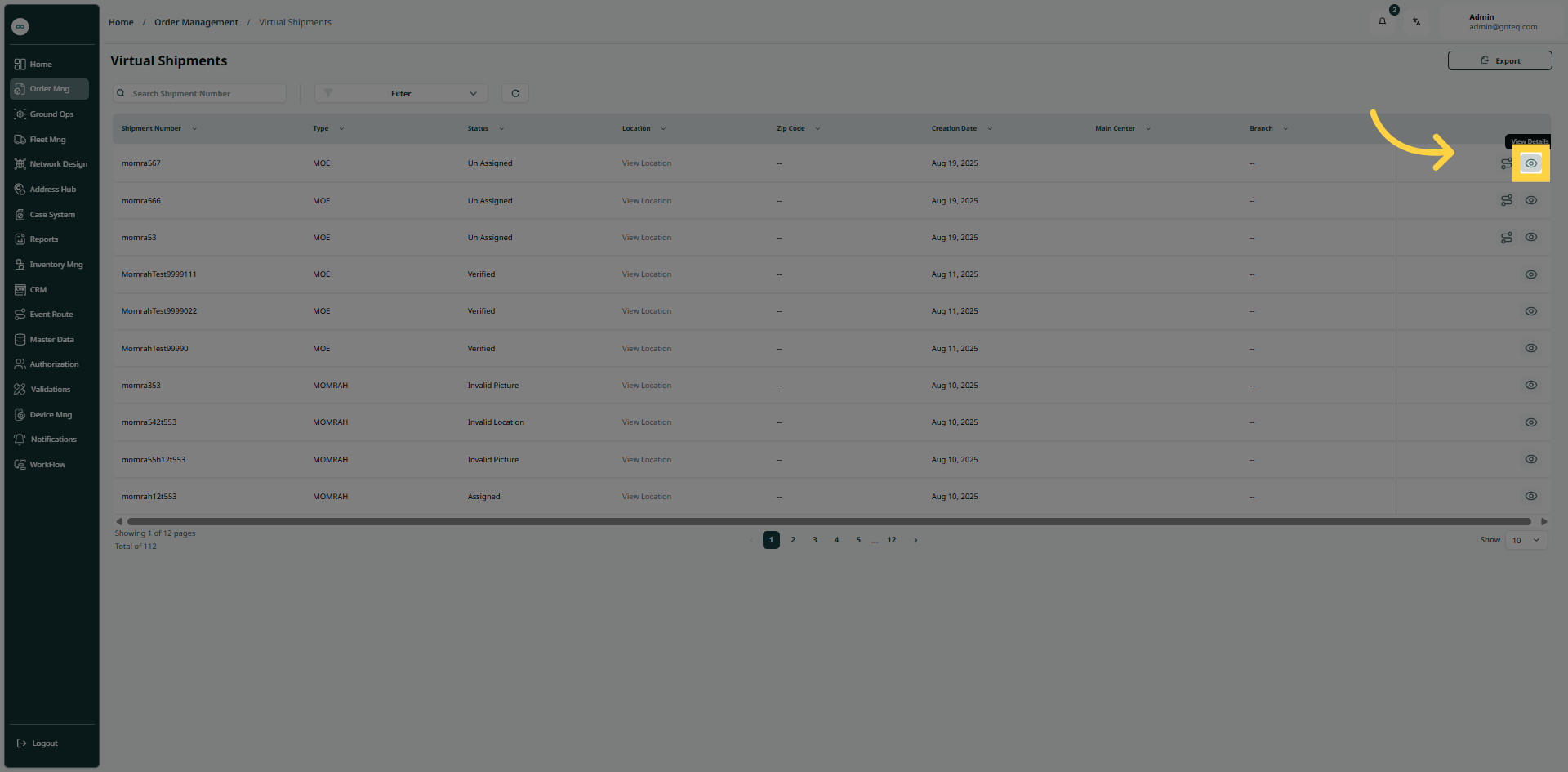
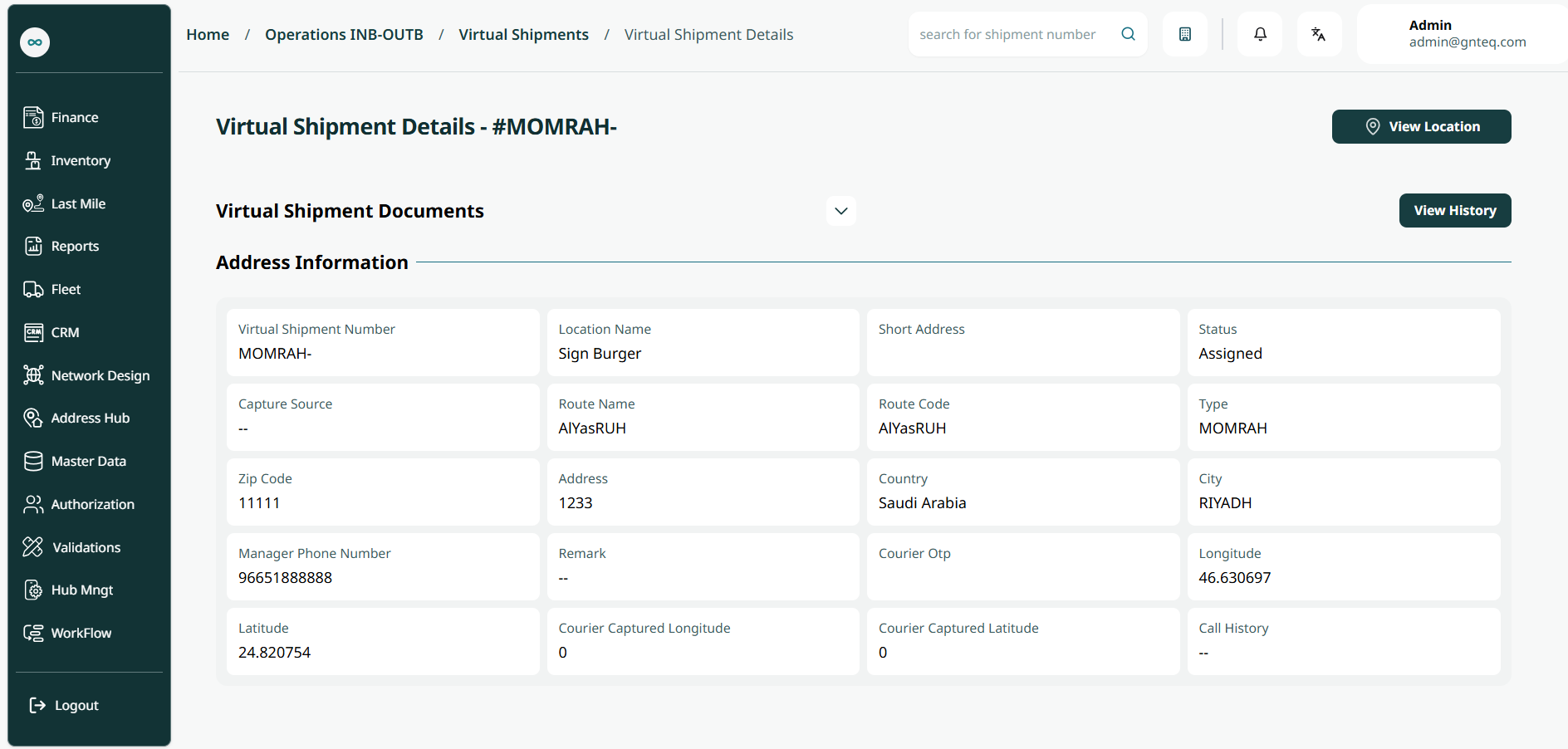
The user can view the shipment details by navigating to the ‘Virtual Shipment‘ screen via the Operations Module and clicking on View Details from Actions as follows:
1.1.2 Un Assign To Route
The user can unassign the shipment to the route by navigating to the ‘Virtual Shipments’ screen via the Operations Module and clicking on Unassign Route from Actions as follows:
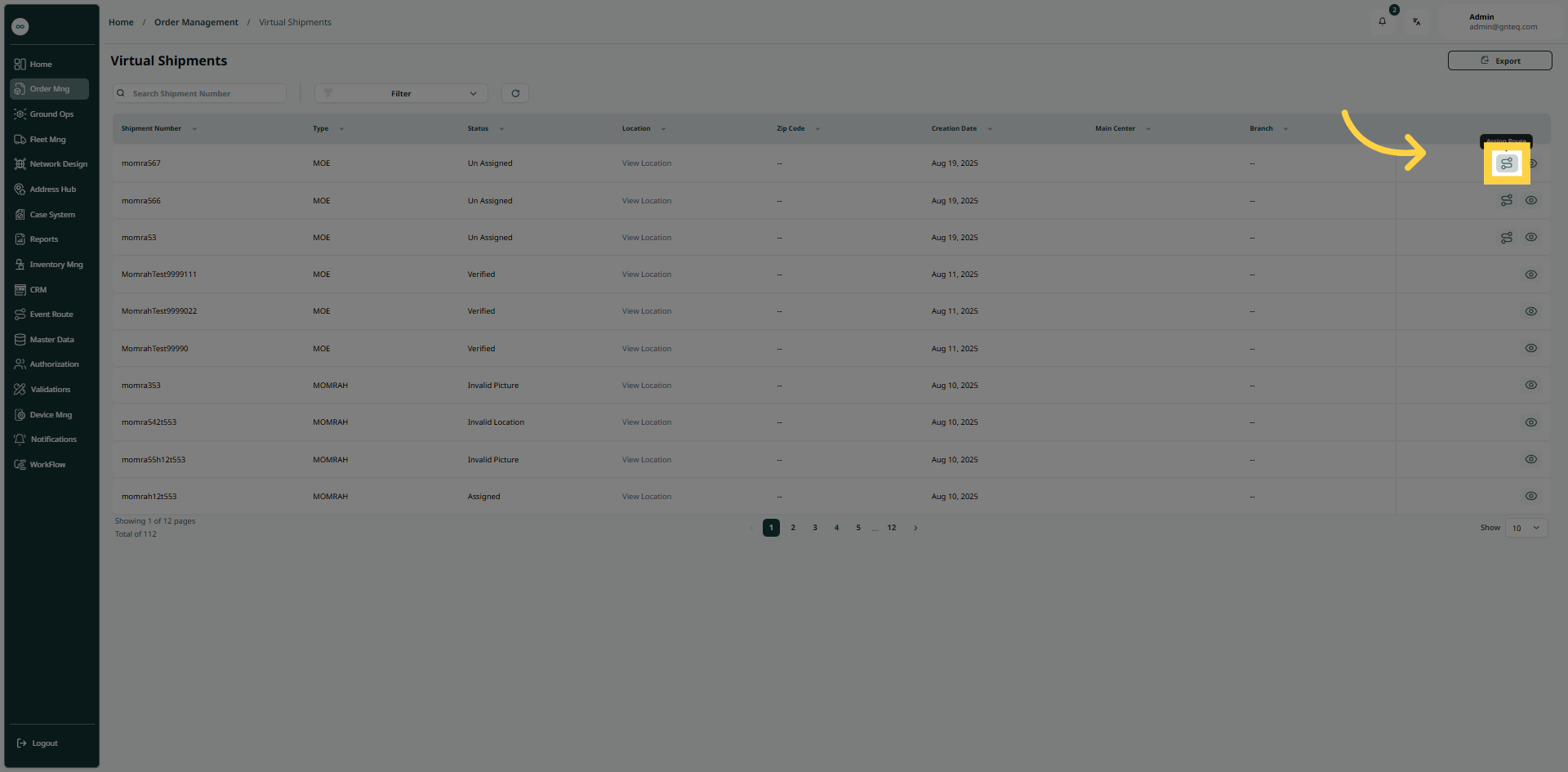
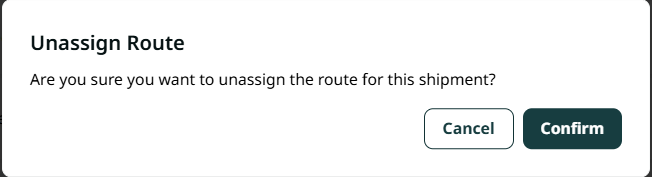
By clicking on “Confirm”, the shipment will be unassigned to the route successfully.