.png)
Document History
|
Version |
Author |
Reviewer/Approver |
Date of Issue |
Page / Section |
Brief Description |
|---|---|---|---|---|---|
|
1.0 |
Jameel.S |
Deema Z.\Asma L. |
5/5/2025 |
Run Sheet |
First Version |
|
1.1 |
Deema.Z |
|
30/3/2026 |
|
|
Glossary
|
Term |
Definition |
|---|---|
|
Run Sheet |
It is typically a document or digital record that outlines all deliveries or pickups assigned to a courier for a specific route. It includes details such as the stops, timeframes, and associated shipments. |
|
Rout |
It is a planned delivery route for a truck courier. |
|
Supervisor |
A supervisor is someone who oversees and manages the run sheets or activities of a courier. |
|
Courier Trip |
Refers to the physical movement or journey of a courier during one or several routes (with one or more Run Sheets associated with a single Trip). It monitors the courier's progress from the beginning to the end of the trip. Initiating a Trip triggers Route Optimization, and Operations Debriefing will be carried out using data collected from the Trip. |
1. Run Sheet Creation Overview
1.1 Dashboard
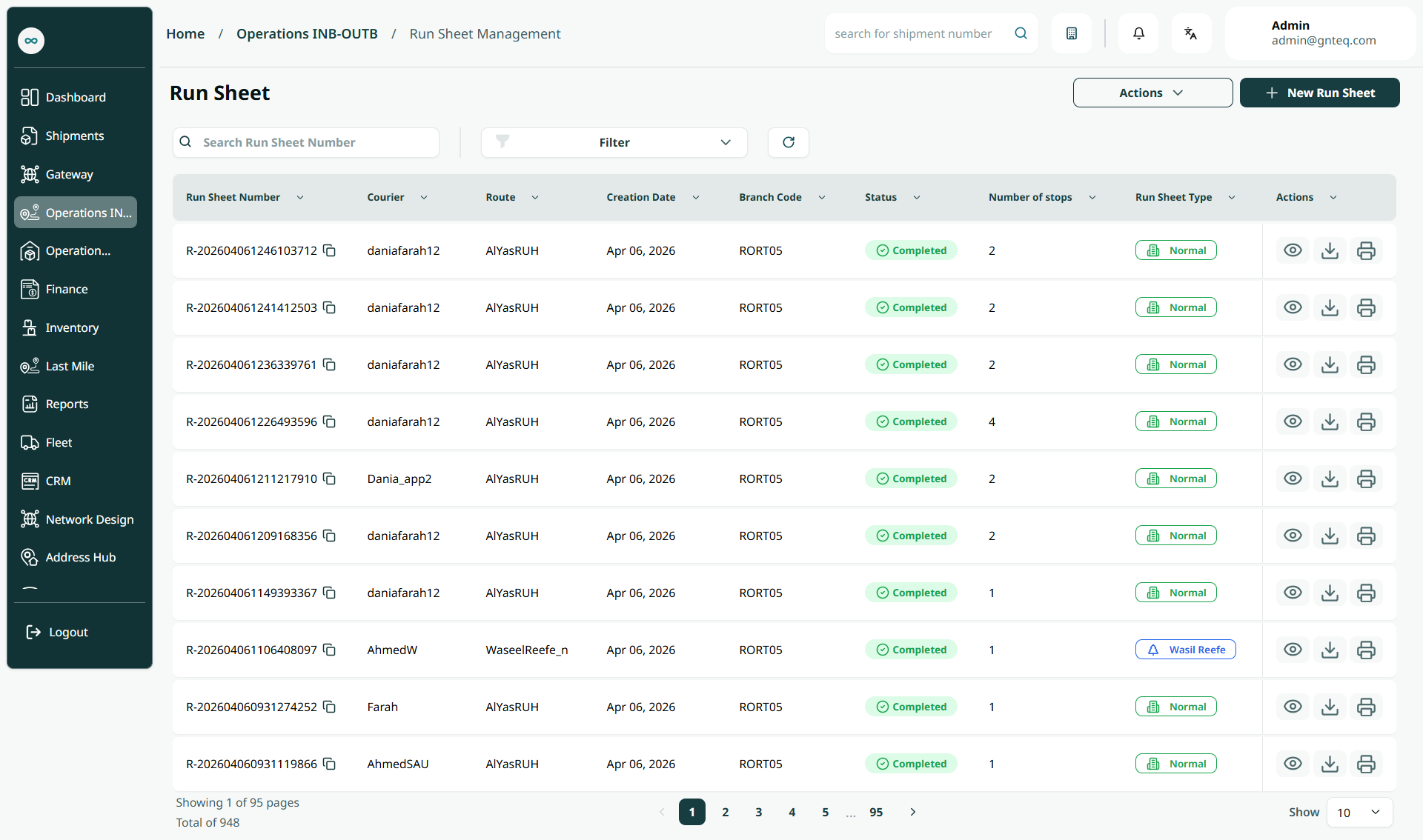
The supervisor can view the defined run sheets in the system by navigating to the ‘Run Sheet’ screen in the Operations module from the left navigation panel as follows:
-
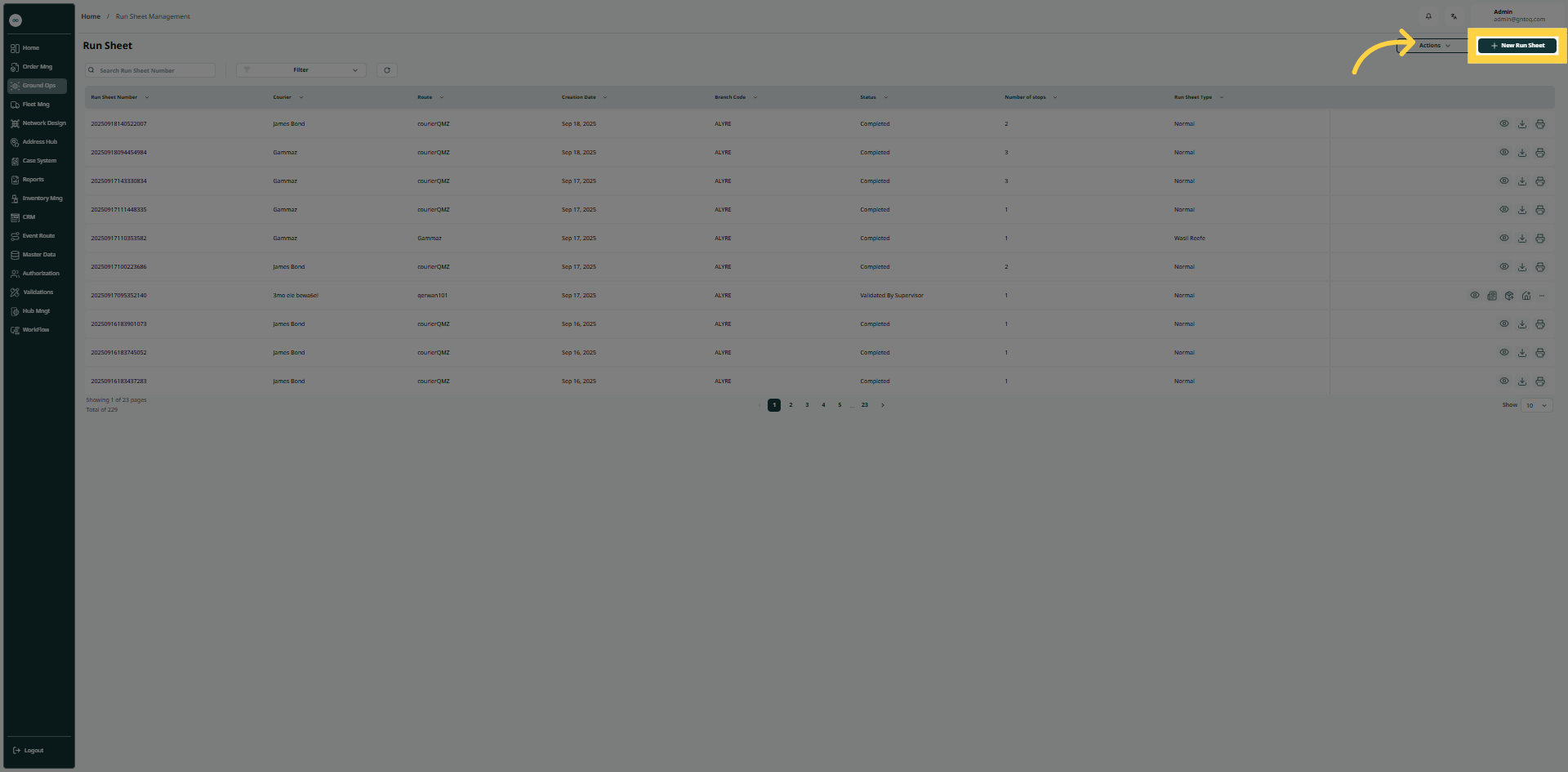
New Run Sheet: the supervisor can add a new run sheet by clicking on ‘New Run Sheet’.
-
Actions: by clicking on the Actions button, the user can download a detailed report and a summary report.
-
Filter: the supervisor can search for the run sheet by typing the run sheet number, courier, route……etc.
-
Rows Per Page: the supervisor can select the number of items to show on each page.
-
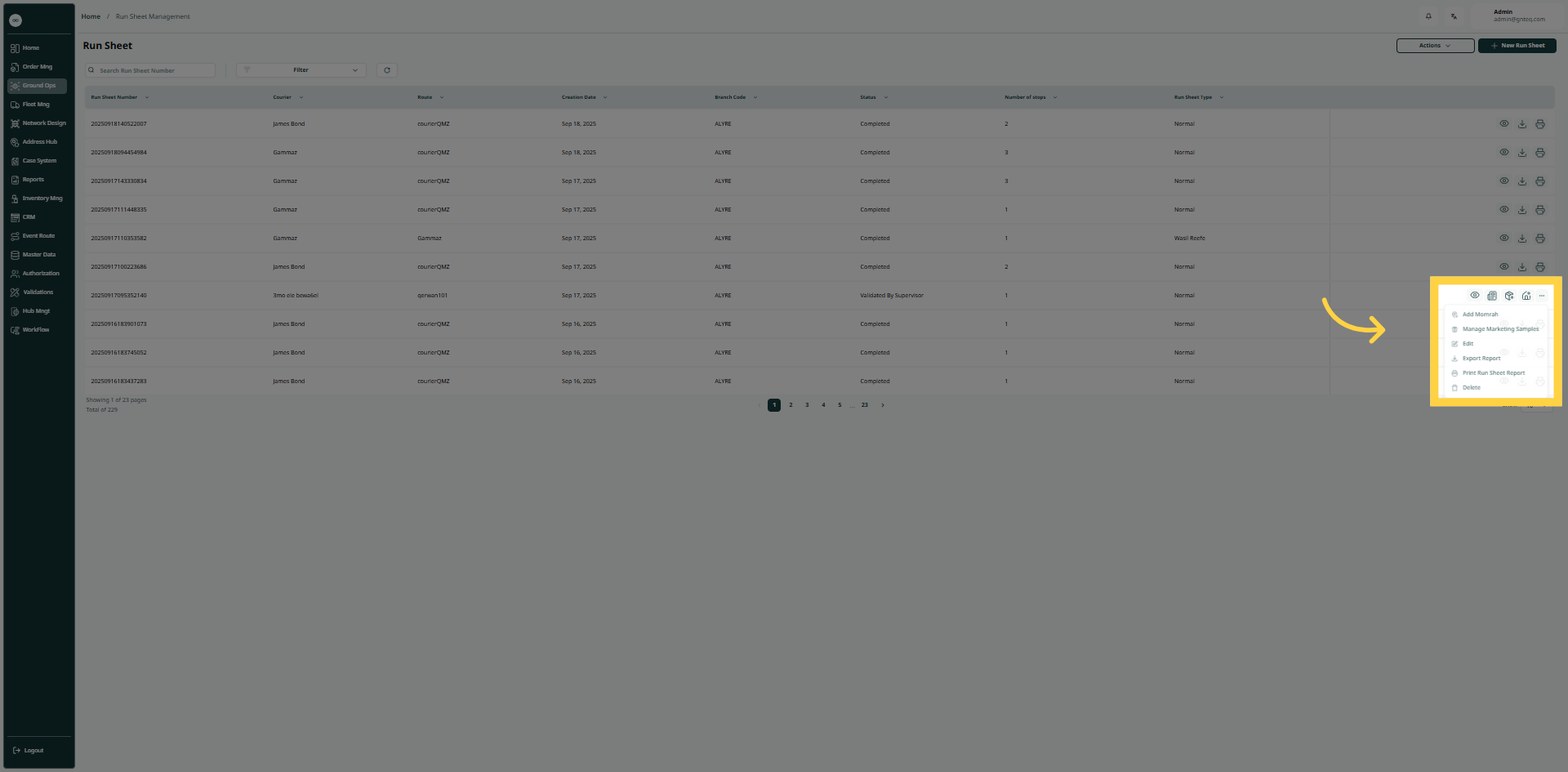
Actions: by clicking on this button the supervisor can view details, mange marketing sample, edit , export report, , delete.
1.1.1 View Run sheet Details
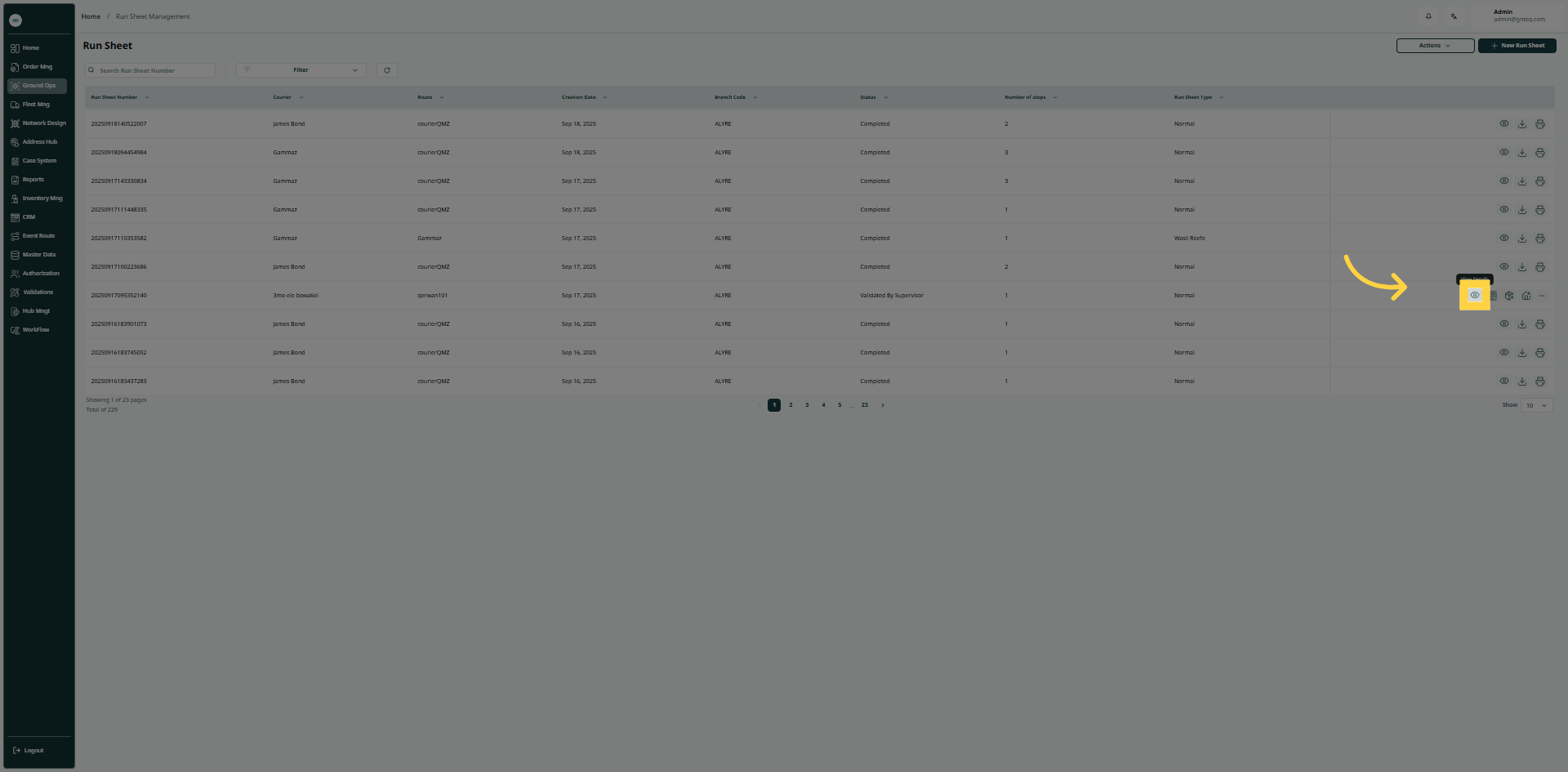
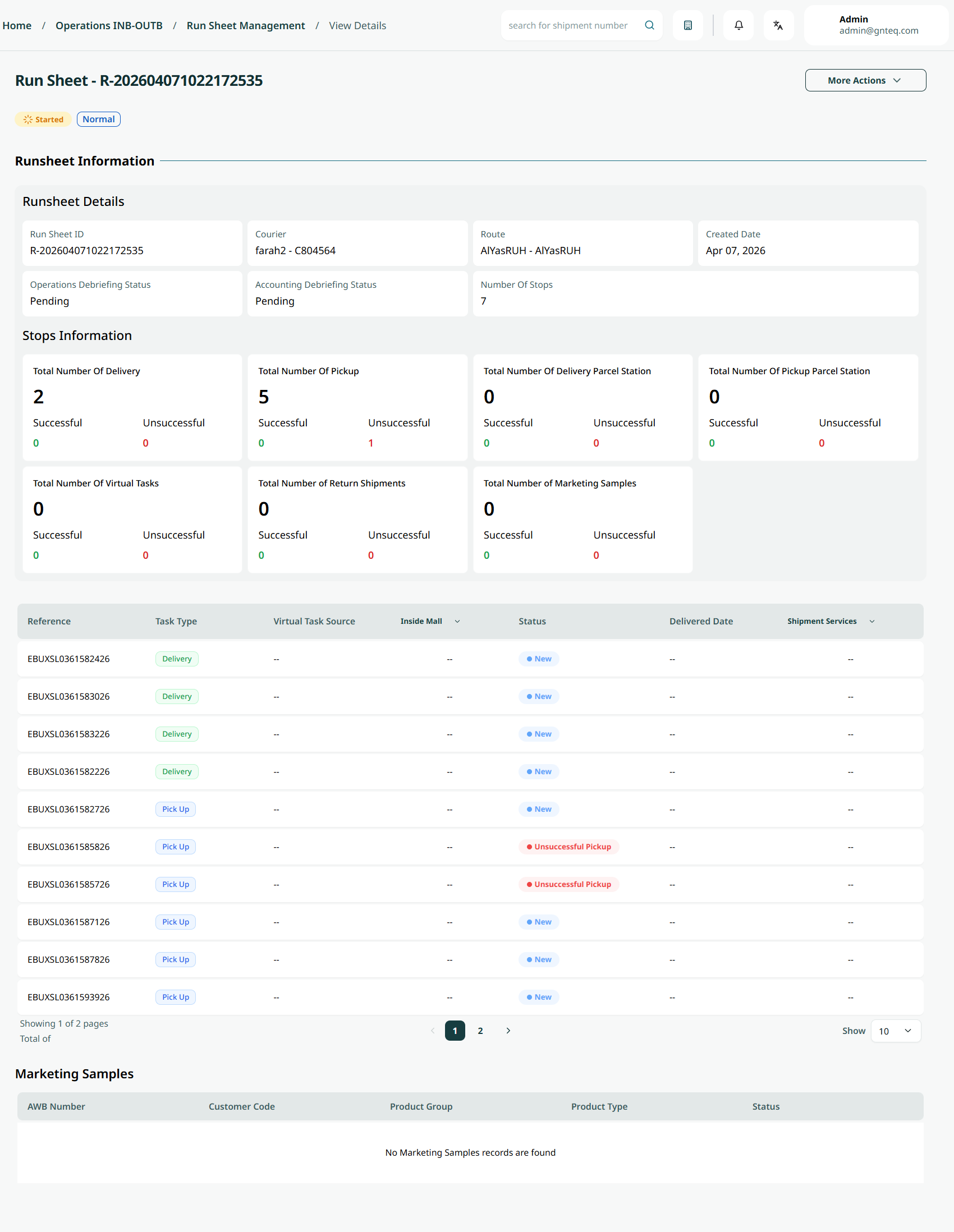
The supervisor can view details of an existing run sheet by navigating to the ‘Run Sheet’ screen via the Operations module and clicking on View Details button:
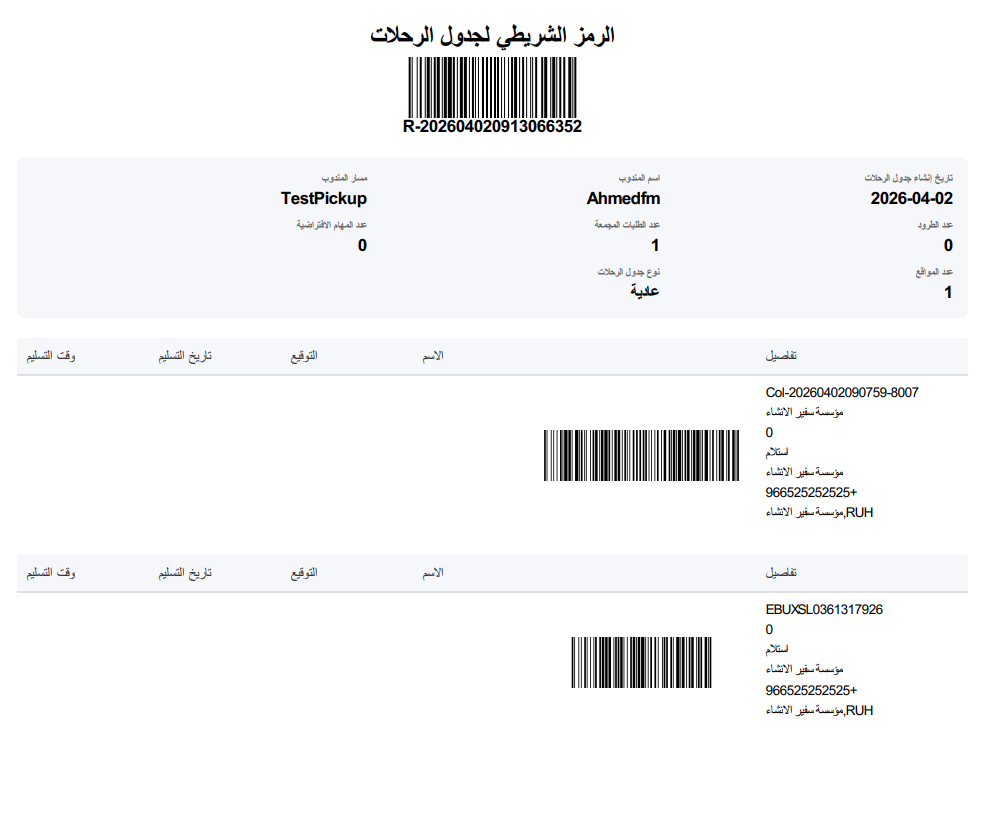
1.1.2 Print Run Sheet Form
The supervisor can print the run sheet Form by navigating to the "Run Sheet" screen through the Operations module and clicking the Print Run Sheet Form button, as follows:

1.1.3 Export Report
The supervisor can export a report of an existing run sheet by navigating to the ‘Run Sheet’ screen via the Operations module and clicking on the Export Report button:

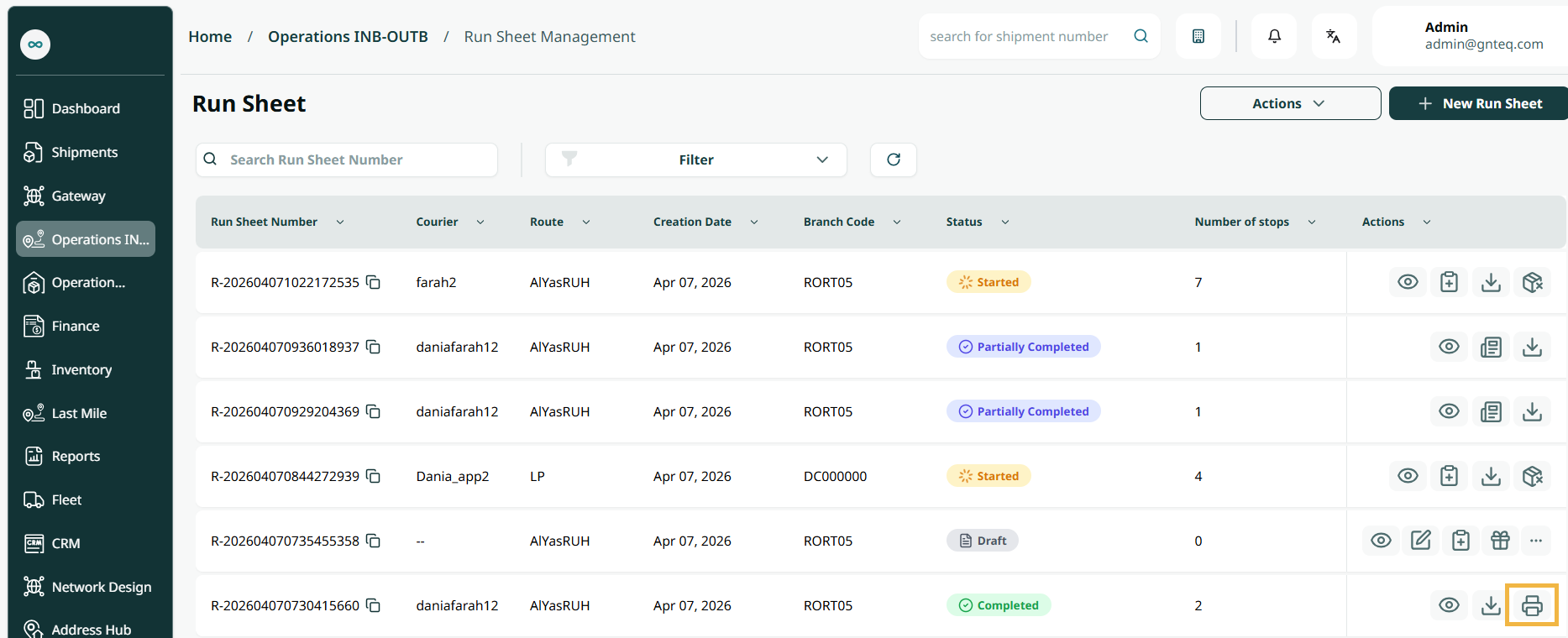
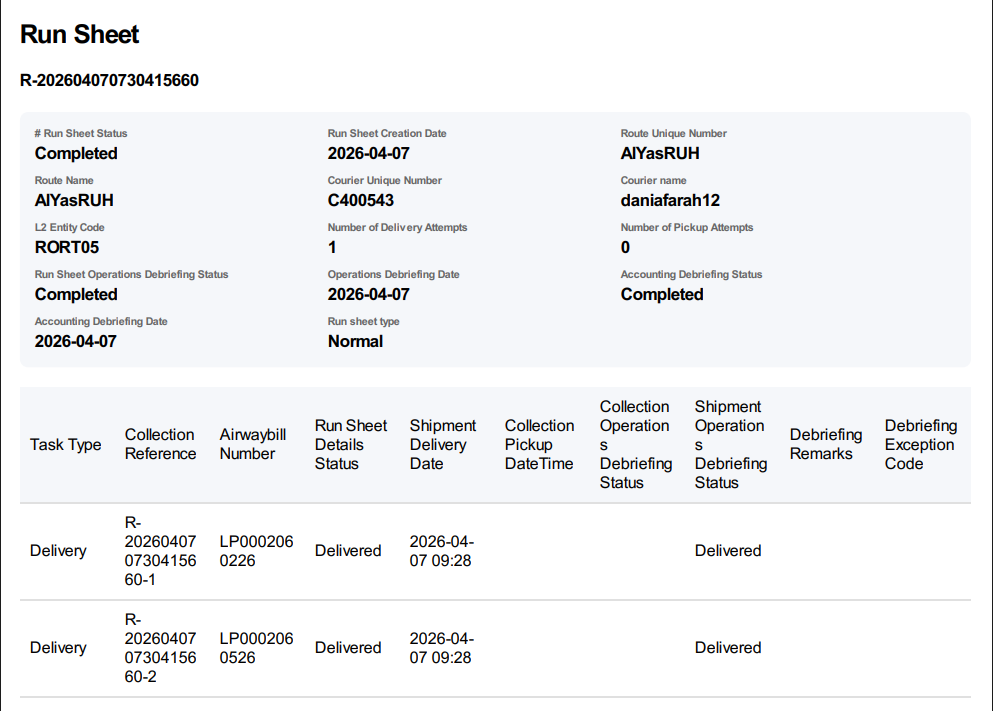
1.1.4 Print Run Sheet Report
The supervisor can print report of an existing run sheet by navigating to the ‘Run Sheet’ screen via the Operations module and clicking on Print Report button:
1.1.5 Mange Marketing Sample
The supervisor can manage marketing samples of an existing run sheet by navigating to the ‘Run Sheet’ screen via the Operations module and clicking on Mange Marketing Sample button:
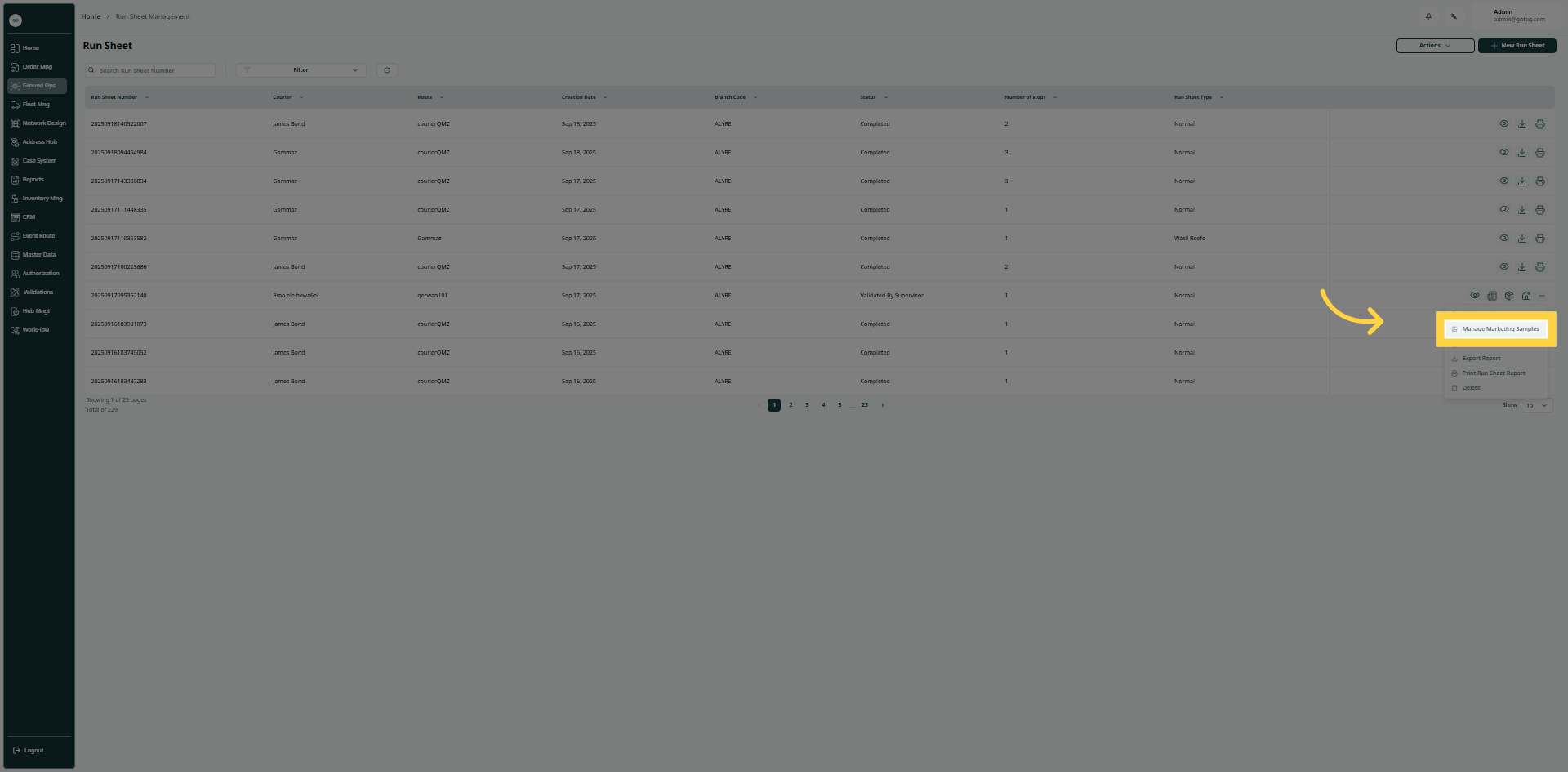
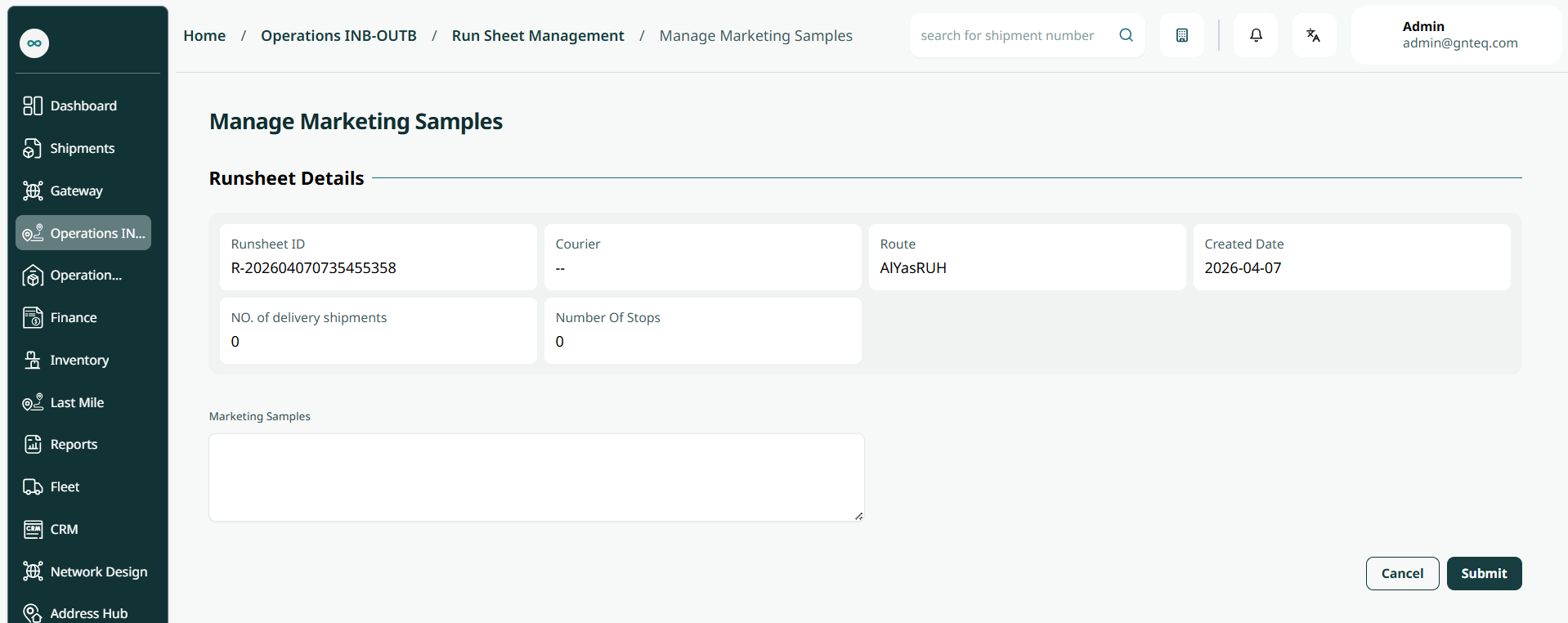
Note: the supervisor can validate marketing samples for the run sheet by typing the numbers.
By clicking on Submit the marketing sample will be validated successfully.
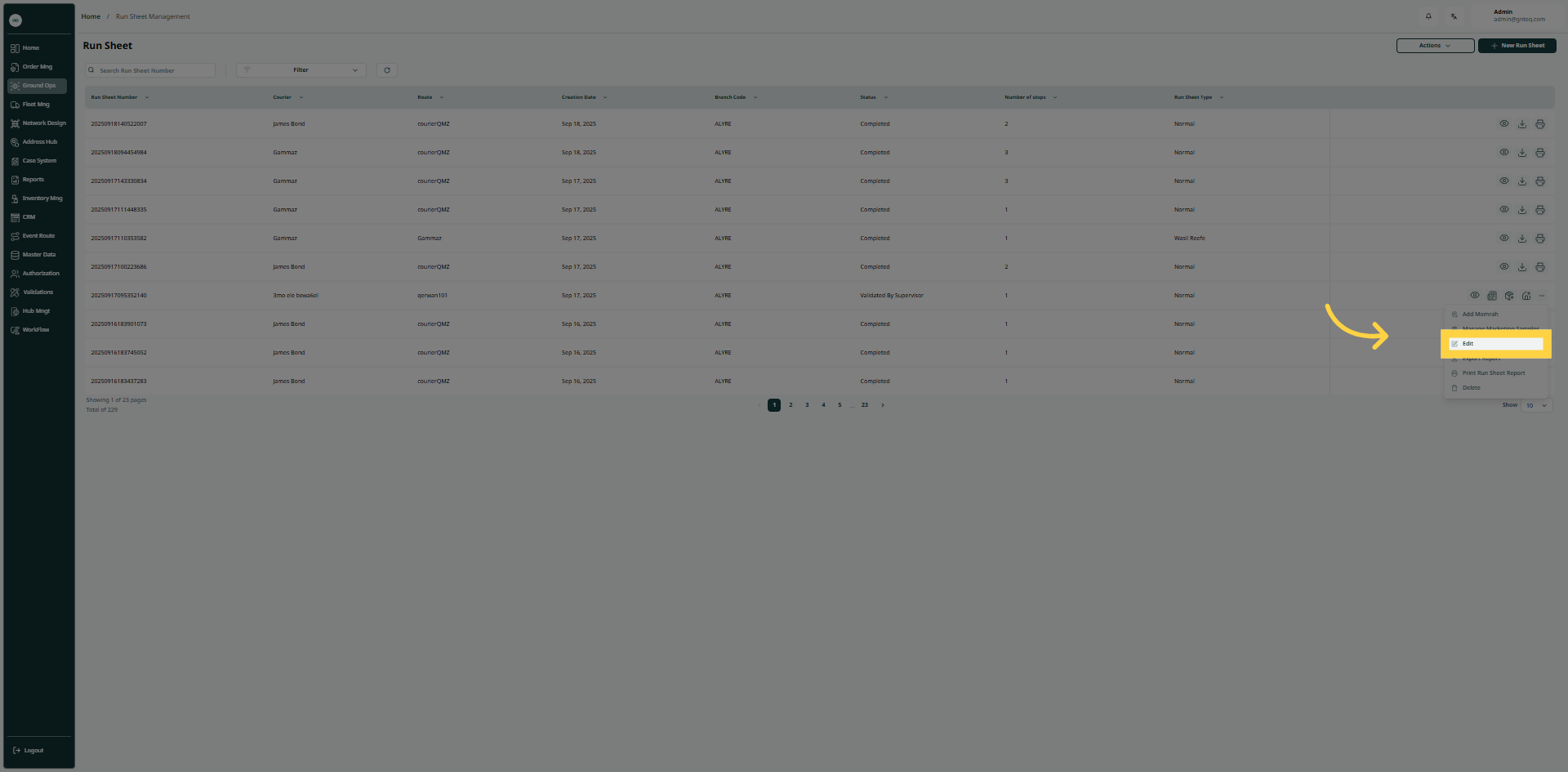
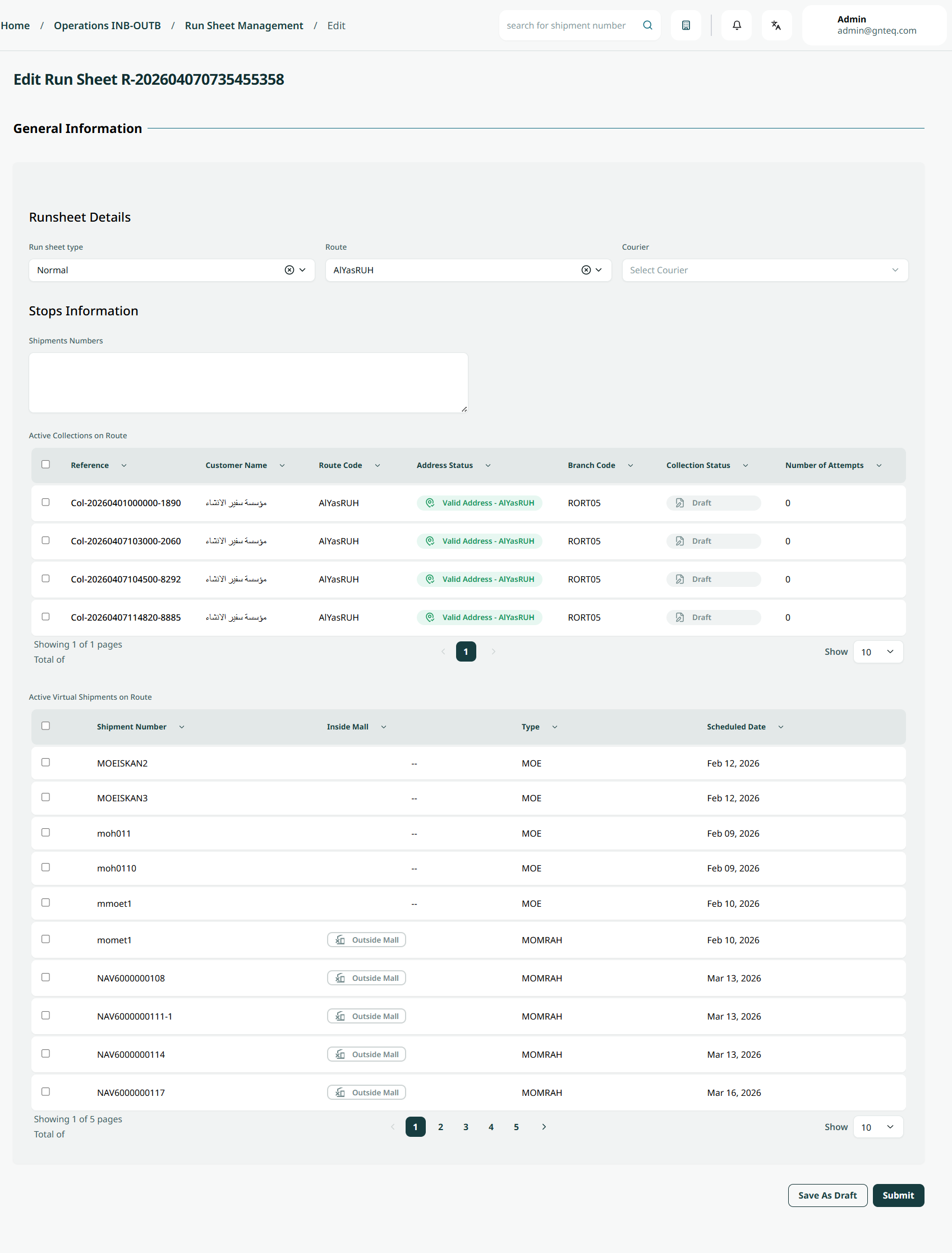
1.1.6 Edit Runsheet
The supervisor can edit an existing run sheet by navigating to the ‘Run Sheet’ screen via the Operations module and clicking on Edit button:
1.1.7 Add to Run Sheet
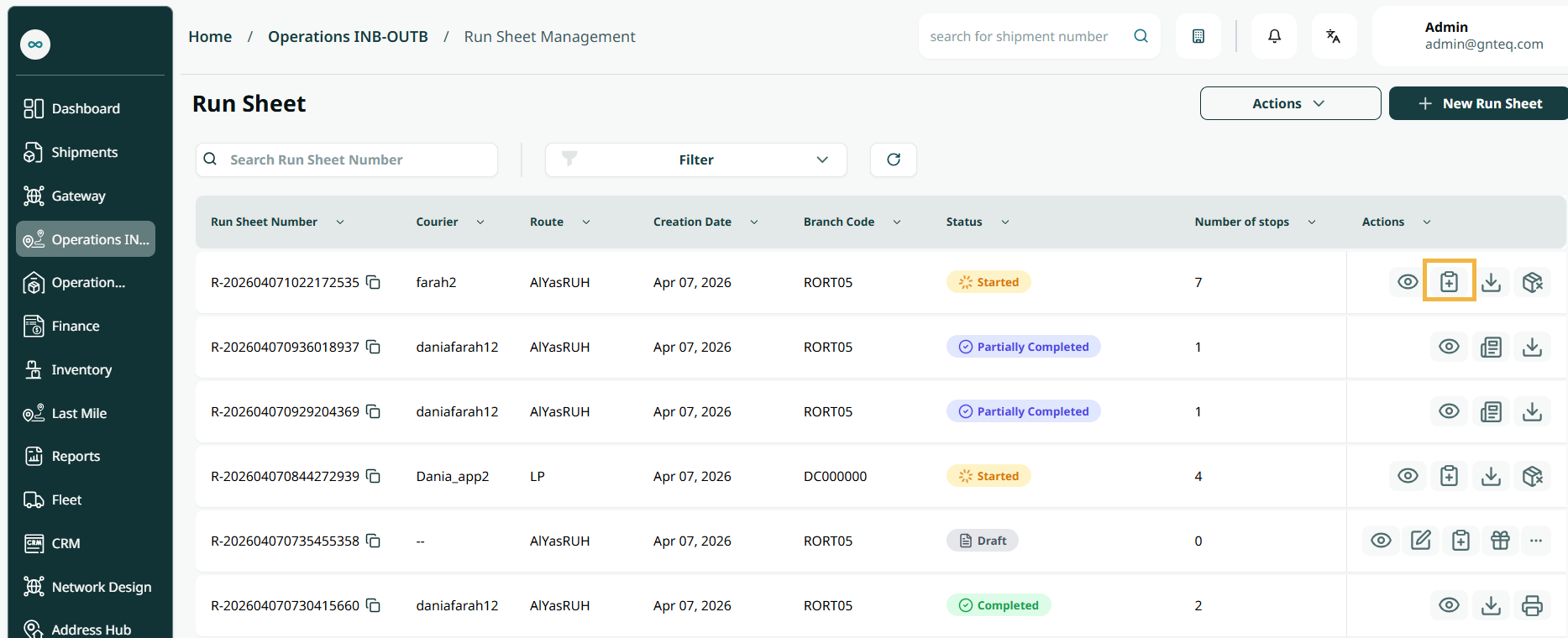
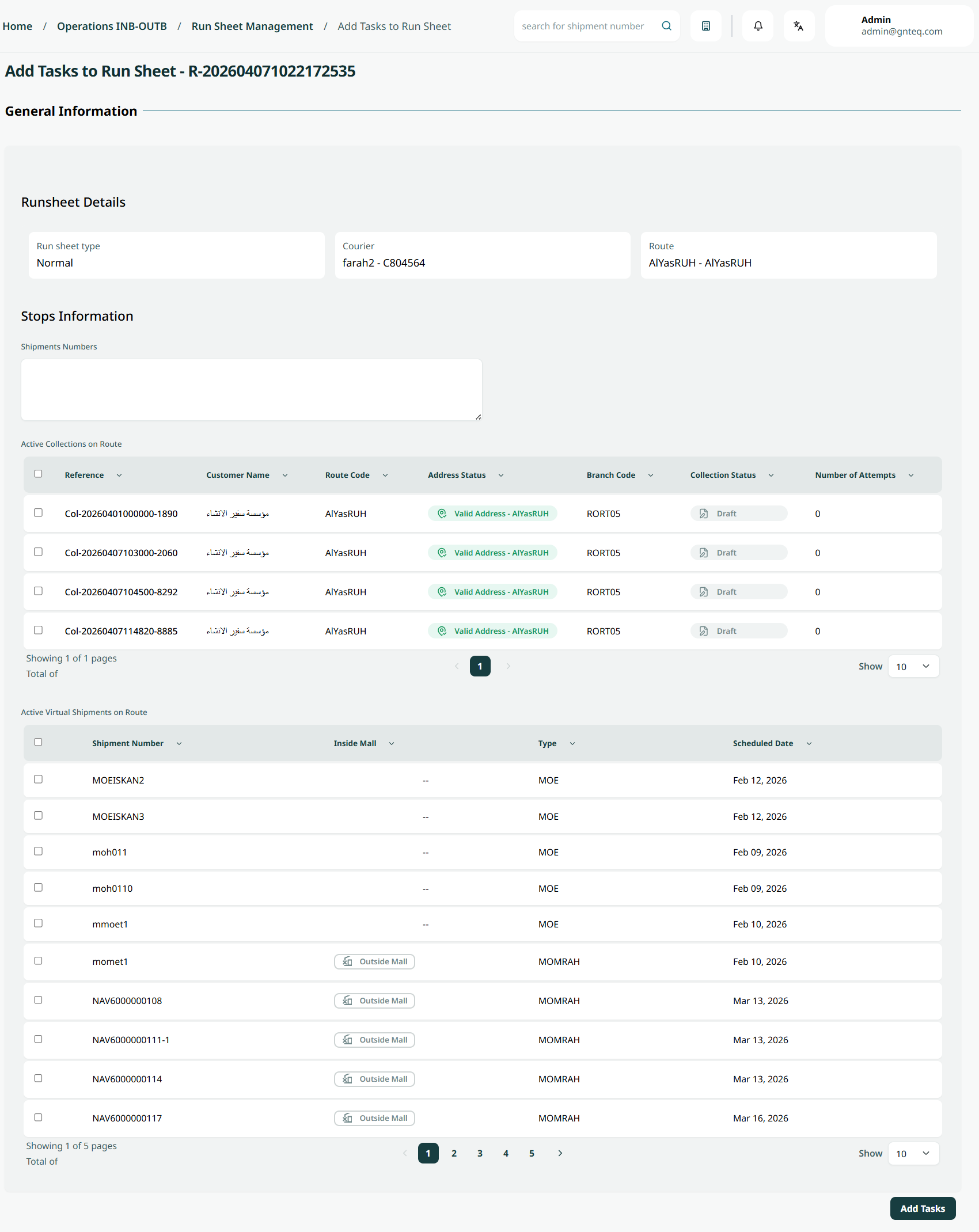
The supervisor can add tasks to the Add to Run Sheet by navigating to the "Run Sheet" screen through the Operations module and clicking the Add to Run Sheet button. The Trip Manifest must be in Draft status.
1.1.8 Validate Run Sheet
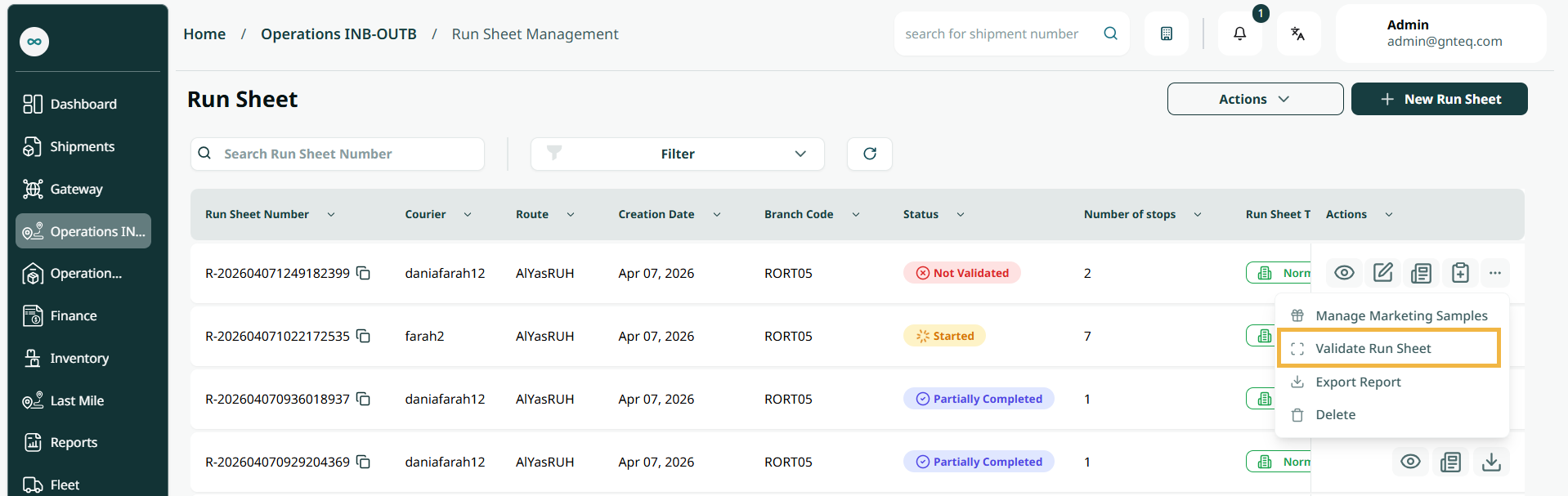
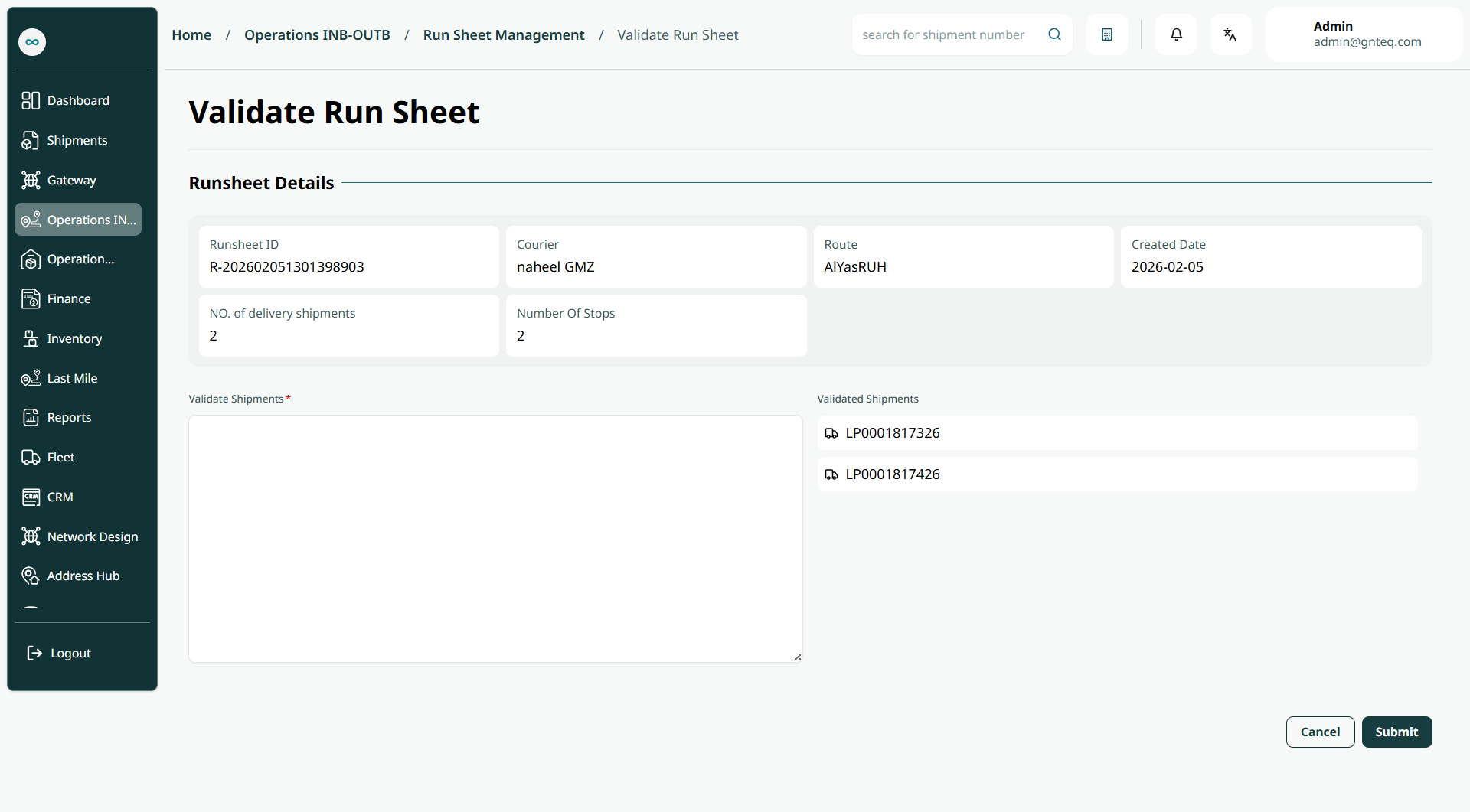
The supervisor can verify the run sheet in the system by navigating to the "Run Sheet" screen through the Operations module and clicking the Validate Run Sheet button, as follows:
1.1.9 Close Run Sheet
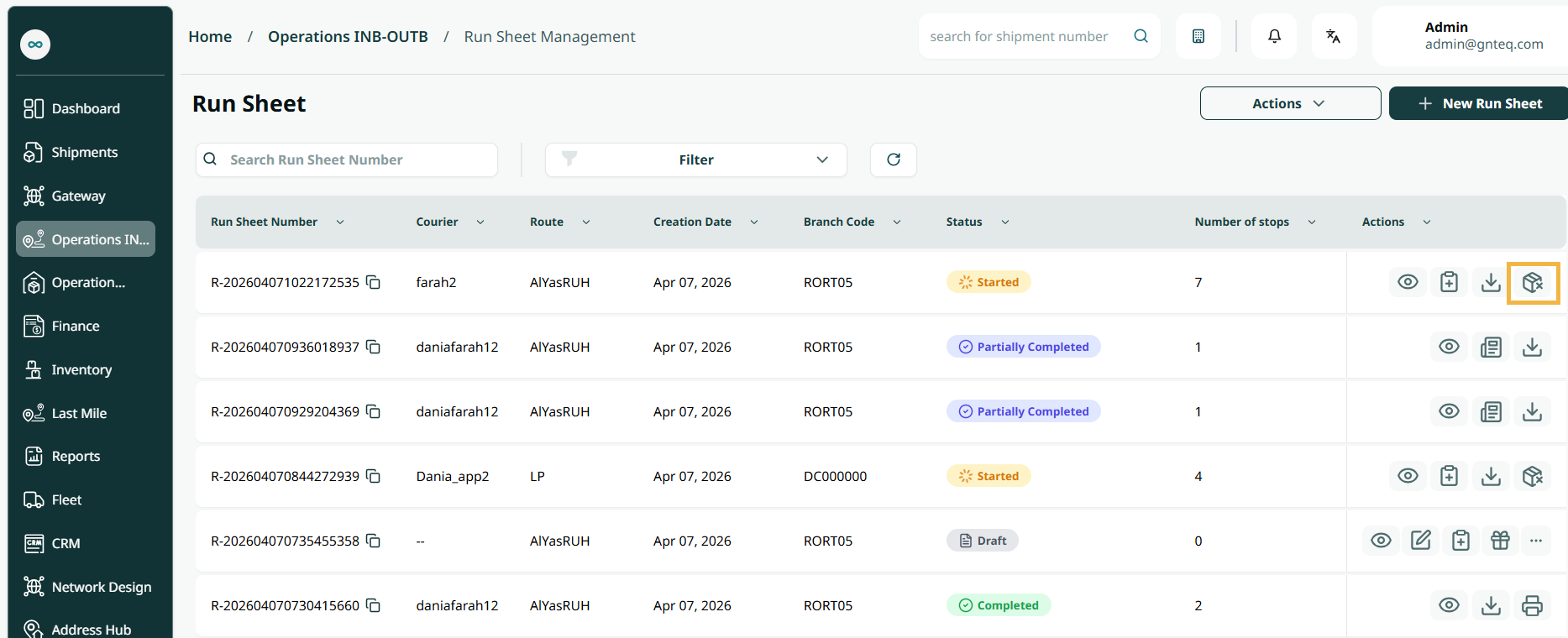
The supervisor can close the Trip Manifest by navigating to the "Trip Manifest" screen through the Operations module and clicking the Close Trip Manifest button. The Trip Manifest must be in Draft status.
1.1.10 Delete Run Sheet
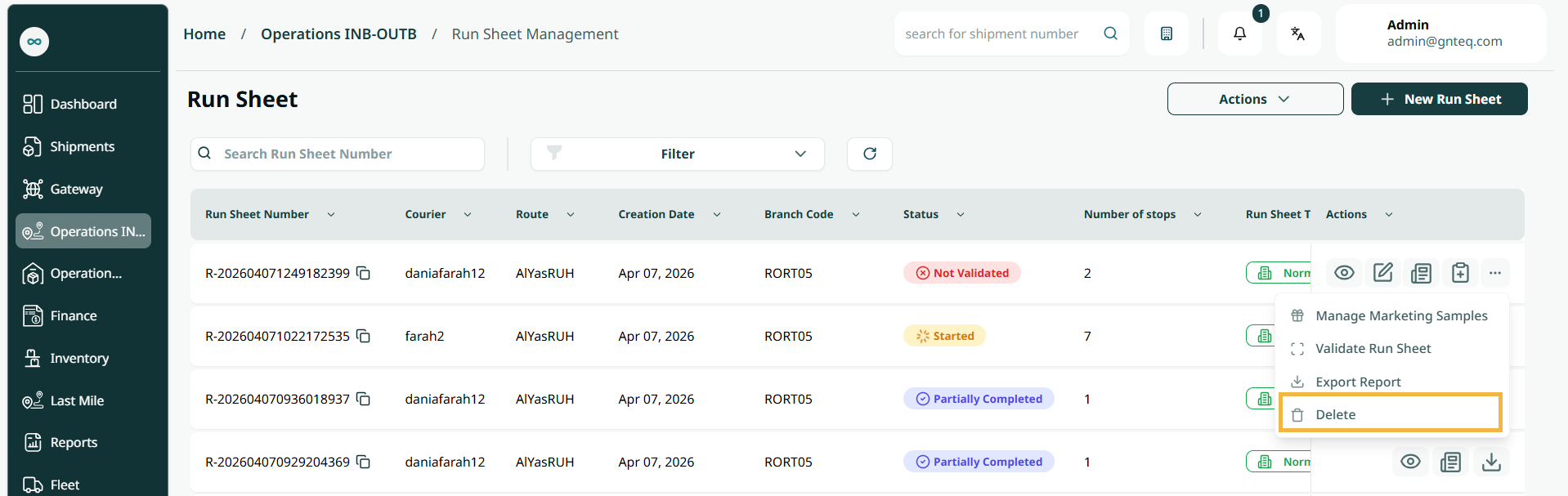
The supervisor can delete the Run Sheet from the system by navigating to the "Run Sheet" screen through the Operations module and clicking the Delete button. The Trip Manifest must be in Draft or Not Validated status, as follows:
2. Create New Run Sheet
The supervisor can create a new run sheet by navigating to the ‘Run Sheet’ screen via the Operations module and clicking on New Run Sheet:
-
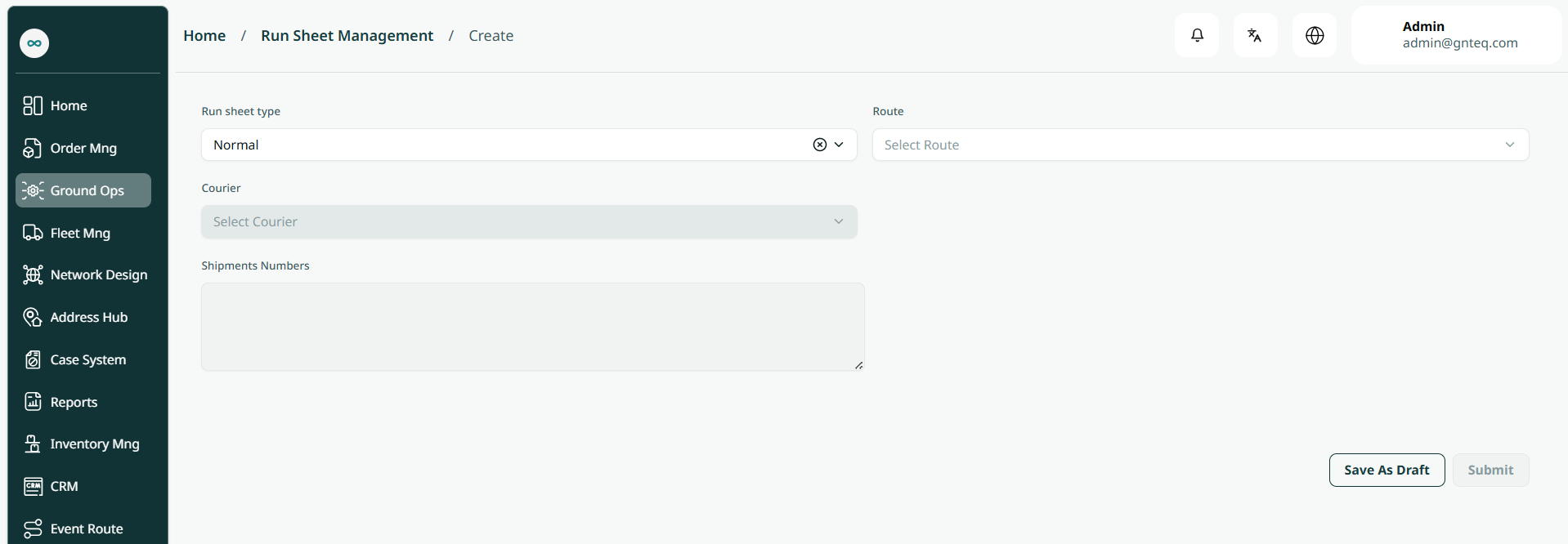
Run Sheet Type: this field represents the type of run sheet (Normal or Wasil Refee)
-
Courier: this field represents the courier name.
-
Route: this field represents the route that will be assigned to the courier.
-
Shipments Number: this field represents the shipments' airwaybill numbers.
By clicking Save draft, the run sheet will be saved and will be in draft status.
By clicking on Submit, the run sheet will be added successfully.