.png)
1. Debriefing Operation
1.1 Dashboard
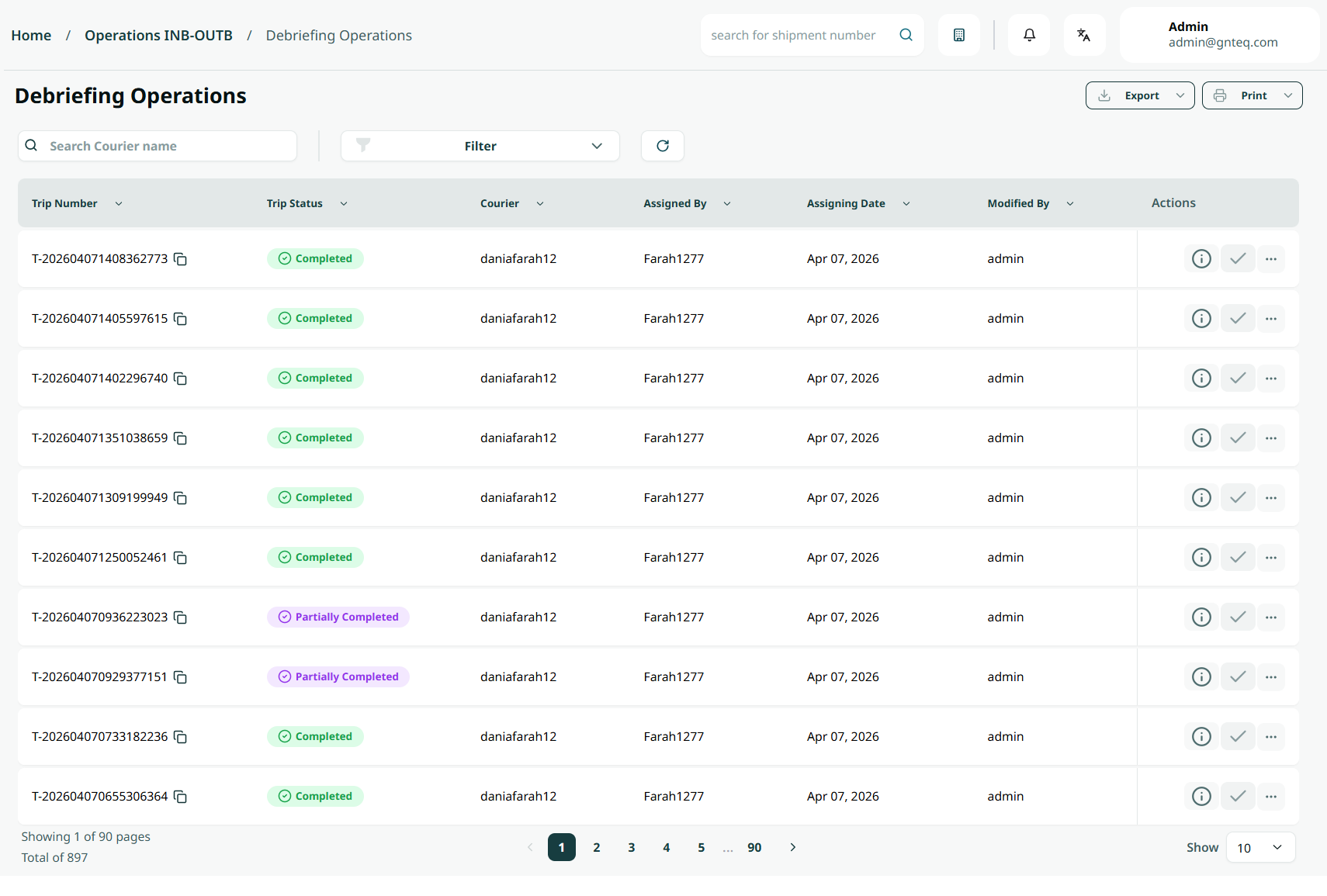
The supervisor can view the defined trip in the system by navigating to the ‘Debriefing Operations’ screen in the Operations module from the left navigation panel as follows:
-
Filters: the supervisor can search for the courier name, run sheet number, route name,…….etc.
-
Search: The user can search for trip by entering the trip number.
-
Rows Per Page: the supervisor can select the number of items to show on each page..
-
Export: the supervisor can export the list as an Excel file summary report or a detailed report by selecting export button.
-
Print: The supervisor can print a summary report or a detailed report of the trip documents by clicking the print button.
-
Action: by clicking on this button the supervisor can view, print summary, export details, preform ops debriefing.
1.2 View Details
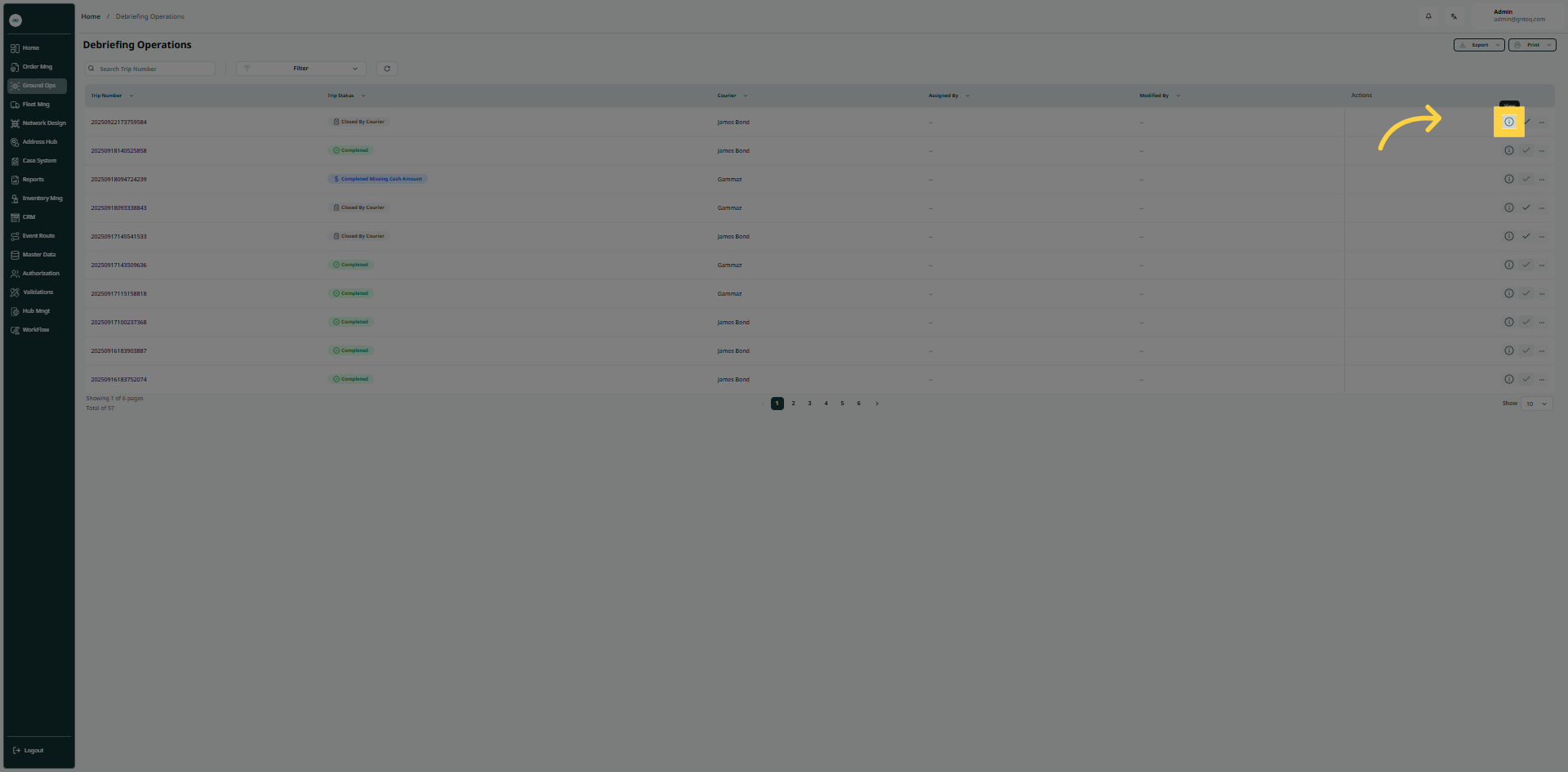
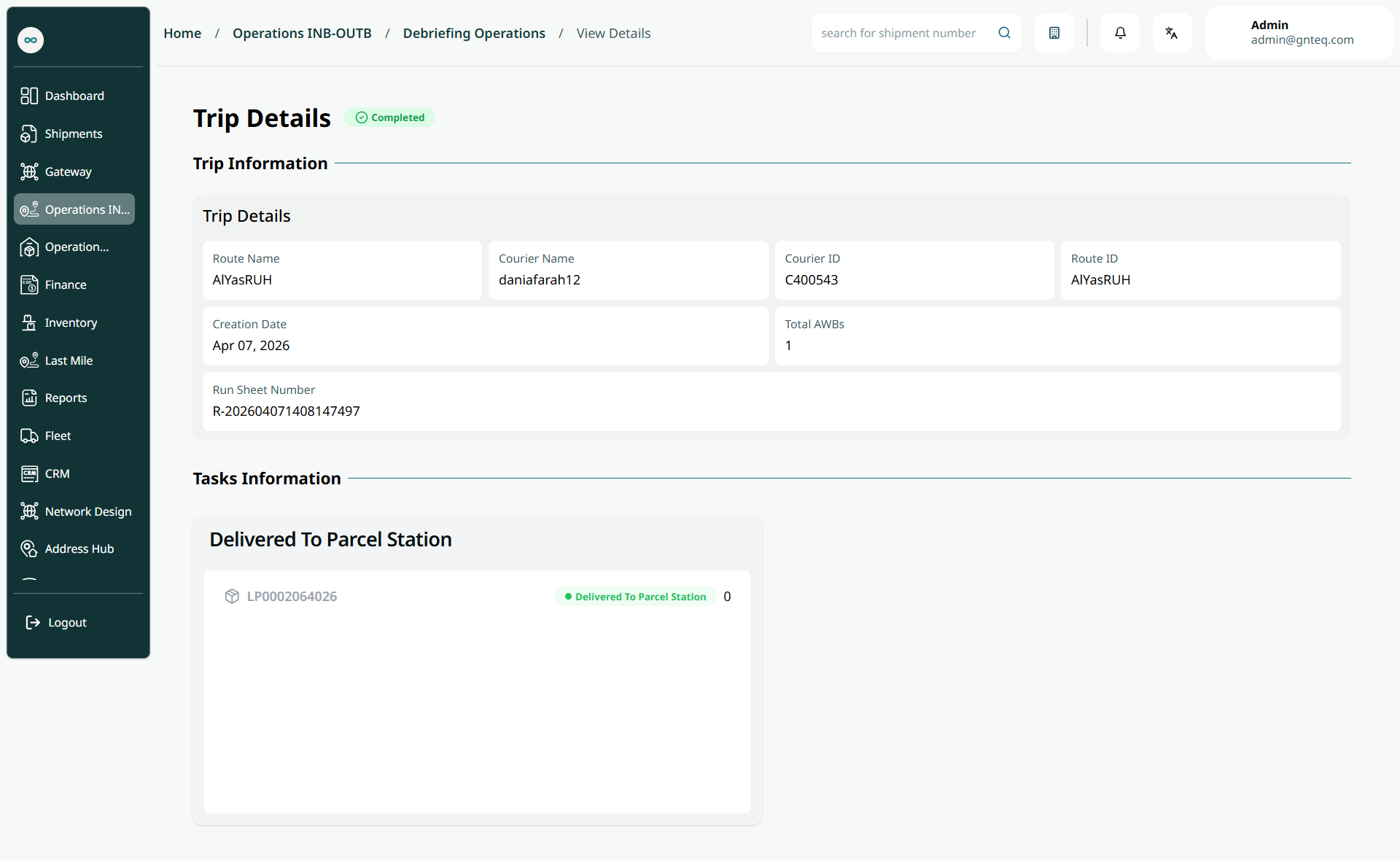
The supervisor can view details by navigating to the ‘Debriefing Operations’ screen via the Operations module and clicking on View Details from Actions as follows:
1.3 Print Summary
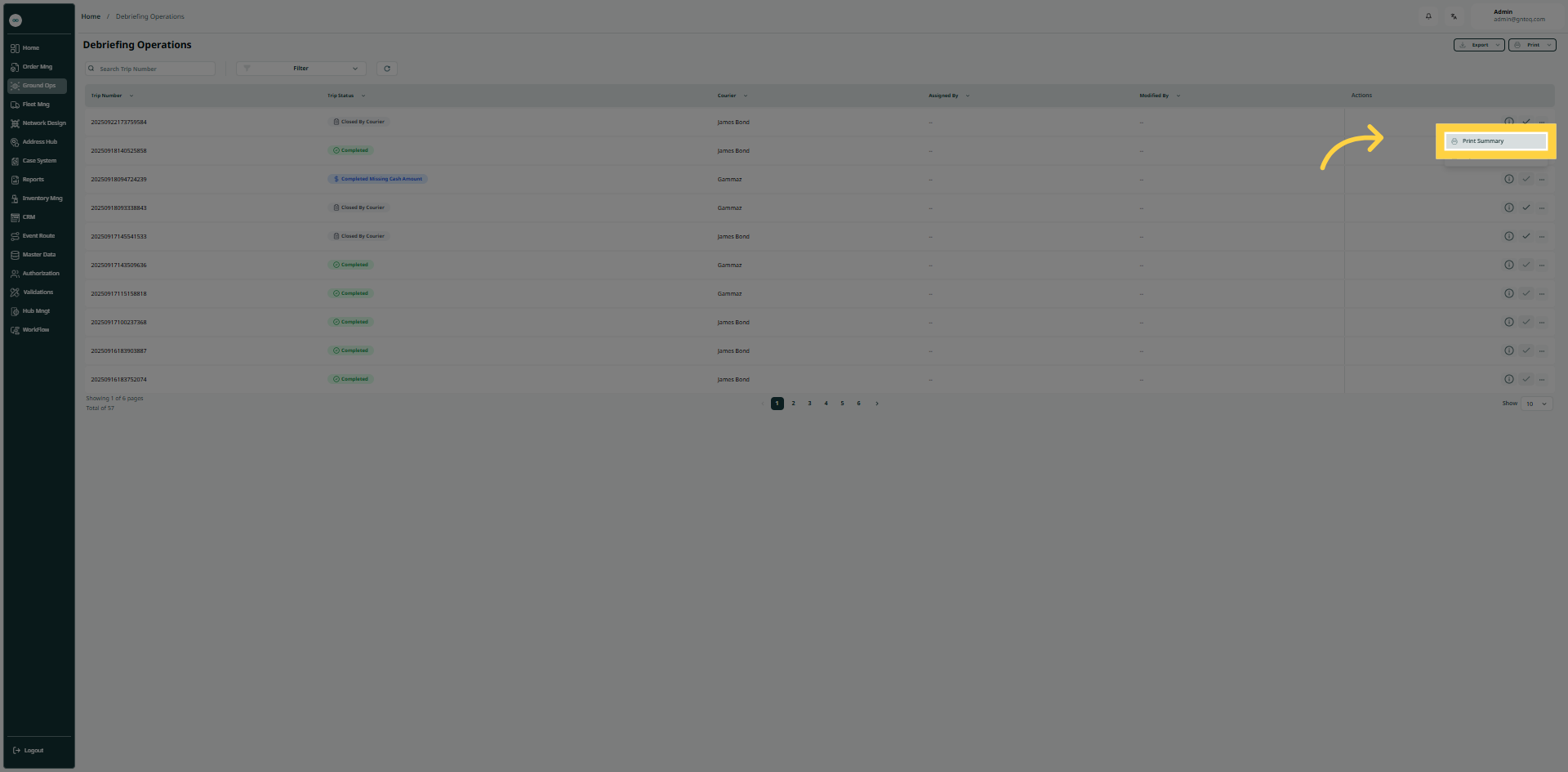
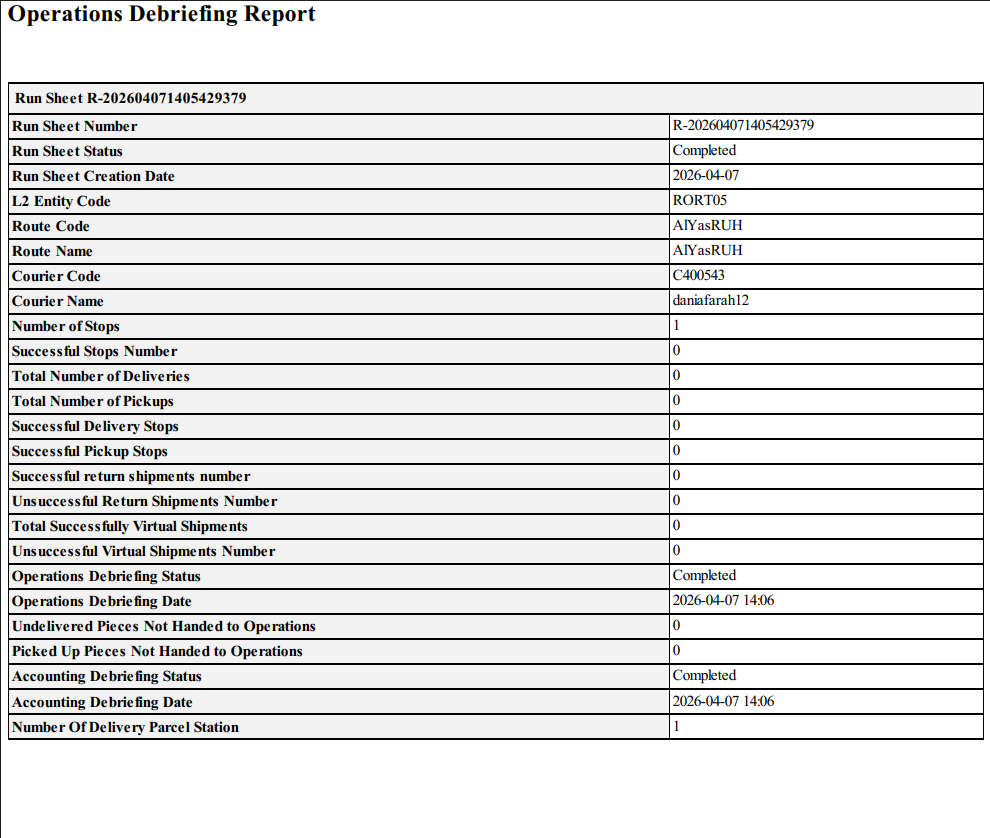
The user can print a summary by navigating to the ‘Debriefing Operations’ screen via the Operations module and clicking on Print Summary from Actions as follows:
1.4 Export Details
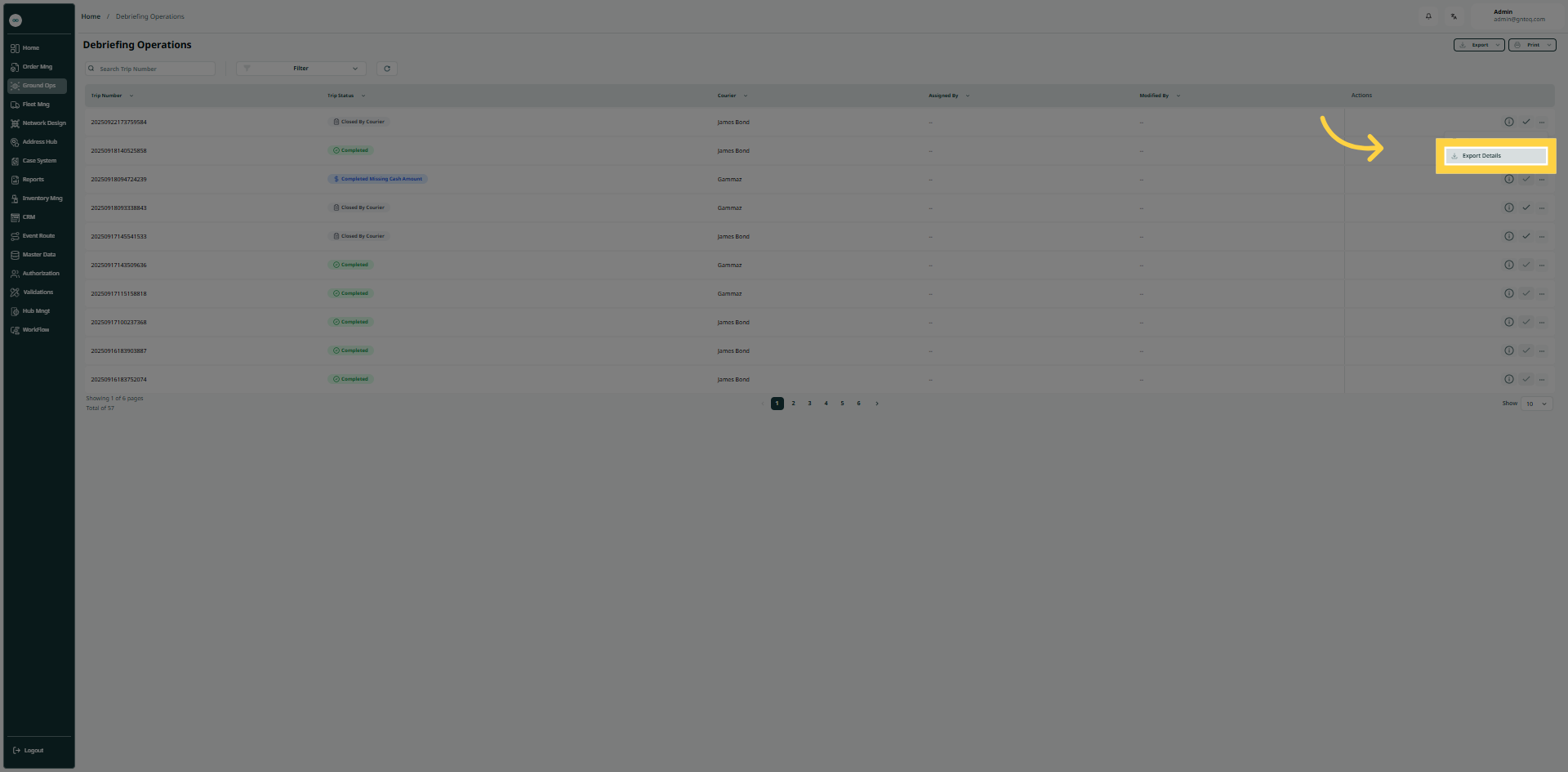
The user can export details by navigating to the ‘Debriefing Operations’ screen via the `Operations module and clicking on Export Details from Actions as follows:
1.5 Preform OPS Debriefing
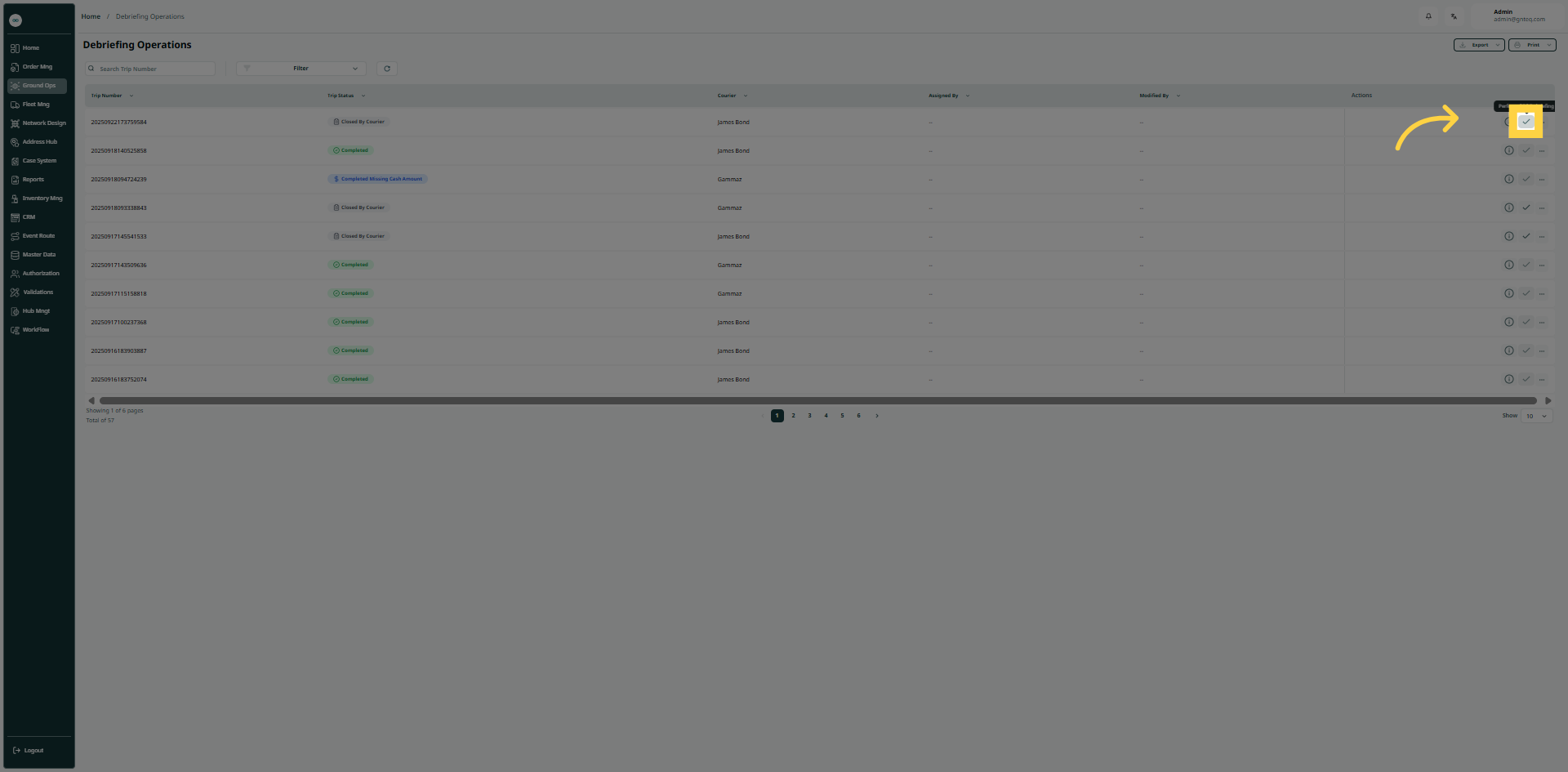
The user can export details by navigating to the ‘Debriefing Operations’ screen via the Operations module and clicking on Export Details from Actions as follows:
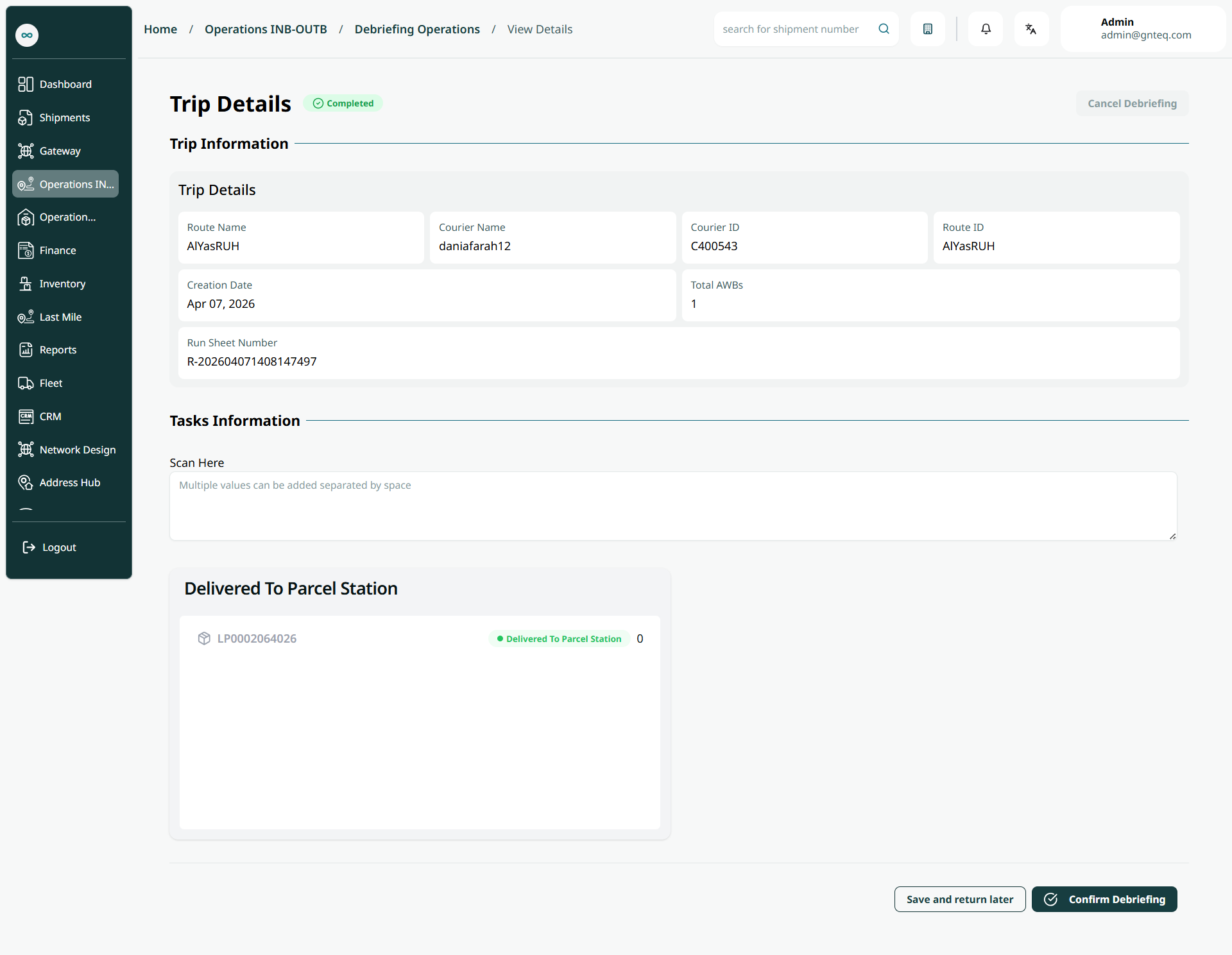
Note: the user can either scan shipments or manually add them to check the shipment status.
By clicking on ‘Confirm Debriefing’, the debriefing will be complete successfully.