.png)
The Run Sheet module allows users to manage the run sheets. These include creating, viewing, editing, deleting, and assigning, or un-assigning shipments, helping ensure efficient tracking and logistics operations
1. Add New Run Sheet
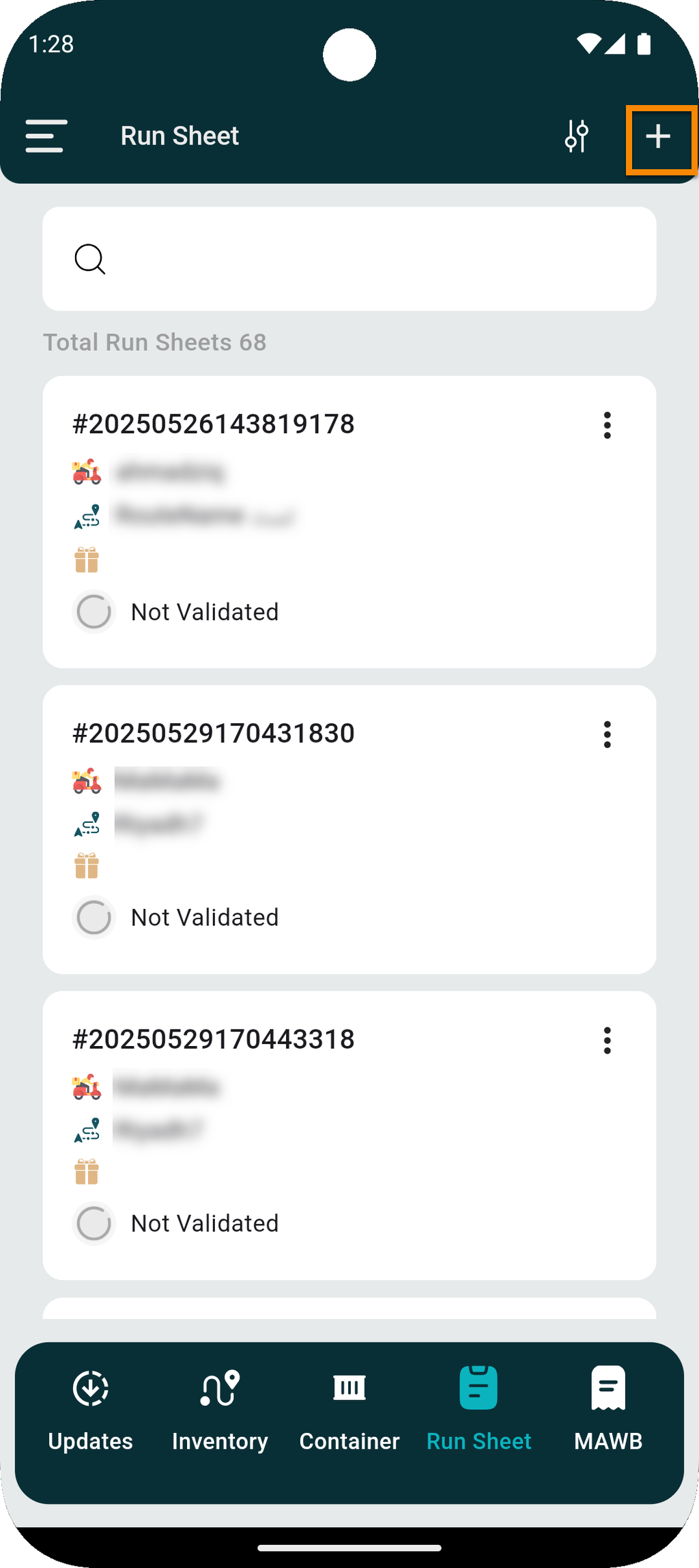
The user can add a new run sheet by navigating to the ‘Run Sheet’ screen tab and clicking on the (+) icon.
-
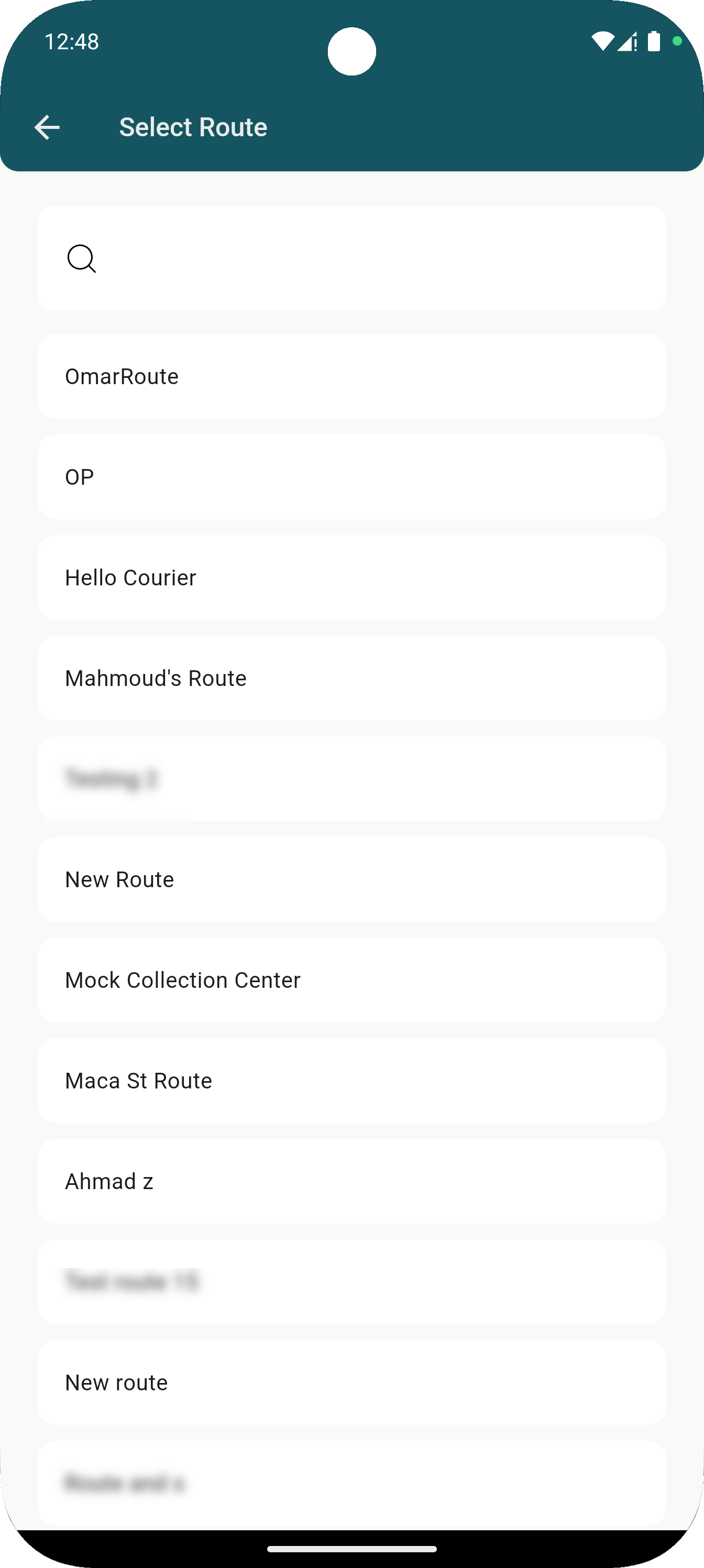
Select a certain route for the courier trip.
-
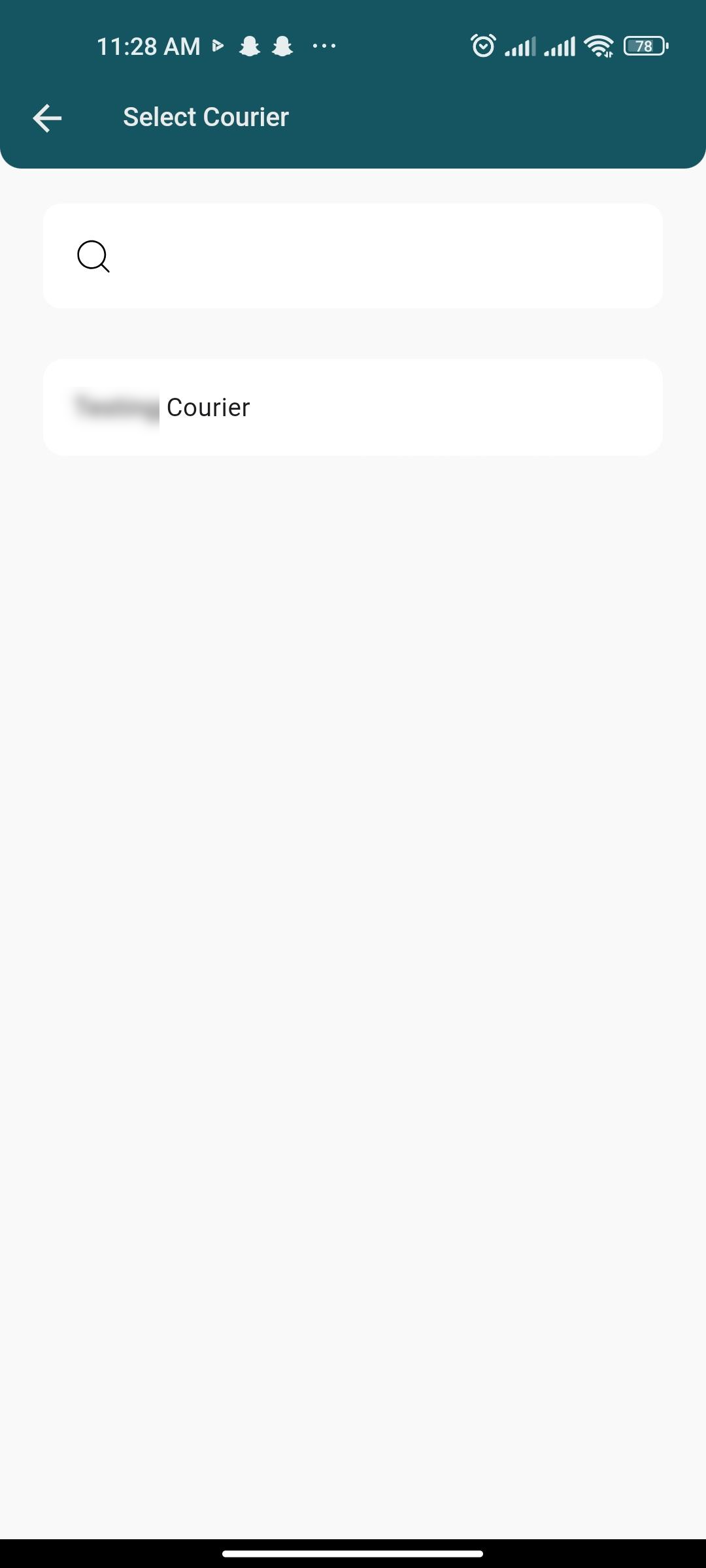
Select a certain courier for the trip.
-
Add shipments to the courier trip by scanning bar code or entering ARWS manually.
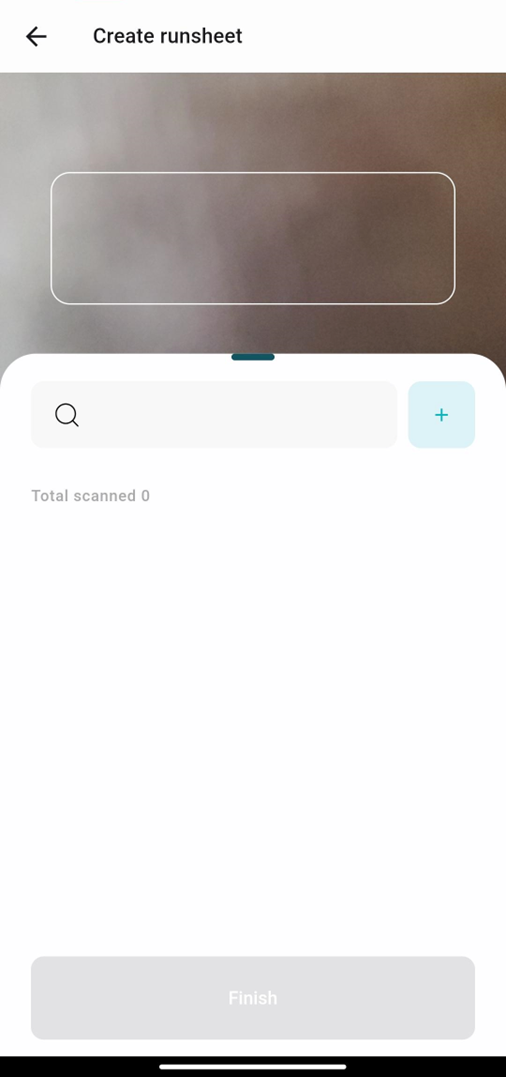
By clicking on Finish, the run sheet will be added successfully to the system in draft.
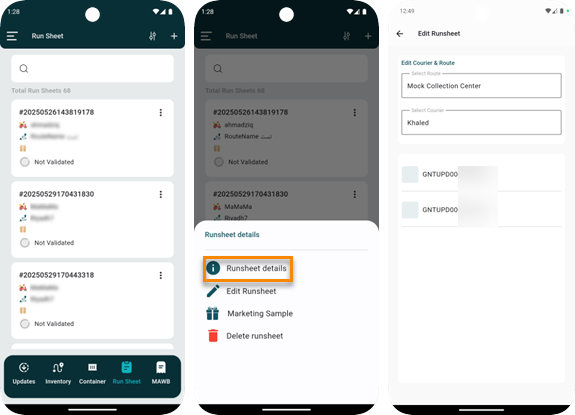
2. Run Sheet Details
The user can edit an existing run sheet by clicking on Runsheet Details from Actions through the ‘Run sheet’ tab as follows:
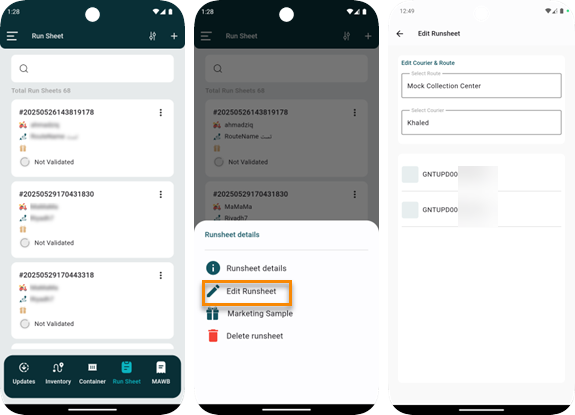
3. Edit Run Sheet
The user can edit an existing run sheet by clicking on Edit Runsheet from Actions through the ‘Run Sheet’ tab as follows:
4. Marketing Sample
The user can add new marketing sample for customs customers the run sheet by clicking on Marketing Sample from Actions through the ‘Run Sheet’ tab as follows:
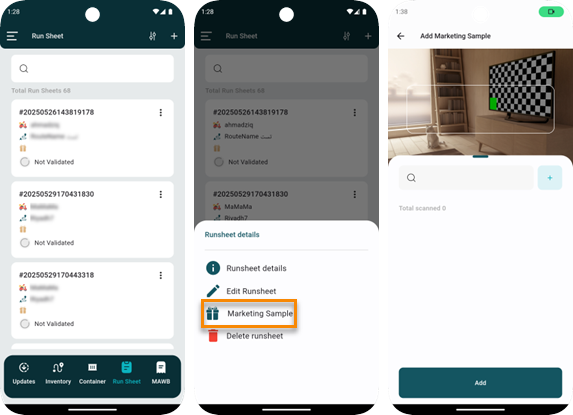
Note: by clicking on Add, the user can start adding a marketing sample by scanning it or entering it manually.
4. Delete Run Sheet
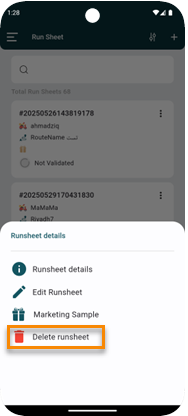
The user can delete an existing run sheet by clicking on Delete Runsheet from Actions through the ‘Run Sheet’ tab as follows: