.png)
1. Shipment Types
1.1 Dashboard
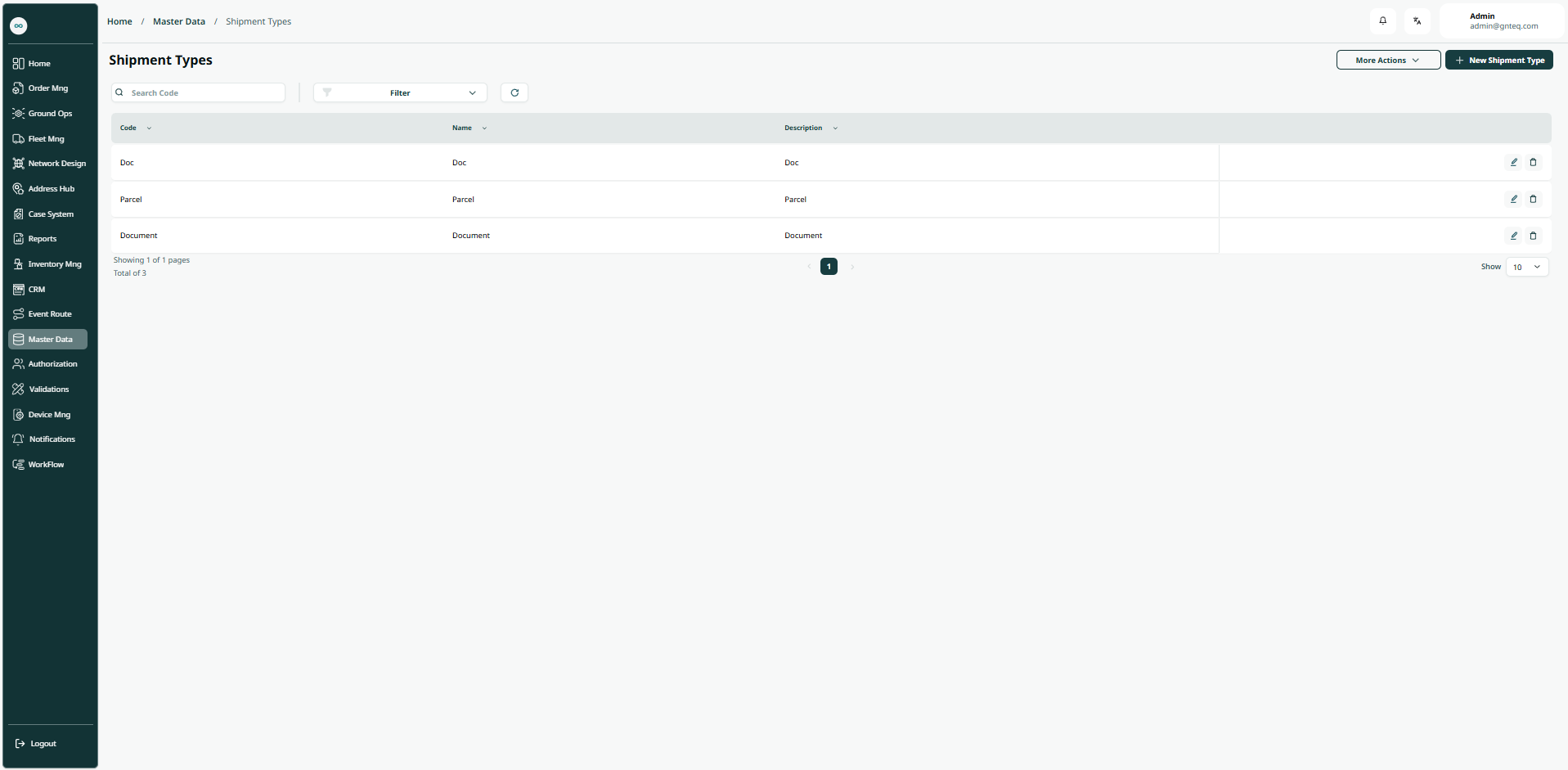
The user can view the defined shipment types in the system by navigating to the ‘Shipping Types’ screen in the Master Data from the left navigation panel as follows:
-
New Shipment Type: the user can add a new shipment type by clicking New Shipment Type button.
-
Export: the user can export the list as an Excel file by selecting export button.
-
Import: the user can upload the list as an Excel file by selecting import button.
-
Download template: the user can click on ‘Download Template’ to download a certain detail from the dashboard.
-
Filters: the user can search for the shipment type by the name, code ………etc.
-
Rows Per Page: the user can select the number of items to show on each page.
-
Action: by clicking on this button the user can edit, delete.
1.1.1 Edit Information
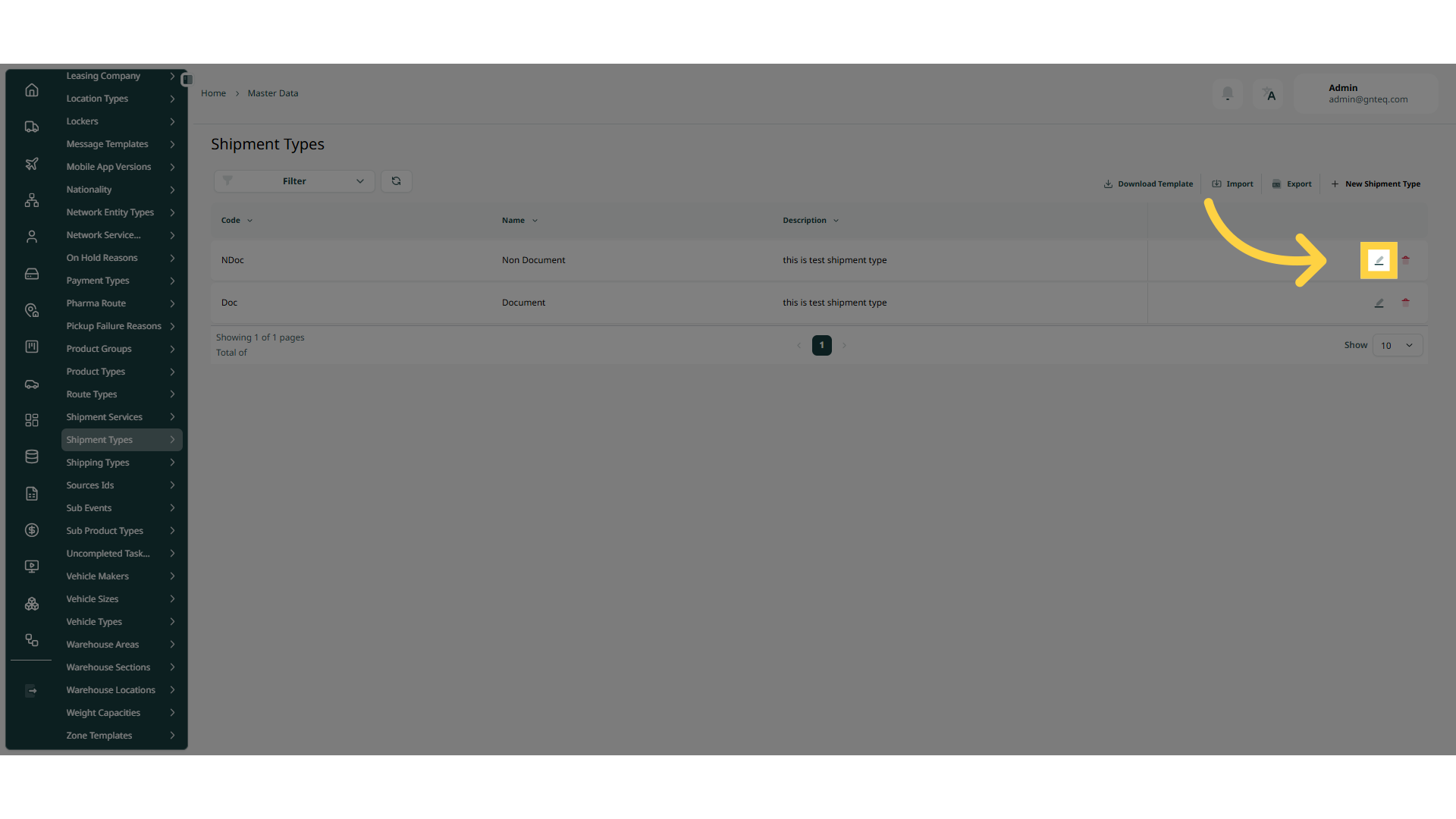
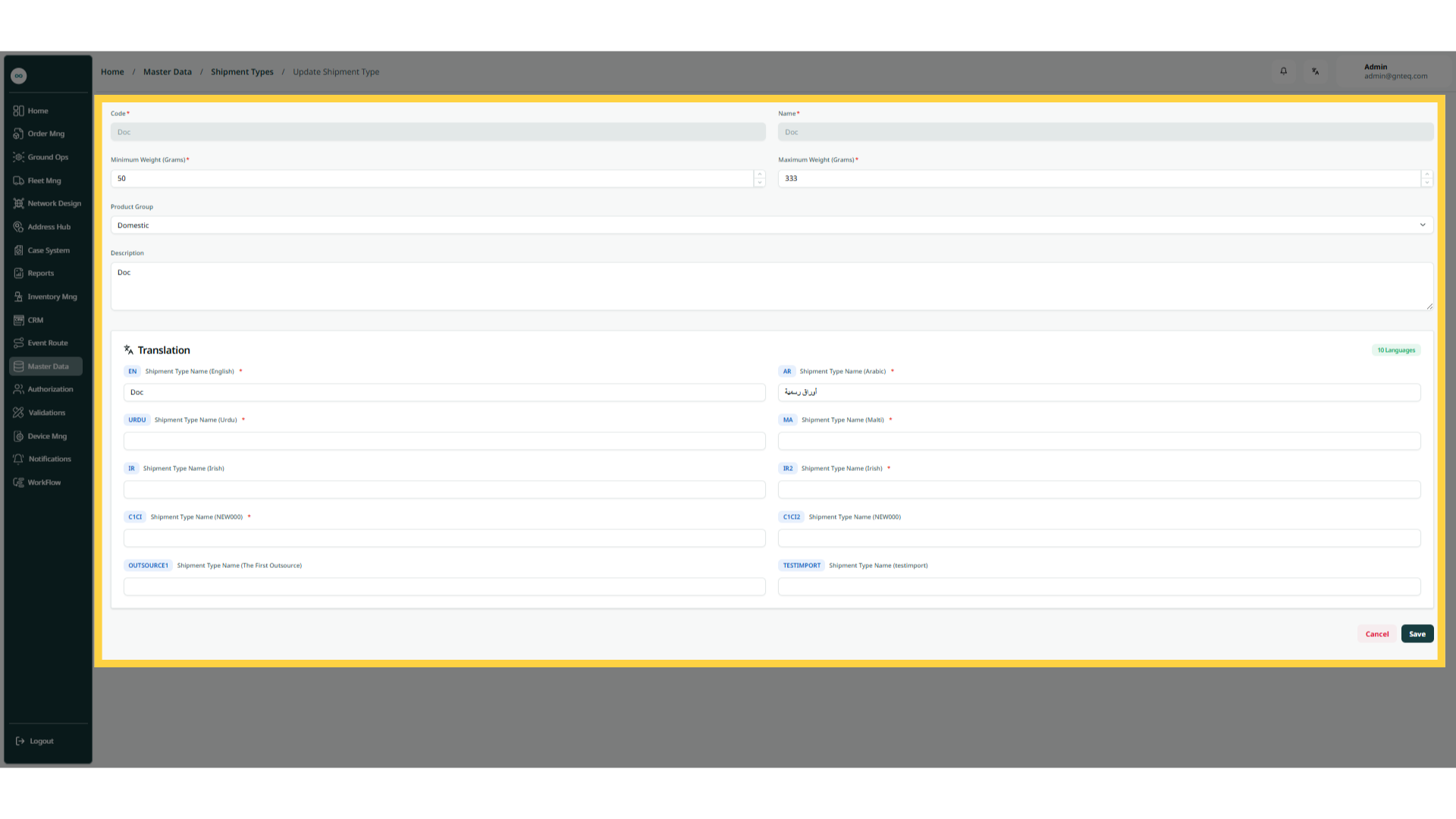
The user can edit the information of an existing shipment type clicking on Edit from Actions by navigating to the ‘Shipment Types’ screen via the Master Data.
1.1.2 Delete Shipment Service
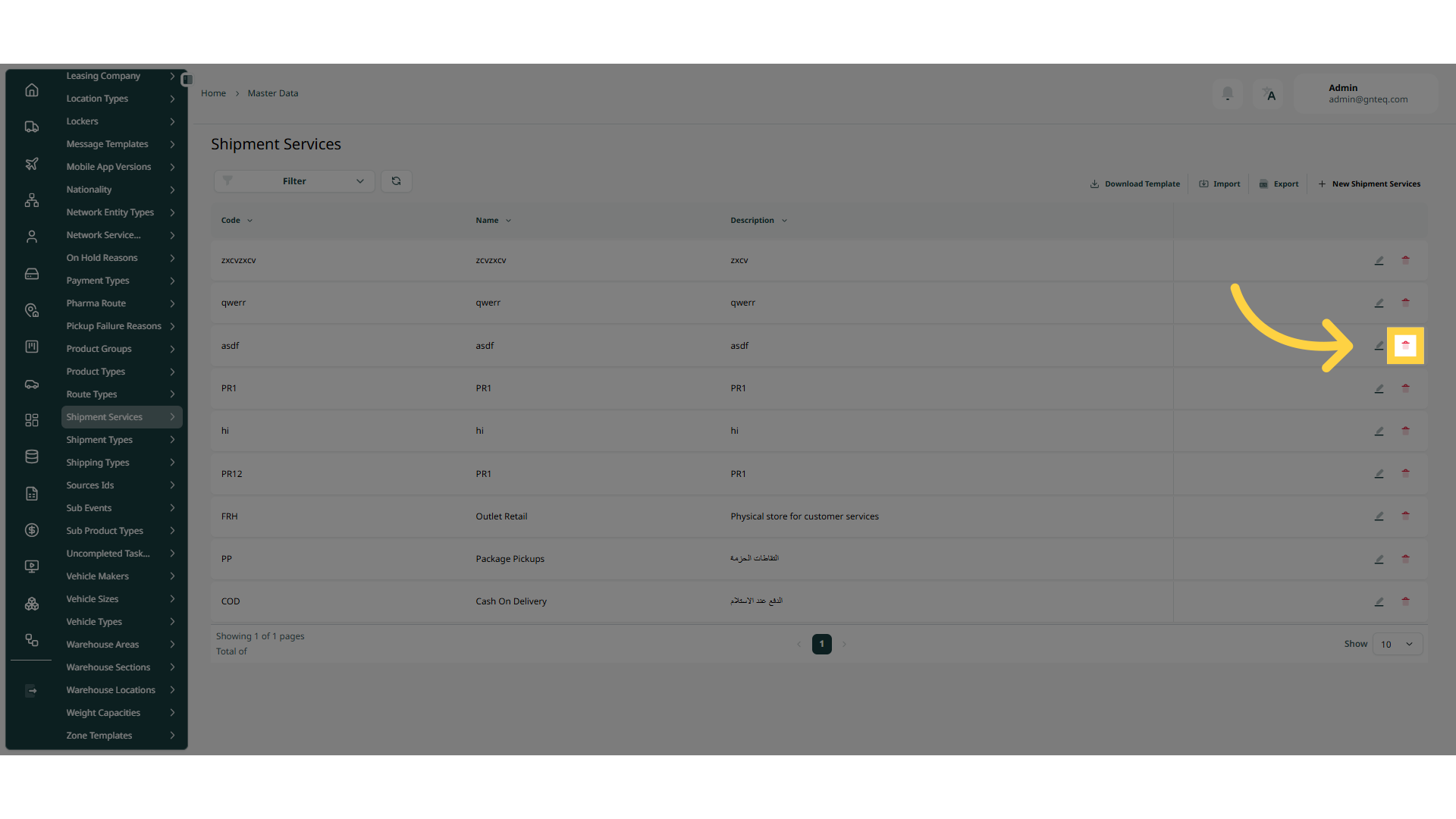
The user can delete the information of an existing shipment type clicking on Delete from Actions by navigating to the ‘Shipment Type’ screen via the Master Data.
1.2 Add New Shipment Types
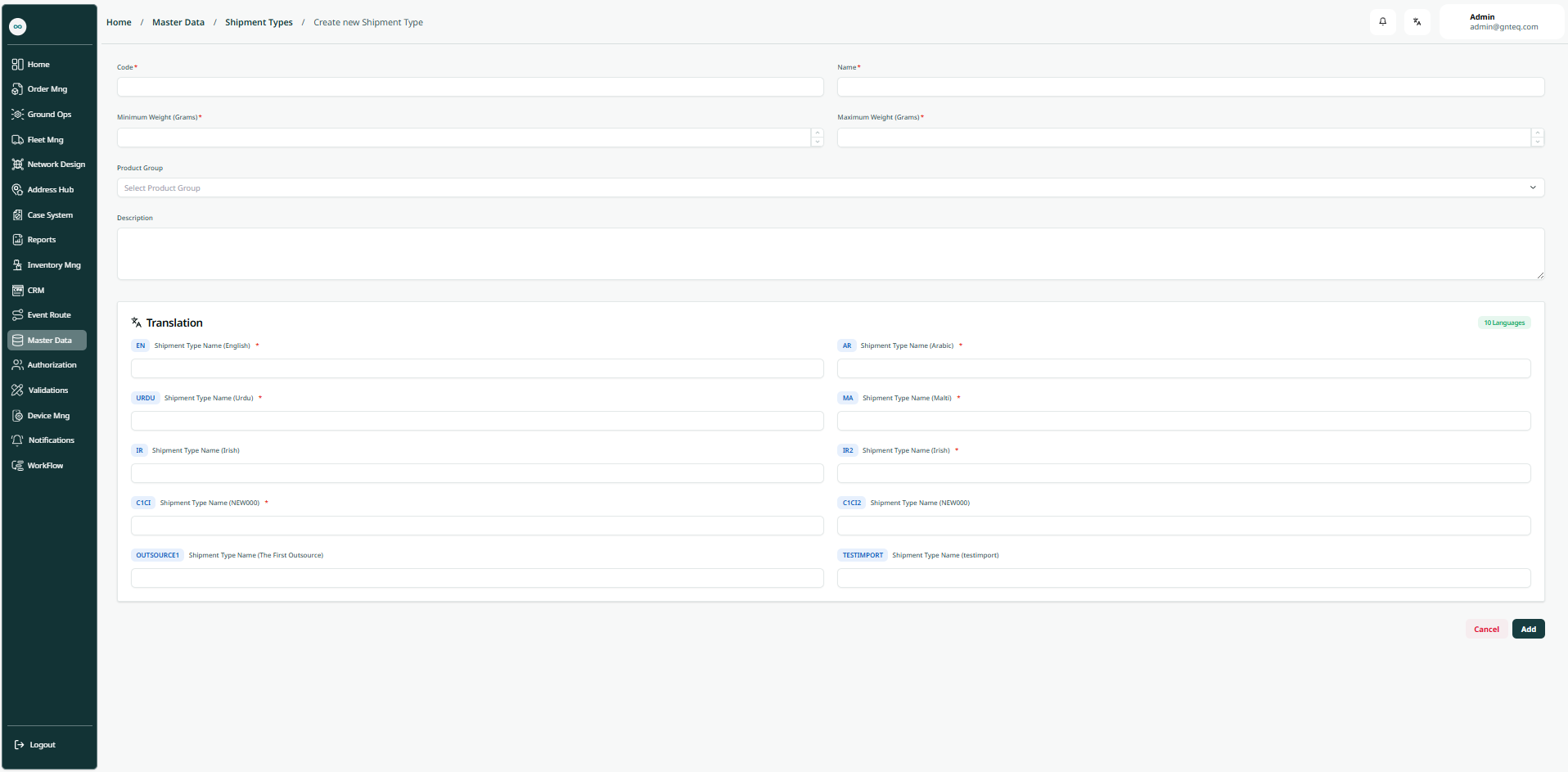
The user can create a new shipment type by clicking on New Shipment Type by navigating to the ‘Shipment Types’ screen via the Master Data.
-
Code: this field represents the shipment type alphanumeric value.
-
Name: this field represents the shipment type name.
-
Maximum Wight (Grams): this field represent the most weight.
-
Minimum Wight (Grams) this field represent the minimum weight.
-
Product Group: this field represents the delivery service ( international, domestic).
-
Description: this field represents a detailed description of the shipment type.
-
Shipment Type Name (English): this field represents the shipment type name in english.
-
Shipment Type Name (Arabic): this field represents the shipment type name in arabic.
By clicking on Add, the shipment type will be added successfully.