.png)
1.Service Profile
1.1 Dashboard
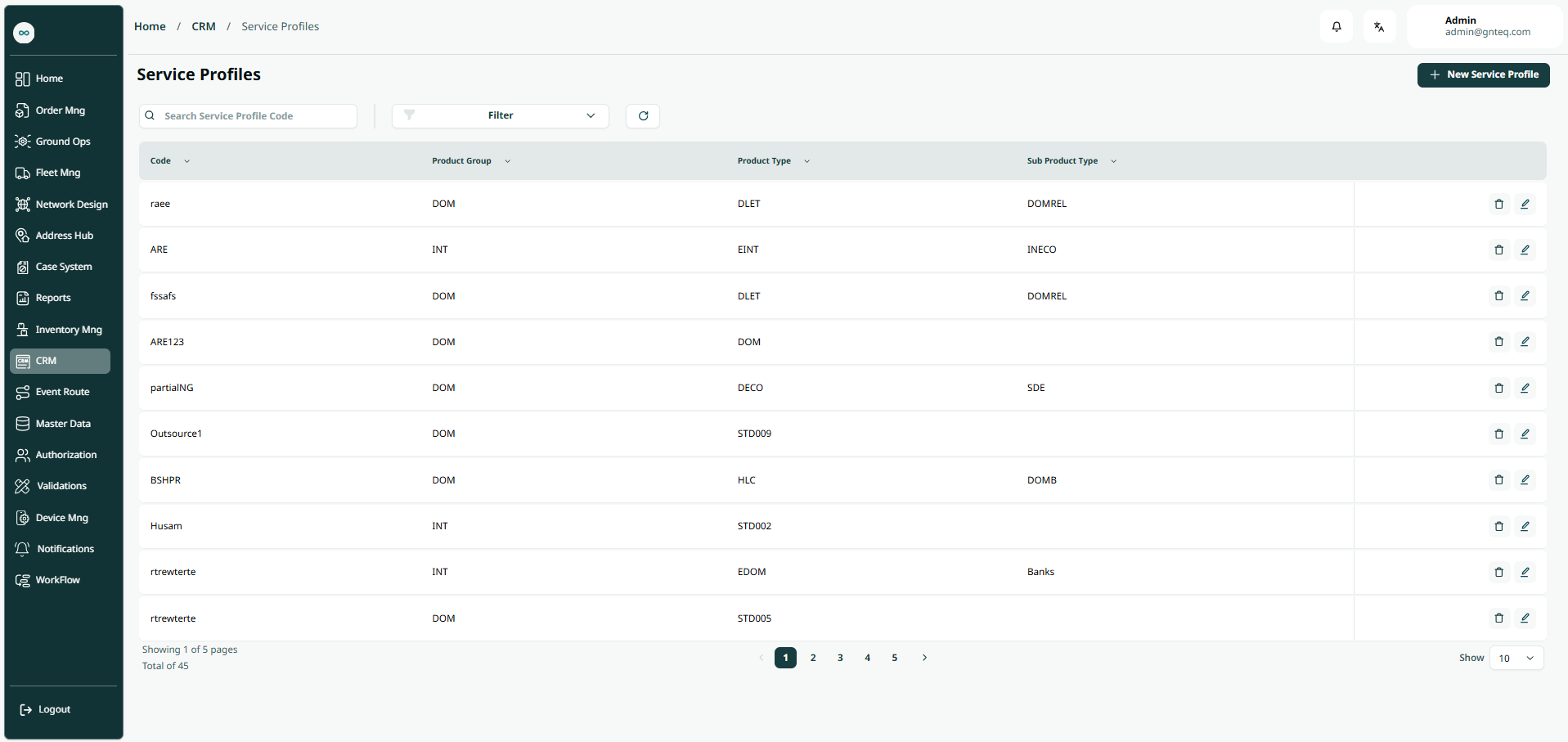
The user can view the defined service profile in the system by navigating to the ‘Service Profiles’ screen in the CRM Module from the left navigation panel as follows:
-
New Service Profile: the user can add new service profile by clicking on New Service Profile.
-
Filter: the user can search for the service profile by typing the product group, product type, sub product type.
-
Search: the user can search for service profile by entering the service profile code.
-
Rows Per Page: the user can select the number of items to show on each page
-
Actions: by clicking on Actions, the user can edit service profile details, delete the customer profile.
1.1.1 Edit Service Profile
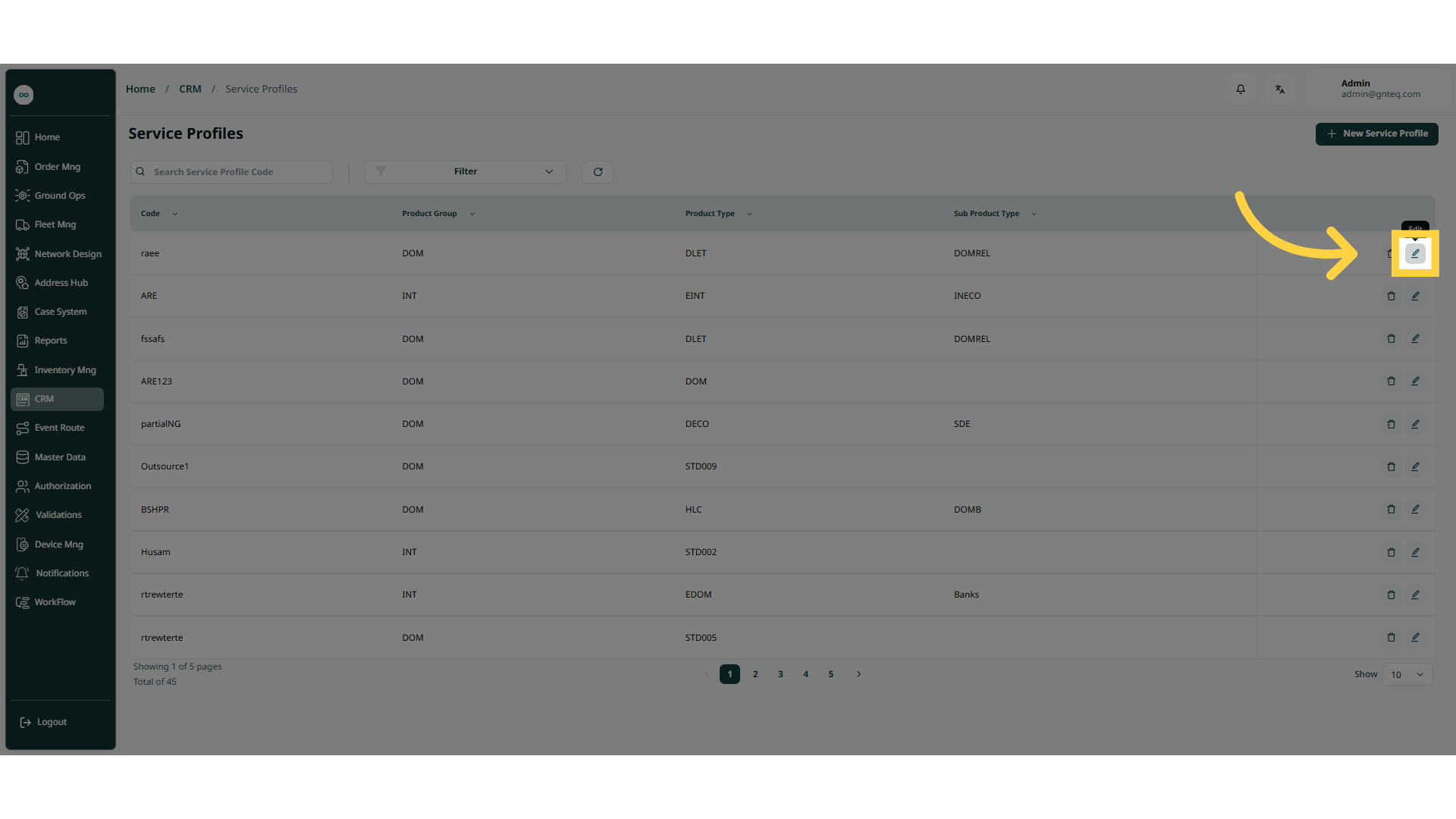
The user can edit information of an existing service profile by navigating to ‘Service Profiles’ Screen via CRM Module and click on Edit from Actions as follows:
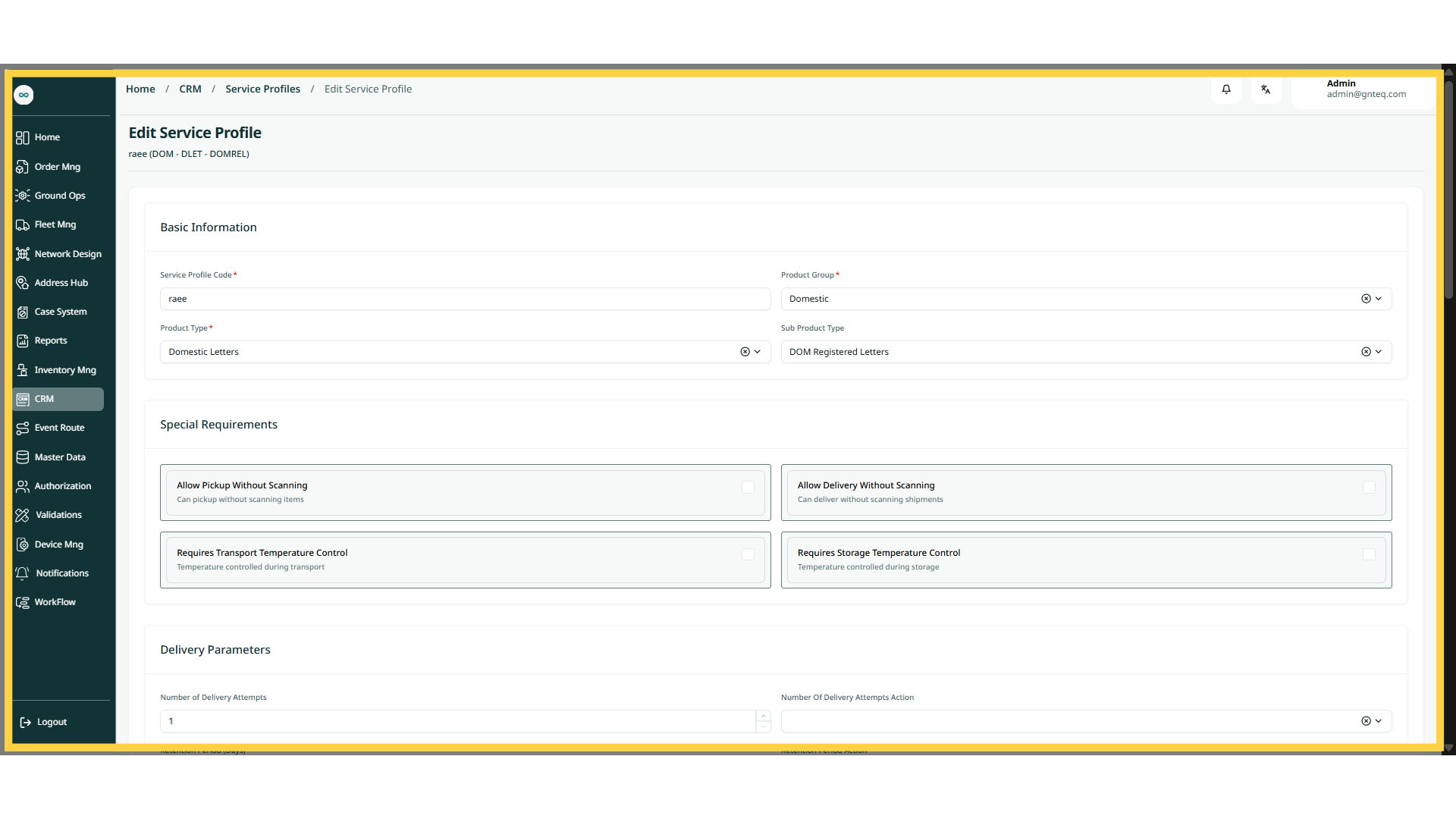
By clicking Save Changes, the information will be successfully edited in the system.
1.1.2 Delete Service Profile
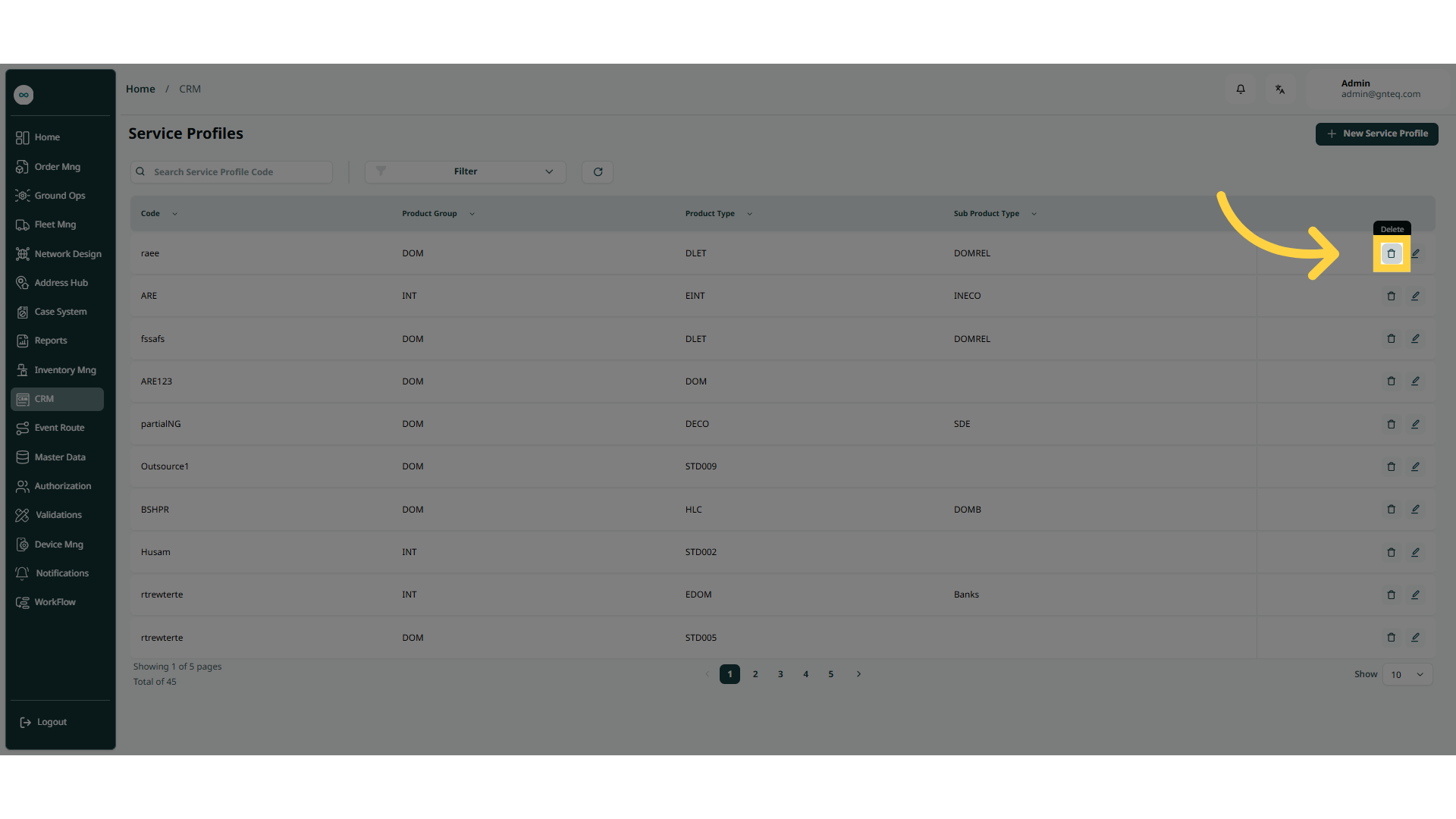
The user can delete information of an existing service profile by navigating to ‘Service Profiles’ Screen via CRM Module and click on Delete from Actions as follows:
1.2 Add New Service Profile
The user can add new service profile by navigating to the ‘Service Profiles’ screen via the CRM Module and clicking on New Service Profile button:
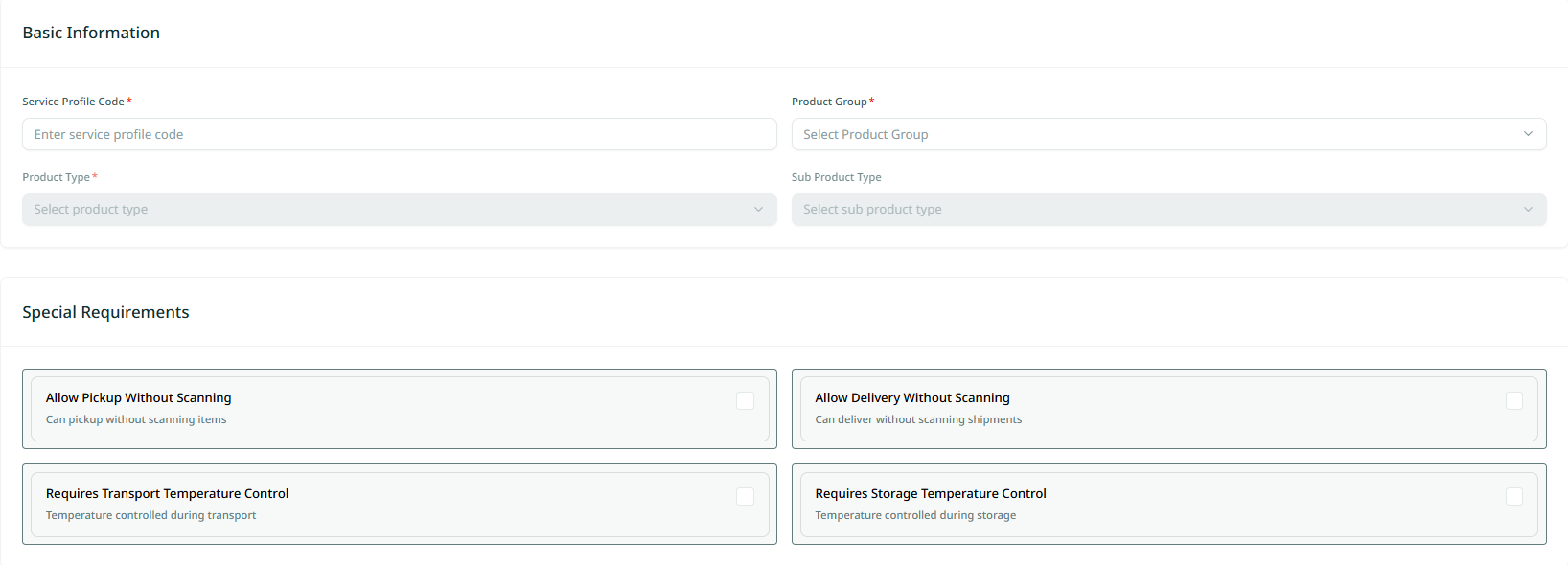
Basic Information
-
Product Group: this field represents the delivery service.
-
Product Type: this field represents the delivery service type e.g., Home Delivery, Office Delivery, Drop Off, etc.
-
Sub Product Type: this field represents the delivery service sub type(banks, government documents, …….etc.).
-
Service Profile Code: this field represent the service profile code.
-
Allow Pickup Without Scanning (checkbox): This field represents that items can be picked up without scanning.
-
Allow Delivery Without Scanning (checkbox): This field represents that items can be delivered without scanning.
-
Require Transport Temperature Control (checkbox): This field represents that temperature control is required during transit.
-
Require Storage Temperature Control (checkbox): This field represents that temperature control is required during storage.
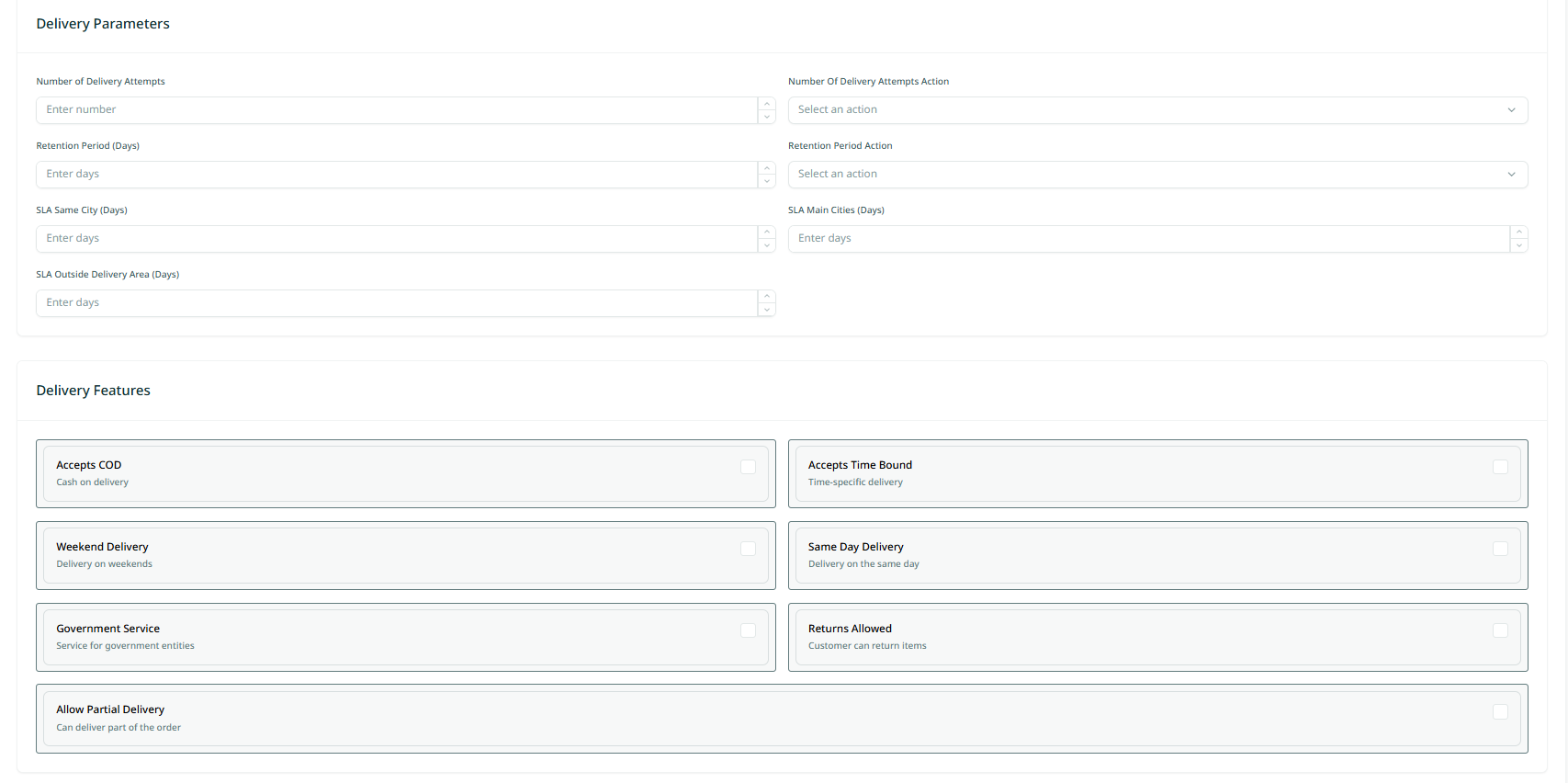
Delivery Parameters
-
Number of Delivery Attempts: This field represents the number of delivery attempts.
-
Number of Delivery Attempts Action: This field represents the action for the number of delivery attempts.
-
Retention Period: This field represents the number of days of the retention period.
-
Retention Period Action: This field represents the action for the retention period.
-
SLA Same City (Days): This field represents the number of days required for service in the same city.
-
SLA Major Cities (Days): This field represents the number of days required for service in major cities.
-
SLA Outside Delivery Area (Days): This field represents the number of days required for service outside the delivery area.
Delivery Features
-
Accept Cash on Delivery (checkbox): This field represents the ability to pay upon receipt of the shipment.
-
Accept Timed Bound (checkbox): This field represents the ability to specify a specific delivery time.
-
Allow Partial Delivery (checkbox): This field represents the ability to allow partial delivery.
-
Weekend Delivery (checkbox): This field represents the ability to allow delivery on weekends.
-
Same Day Delivery (checkbox): This field represents the ability to allow same-day delivery.
-
Government Service (checkbox): This field represents that the service is provided to government entities.
-
Return Allowed (checkbox): This field represents the ability for the customer to return items.
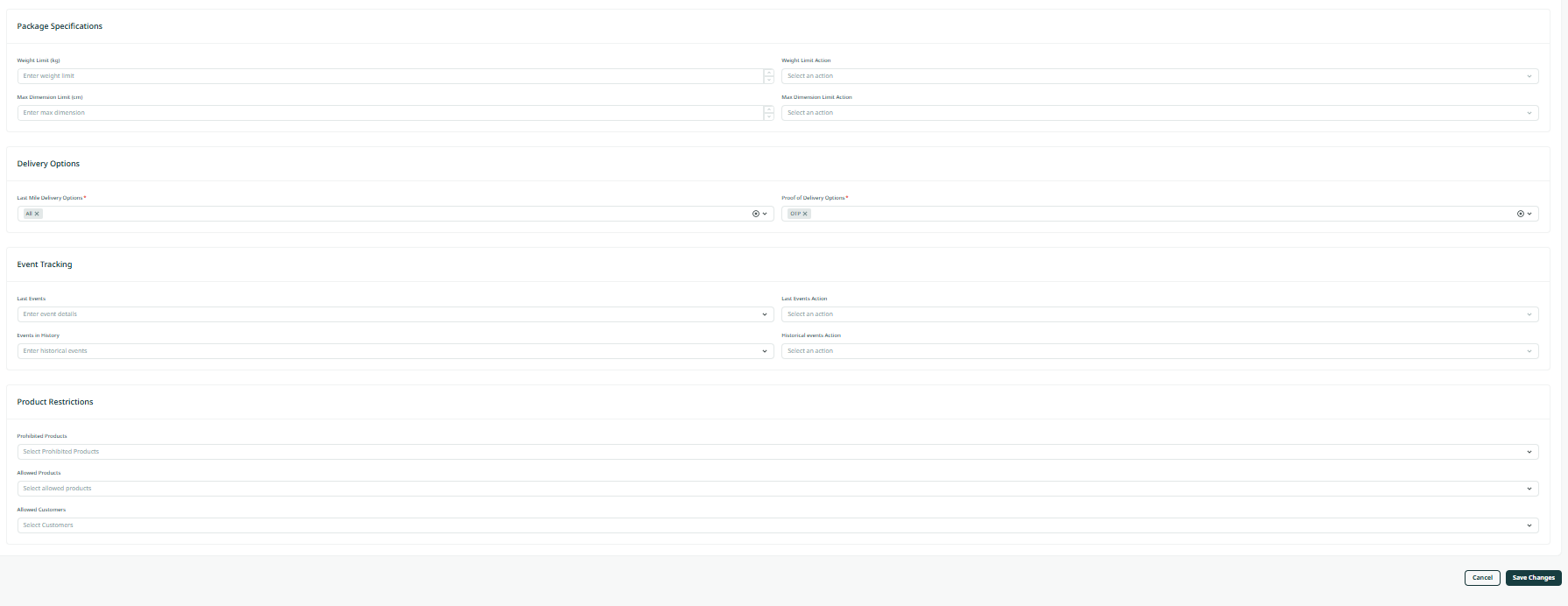
Package Specifications
-
Weight Limit: This field represents the maximum allowable weight value.
-
Weight Limit Action: This field represents the weight limit action.
-
Maximum Dimensions: This field represents the maximum dimensions for the shipment.
-
Maximum Dimensions Action: This field represents the maximum dimensions action.
Delivery Options
-
Last Mile Delivery Options: This field represents the available delivery options.
-
Proof of Delivery Options: This field represents the method for verifying the shipment's arrival.
Event Tracking
-
Latest Events: This field represents the last event on the shipment.
-
Last Events Action: This field represents the action for the last event.
-
Events In History: This field represents the events that the shipment passed through.
-
Historical Events Action: This field represents the action for historical events.
Product Restrictions
-
Prohibited Products: this field represents the items that are strictly forbidden from being shipped.
-
Allowed Products: this field represents the items that are permitted to be shipped.
-
Allowed Customers: this field represents the customers who are authorized to participate or engage with the service.
By clicking on Create Service Profile, will successfully create the file.