.png)
1. Device Creation Overview
2. Dashboard
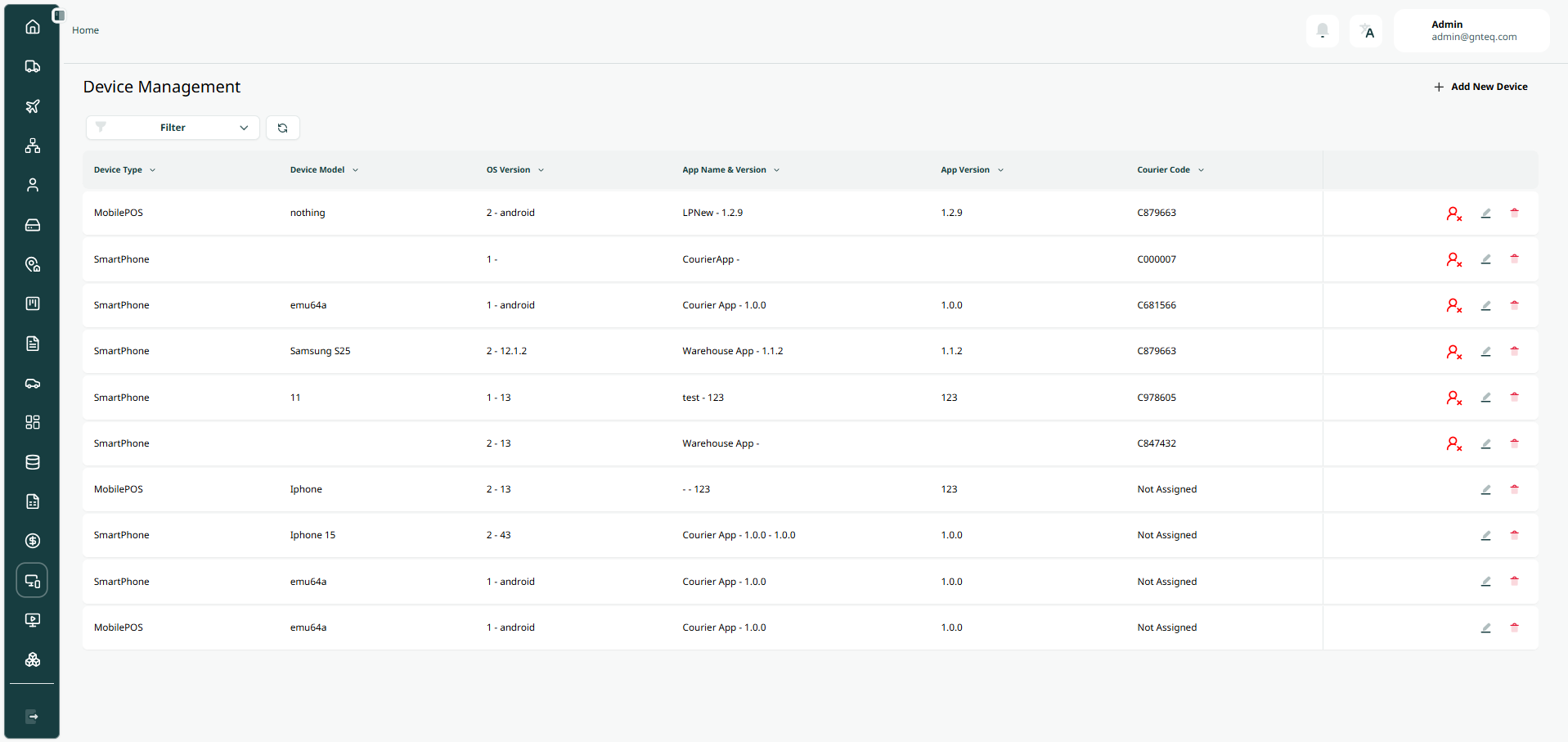
The admin can view the defined devices in the system by navigating to the ‘Device Management’ screen in the Device Management from the left navigation panel as follows:
-
Add New Device: the admin can add new device by clicking on Add New Device button.
-
Filters: the admin can search for the device by the model, app name…..etc.
-
Rows Per Page: the admin can select the number of items to show on each page.
-
Action: by clicking on Actions, the admin can edit information, unassign courier, delete device.
2.1 Edit Information
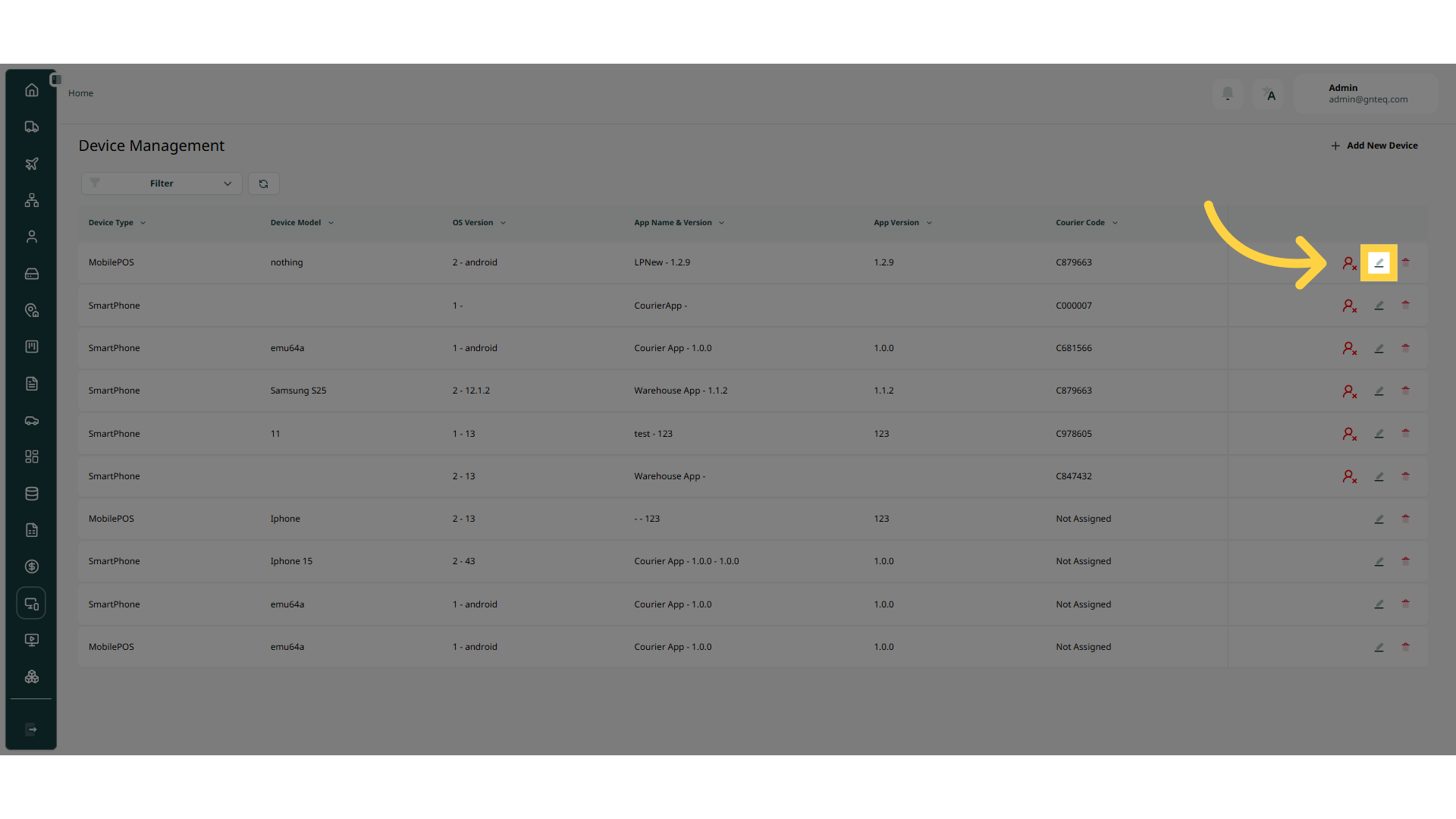
The admin can edit the information of an existing device by clicking on Edit from Actions by navigating to the ‘Device Management’ screen via the Hub Management.
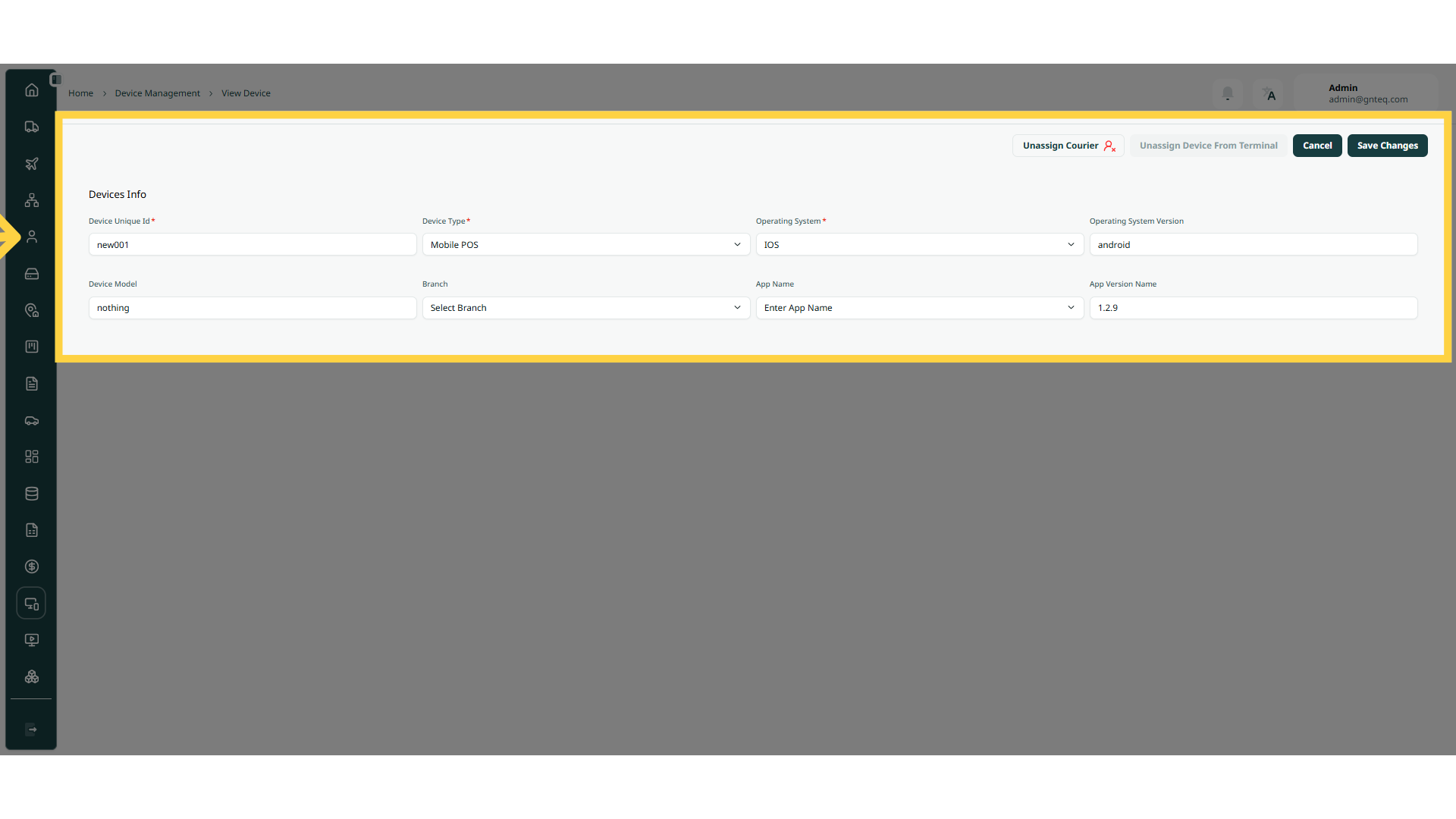
By clicking Save, the information will be successfully updated in the system.
2.1.1 Assign Device to Terminal
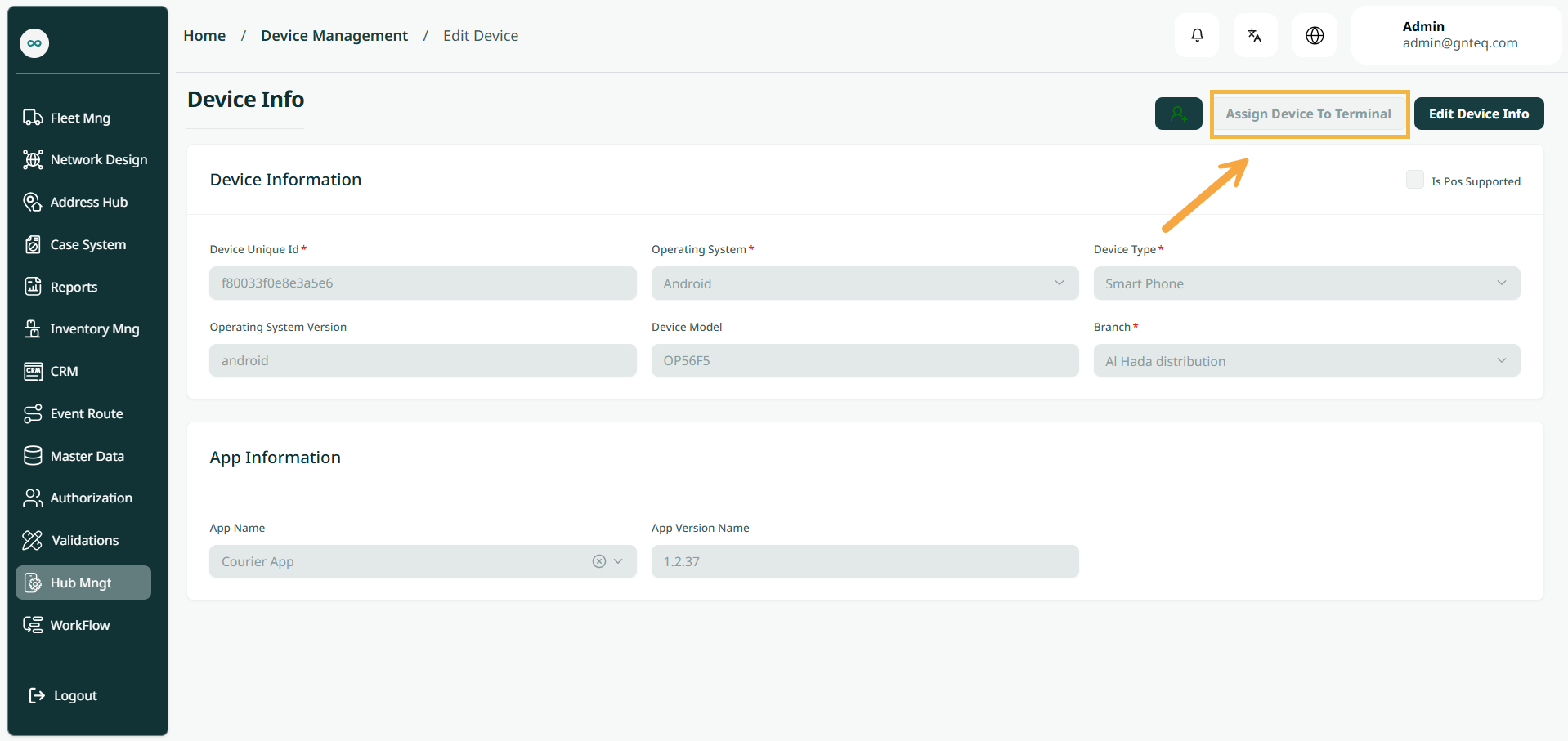
The admin can assign a device to the station by navigating to the “Device Management” screen via the Center Management module, clicking Edit from Actions, and then clicking “Assign Device to Terminal” as follows:
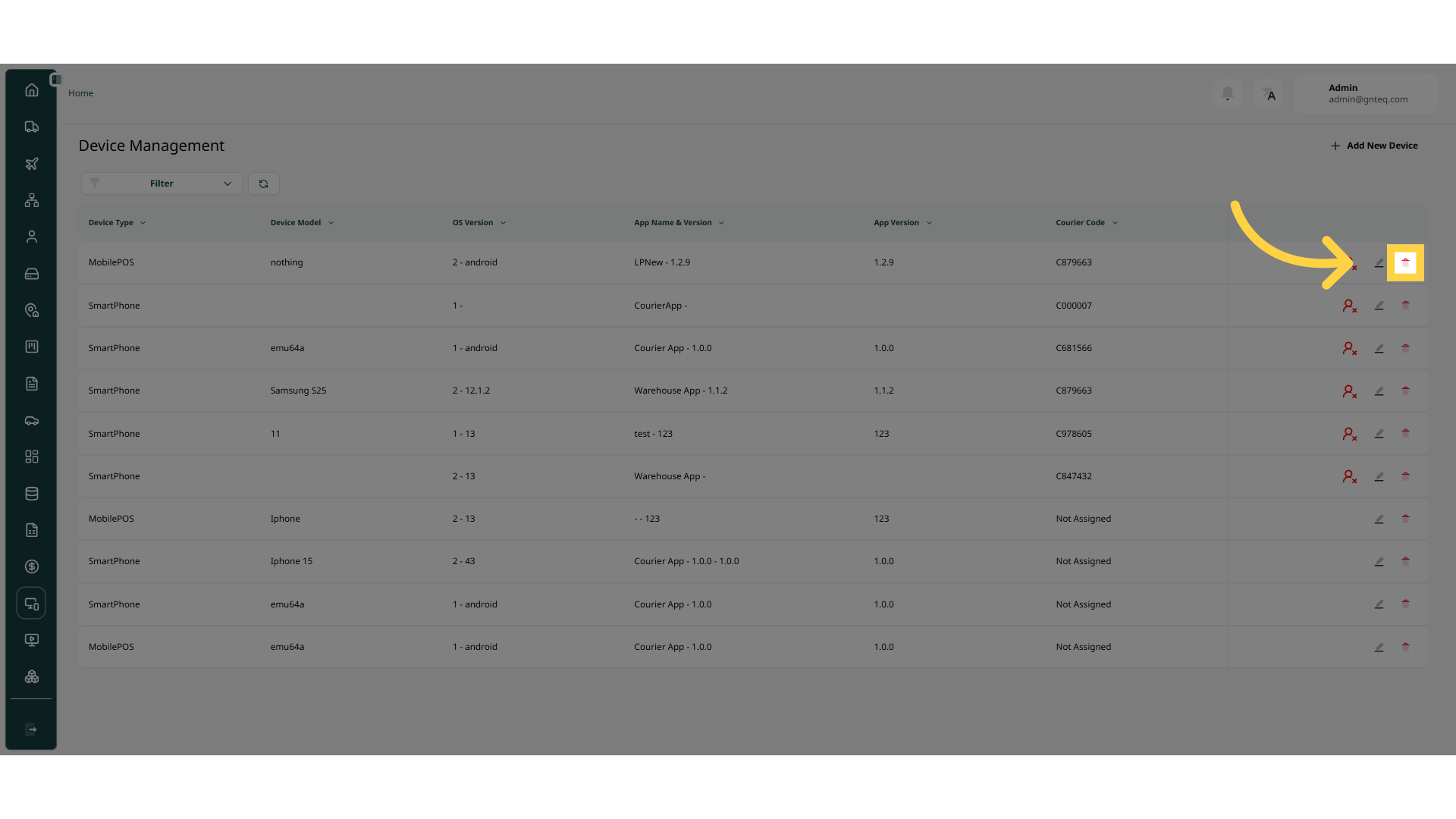
2.2 Delete Device
The admin can delete the information of an existing device by clicking on Delete from Actions by navigating to the ‘Device Management’ screen via the Hub Management.
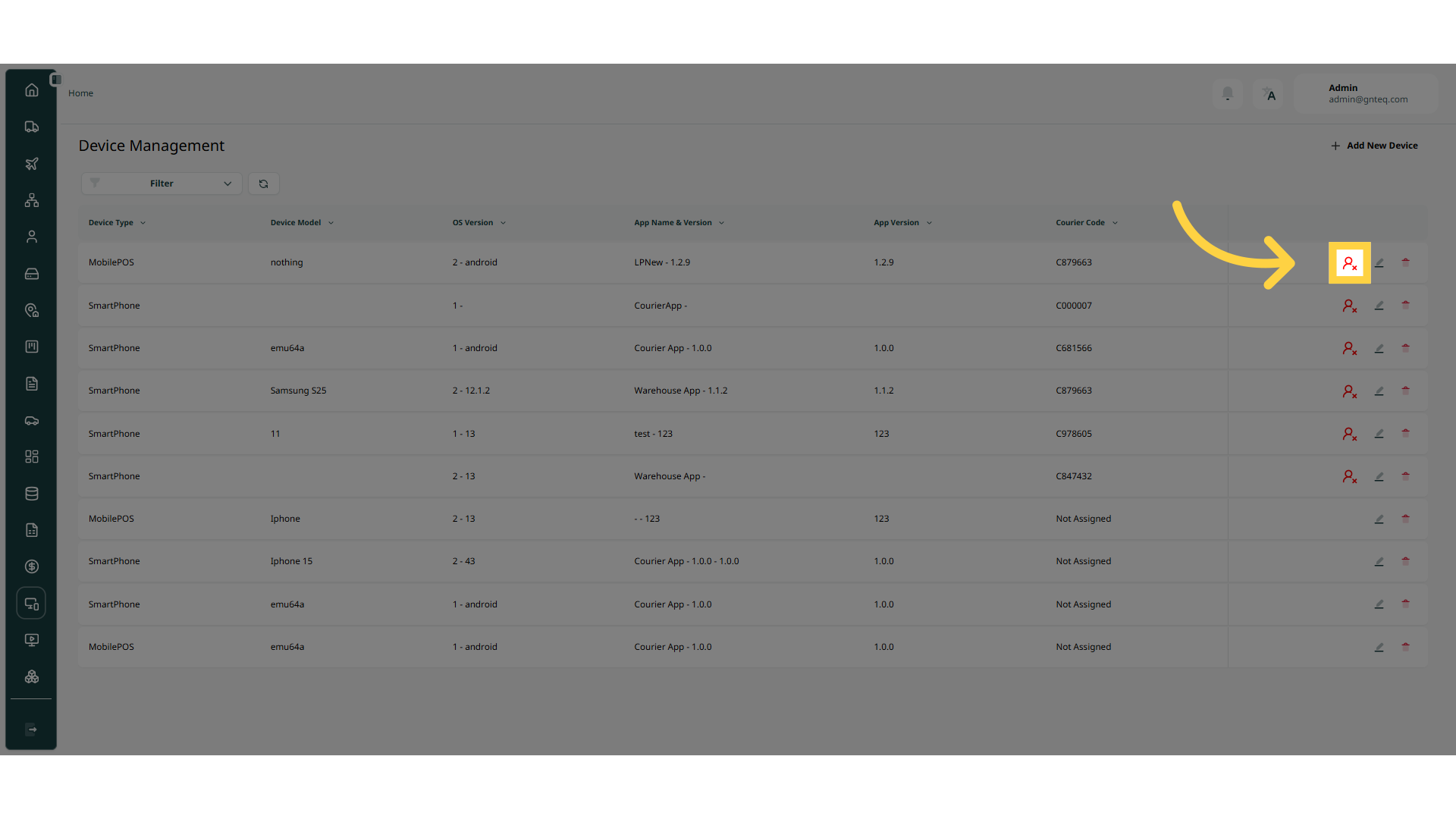
2.3 Unassign Courier
The admin can unassign a courier by clicking on Unassign from Actions by navigating to the ‘Device Management’ screen via the Hub Management.
3. Add New Device
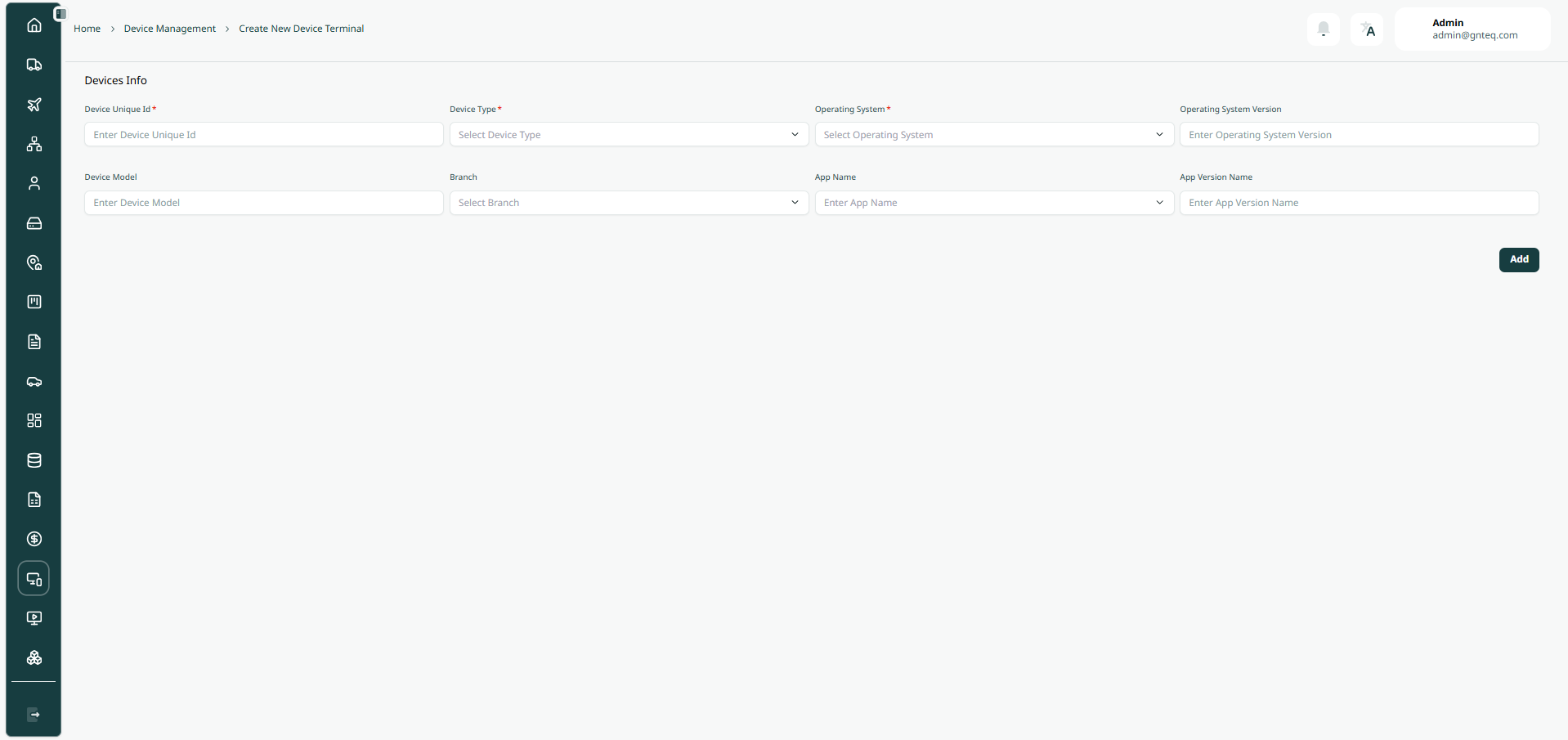
The admin can create a new device by clicking on Add New Device by navigating to the ‘Device Management’ screen via the Hub Management.
-
Device Unique Code: this field represent the device unique alphanumeric value.
-
Device Type: this field represent the type of the device (Smart Phone, Mobile POS).
-
Operating System: this field represent the system type implemented in the device.\
-
Operating system Version: this field represent the system version.
-
Device Model: this field represent the model of the device.
-
Branch: this field represent the name of the station or center.
-
App Name: this field represent the name of the application (Courier App, Warehouse App).
-
App Version: this field represent the version of the application.
By clicking on Add the device will be added successfully.